
Some jobs need more than one person. The Additional operators add-on lets you add helpers to a ticket alongside its main operator. Each helper sees the job on their phone and tracks their own time, so their hours show up in timesheets and in the job’s cost.
This is an add-on that the Dispatch team turns on for your company. There’s nothing to set up once it’s on, and the Add-ons page shows it as Managed by Dispatch. If you’d like it, ask us to turn it on.
Primary and additional operators
Every ticket with helpers has one Primary operator. The primary is the one who starts and completes the ticket, adds notes, photos and expenses, and does everything an operator normally does. Everyone else on the ticket is Additional. Additional operators can see the job and its photos and track their own time, but they can’t start, complete or change the job.
Owners, admins and dispatchers can add and remove people and change who is primary. If your company has renamed tickets or operators in Settings, the buttons use your words.
Add helpers to a ticket
You can add helpers to a ticket that’s pending or in progress once it has a primary operator.
- Open the ticket and find the Operators card, which lists the people on the ticket.
- Under Add people, search for and pick one or more operators.
- Leave Text the job details checked if you want them to get a text about the job.
- Click Add.
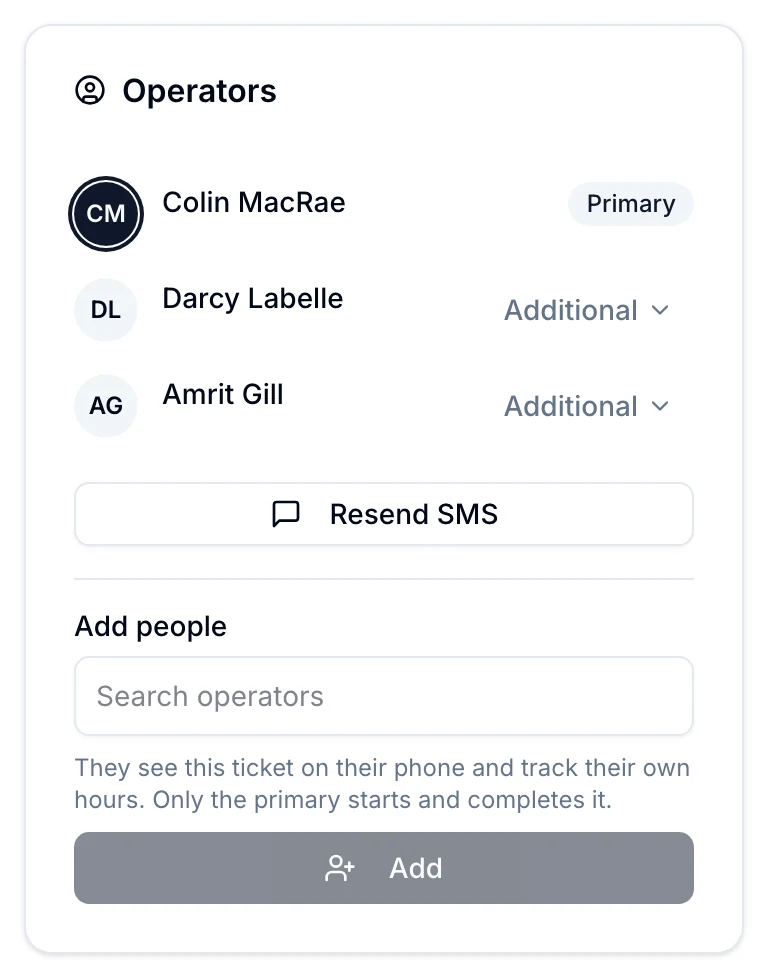
If nobody is assigned yet, you can pick several people at once. The first one you pick becomes the primary.
The picker warns you if someone has missing or expired certificates or hasn’t signed your safety policies, so you can check before sending them.
Change the primary or remove someone
Open the menu next to a person’s name.
- Make primary moves the job to them. They get a text, and the old primary stays on the ticket as additional.
- Remove from ticket takes them off. You can’t remove someone who has already logged time on it. Delete their time entries first if they really shouldn’t be there.
What helpers see on their phone
The job shows in the helper’s job list with an Additional badge. When they open it, it tells them who runs the ticket and that they can track their own time there.
- Once the primary starts the job, the helper taps Start my time.
- When they’re done, they tap Stop my time.
If they forget, every helper’s time stops when the primary completes the ticket.
Hours, payroll and job cost
A helper’s time is saved under their own name, so it appears in timesheets the same way as the primary’s. You can correct it there if it’s wrong. On the job’s costs, labour includes everyone on the ticket at their hourly pay rate.