
The dashboard is the first page owners, admins and dispatchers see after signing in. It shows what needs a decision today and, for owners and admins, how the money is doing. Operators don’t see it. They go straight to their own job list on the phone.
You can come back to it any time from Dashboard at the top of the Work menu.
Note: The dashboard is made for a computer or tablet. On a phone, Dispatch opens the field view instead.
Pick a view
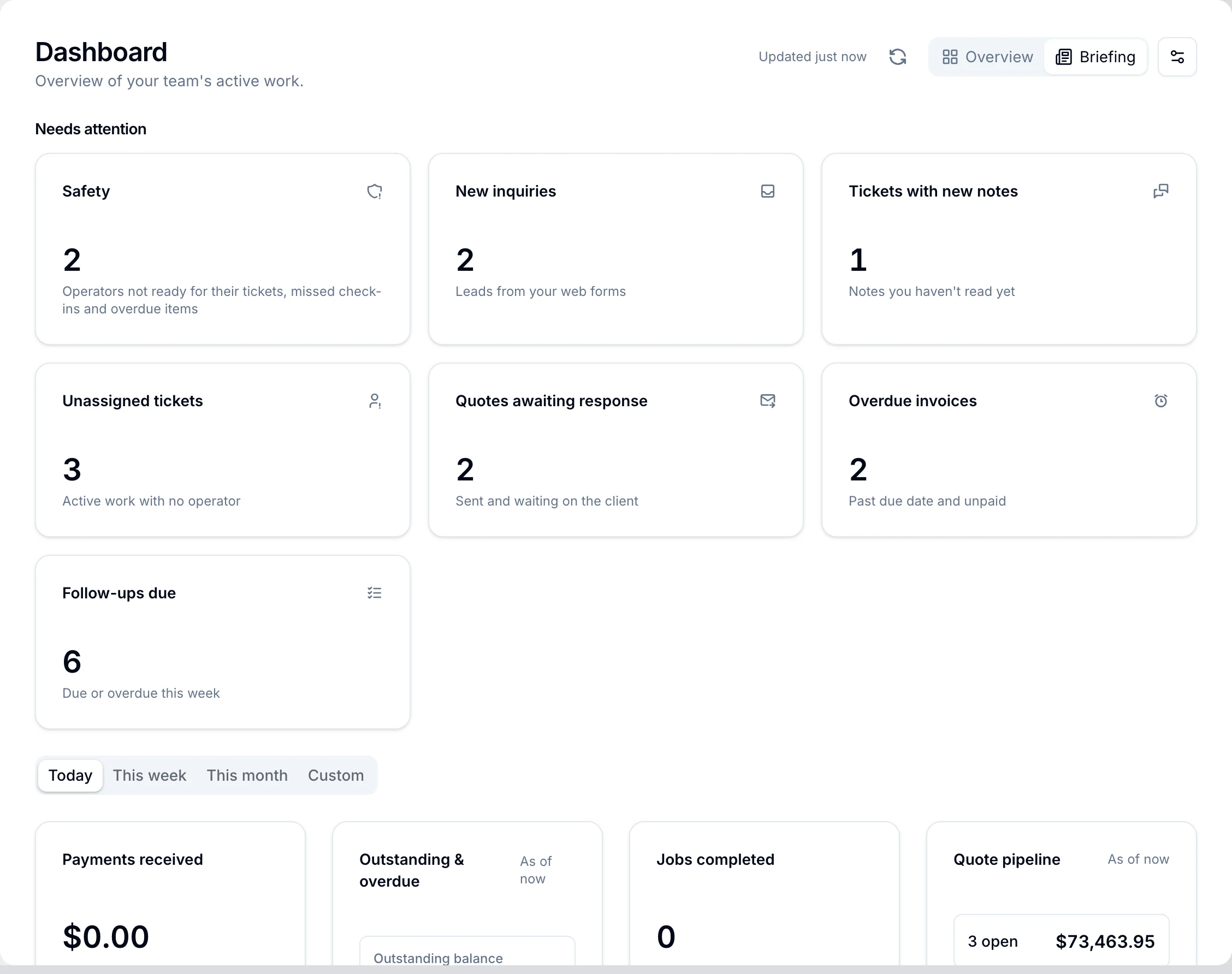
The two buttons at the top right switch between Overview and Briefing. Dispatch remembers your choice, so the next time you sign in you land on the same view. Each person picks their own, so switching doesn’t change anyone else’s dashboard.
- Overview shows tiles and cards with counts and charts.
- Briefing reads like a short morning report: what’s on today, what needs you and what happened recently.
Needs attention
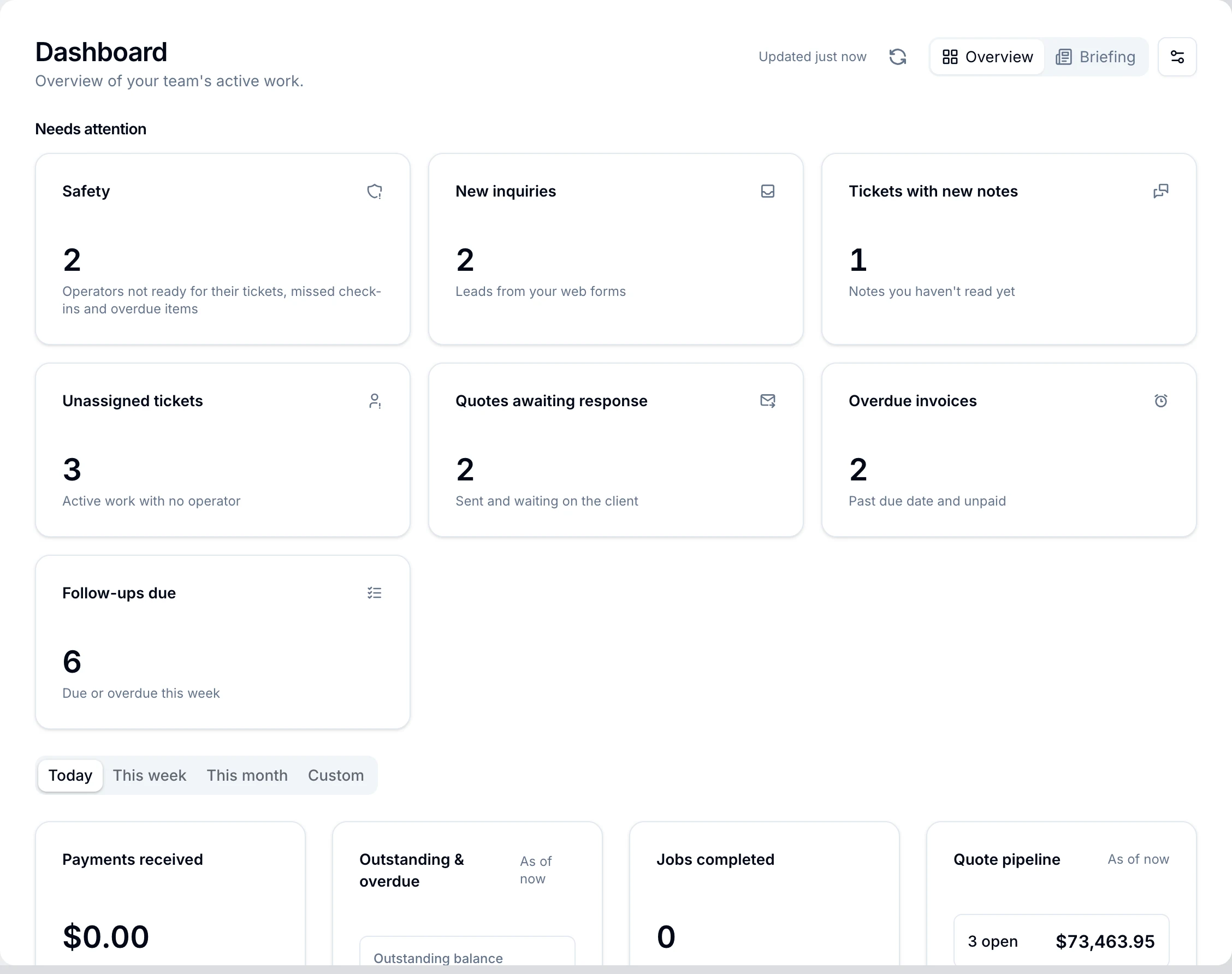
In the overview, the Needs attention row lists the things waiting on someone in the office. Each tile shows a count and opens the page where you can deal with it. A tile only appears when its count is above zero, so on a quiet day the row may not show at all.
Dispatchers see the tiles about jobs:
- Unscheduled tickets: active work with no scheduled day. Opens the schedule.
- Unassigned tickets: active work with no operator. Opens the tickets list, filtered.
- Tickets with new notes: notes you haven’t read yet. Opens Conversations.
- Follow-ups due: follow-ups due or overdue this week.
- New inquiries, when your company uses web forms.
- Safety and Late project phases, when your company has those add-ons.
Owners and admins also see Quotes awaiting response, Overdue invoices and Projects over budget.
The cards below
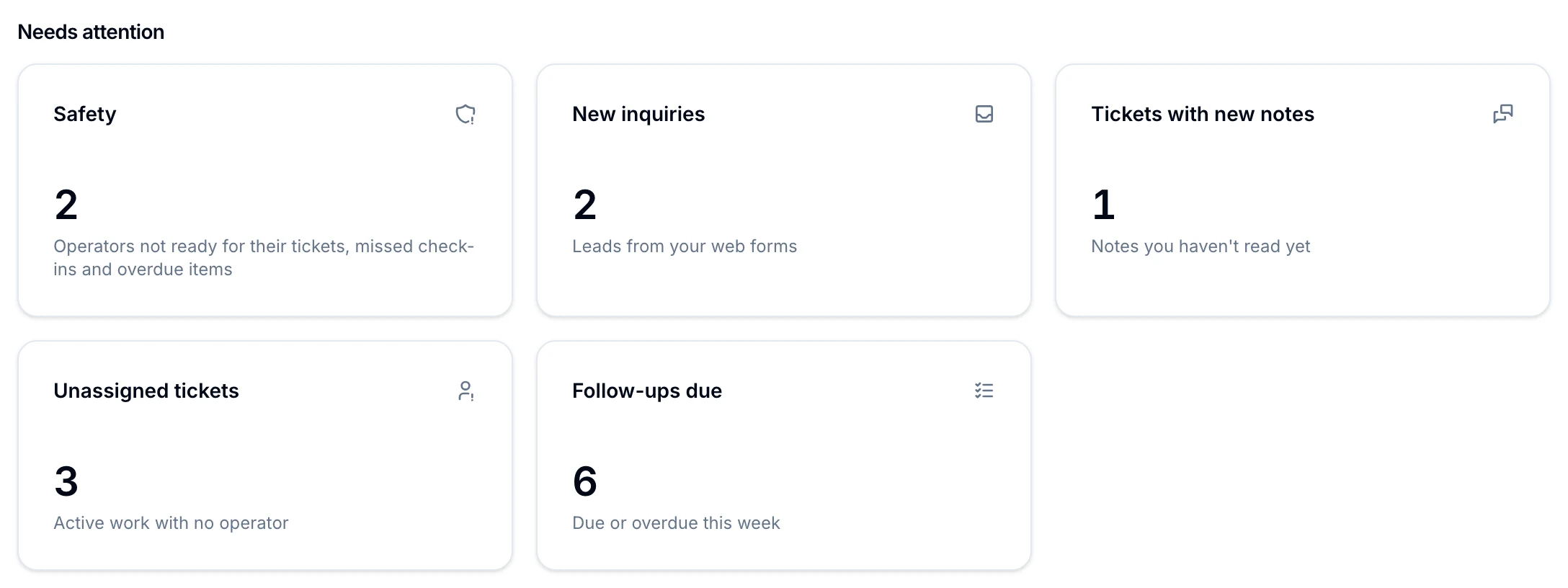
Under the tiles, pick the time span for the cards: Today, This week, This month or Custom. With Custom you choose the From and To dates, or use one of the shortcuts (Last month, Last quarter, Year to date).
Owners and admins see Revenue, Outstanding & overdue, Jobs completed, Quote pipeline, the Ticket summary (how many tickets sit at each stage), Value by stage and Recent payments. Dispatchers see the Ticket summary only.
To hide cards you don’t use, click the Visible widgets button next to the view switch and untick them. This only changes your own dashboard.
The daily briefing
The briefing opens with a greeting and a few lines about the day: how many tickets are on the schedule, how many are out right now and how many things need you. Below that you’ll find:
- Up next today: the day’s tickets in time order, with a badge on any that are unassigned or already in progress.
- Needs you: the same kinds of items as the tiles, written as sentences, such as tickets finished and waiting for your review or tickets ready to invoice. When nothing is waiting it says you’re all caught up.
- Latest: recent payments and finished tickets.
Owners and admins also see money in the briefing, such as what came in this week and what is still owed.
Finish setting up
New companies see a Finish setting up card with the steps left to get going. Each step has an Open button that takes you to the right page. Once you no longer need it, dismiss the card and it won’t come back for you.