
A recurring schedule creates an invoice for a client on a regular cycle, such as a monthly equipment rental or a yearly service contract. Each time it runs, it copies the schedule’s line items into a new invoice. It can email the invoice straight away or leave it as a draft for you to check.
Owners, admins and dispatchers can create and change schedules. Only owners and admins can delete one.
Create a schedule
- Open Recurring in the menu, under Money.
- Click New schedule.
- Give it a Schedule name, such as “Monthly retainer”, and pick the Client.
- Pick the Frequency: Weekly, Bi-weekly, Monthly, Quarterly or Annual.
- For monthly and quarterly schedules, set the Day of month. In a month without that day, such as February 30, the last day of the month is used.
- Set the Start date. The form shows the date of the next invoice.
- Choose an End date: No end date, After duration (a number of months from the start date) or Specific date.
- Turn on Auto-send to client to email each invoice as soon as it’s created. Leave it off to get drafts you can check first.
- Add Notes (optional) to print on each invoice.
- Under Line Items, add what you bill each cycle with Add line item.
- Click Create schedule.
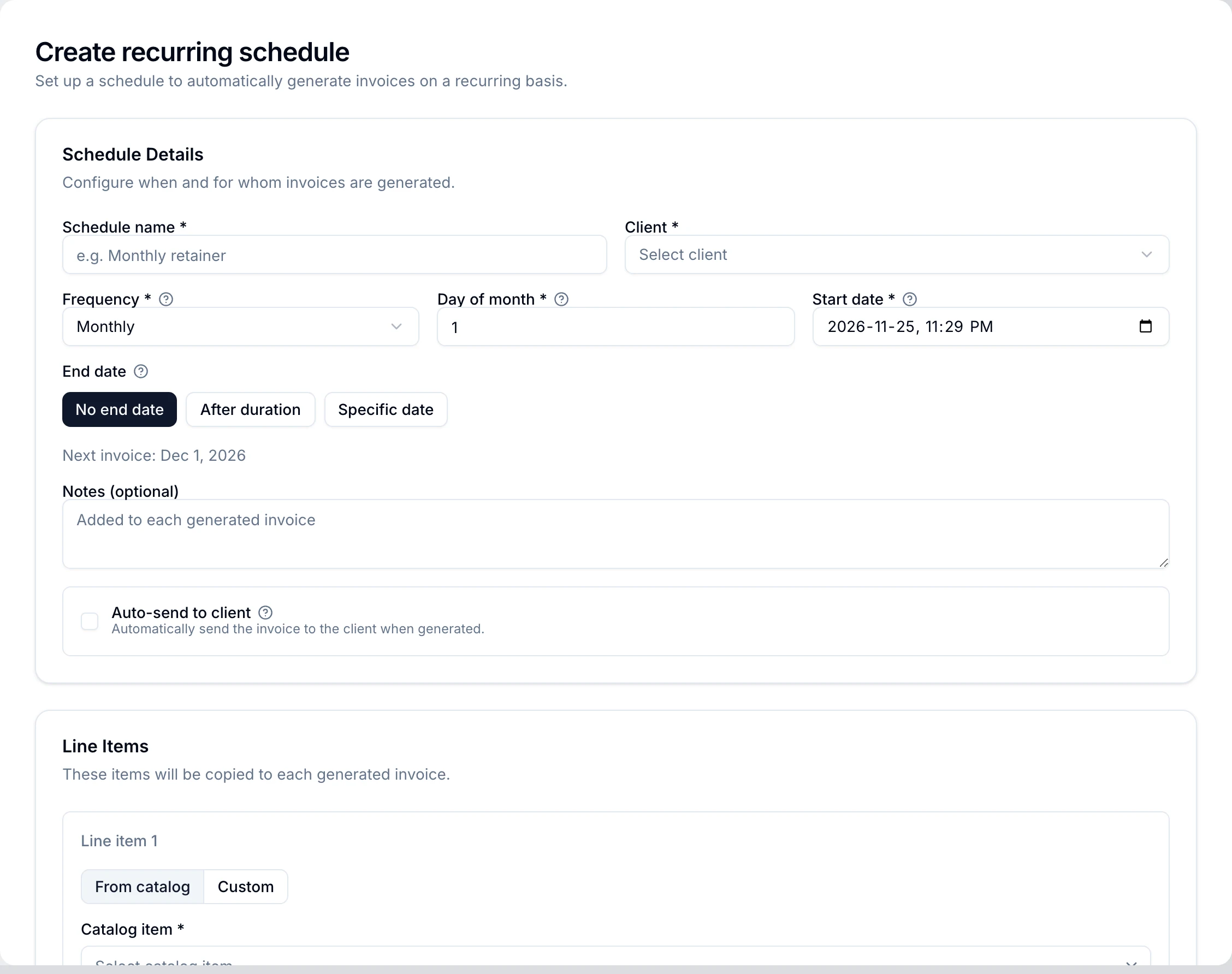
The form shows an Estimated invoice total per cycle. Final tax is worked out each time an invoice is created.
Pause, change or delete a schedule
The Recurring Invoices page lists every schedule with its client, frequency, amount, Next Run and status.
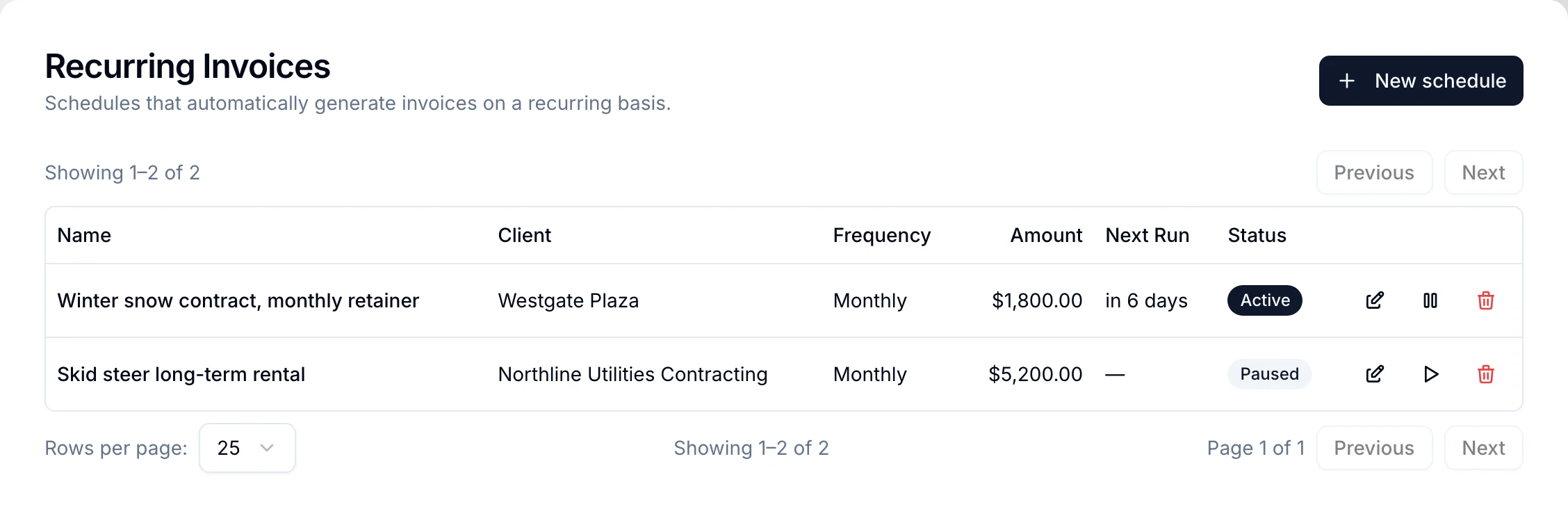
- Pause stops new invoices until you click Resume.
- Edit changes the timing, line items, auto-send and notes. The changes apply to invoices created from then on.
- Delete removes the schedule for good. Invoices it already created stay.
Click a schedule’s name to see its details, including when it last ran and when it runs next.