
Each client has a page that pulls together everything you’ve done for them. Open Clients in the menu and click a name to get there.
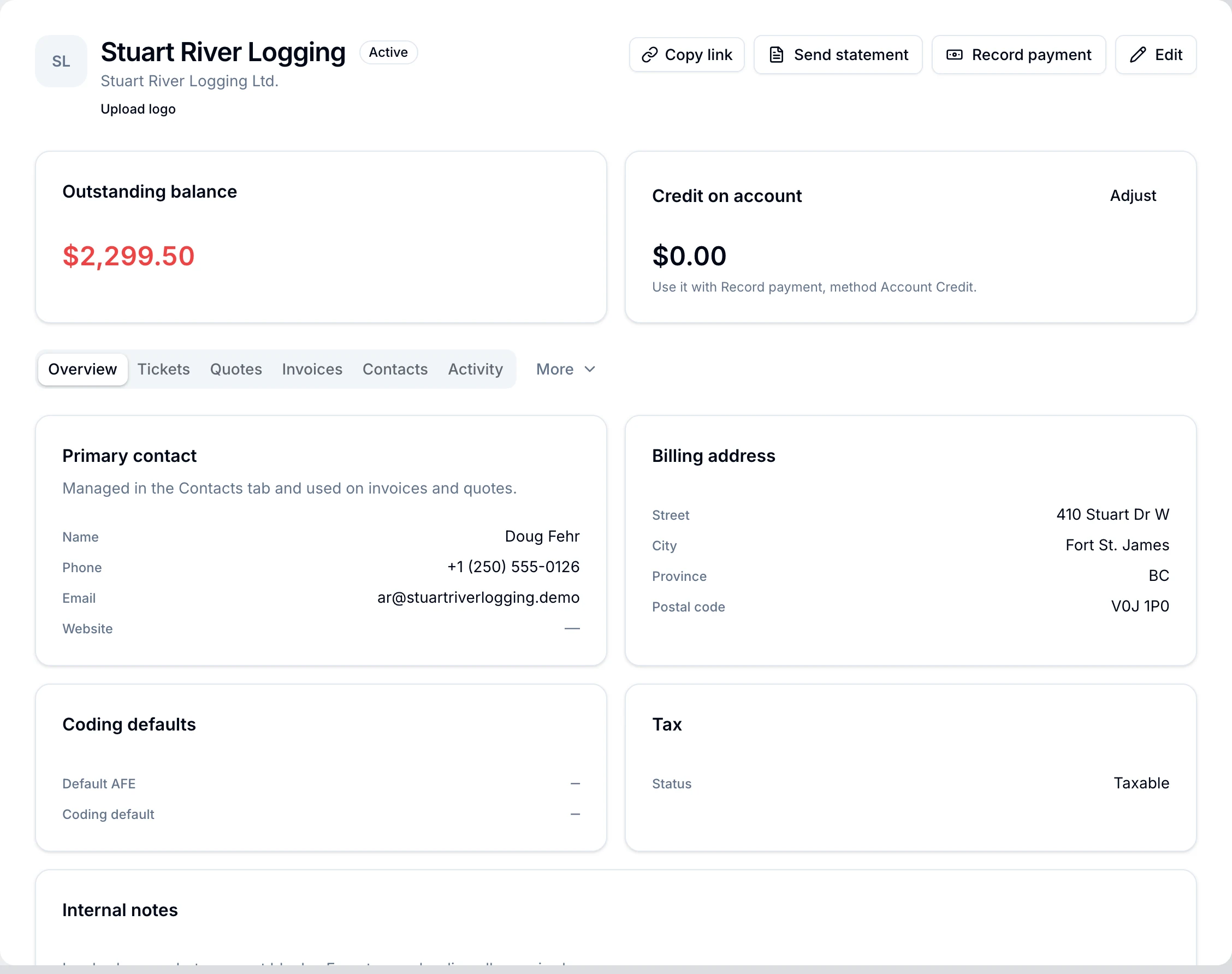
What’s at the top
The client’s name, company and logo sit at the top, with badges for Inactive or Exempt when they apply. The buttons on the right are:
- Send statement emails the client a list of their unpaid invoices. Owners and admins see this button.
- Record payment takes one payment and applies it to one or more of the client’s open invoices. See Record a payment.
- Edit opens the client form. See Add and edit clients.
Below them, Outstanding balance shows what the client owes across all their invoices. Credit on account shows money you’re holding for them, such as an overpayment. You use that credit by recording a payment with the method Account Credit.
Owners and admins can change the credit by hand. Click Adjust, enter a positive Amount ($) to add credit or a negative one to remove it, write a Note saying why, and click Save.
The client’s logo
Dispatch looks up a logo from the client’s website when it can. To use your own, click Upload logo under the name and pick a PNG, JPEG or WebP file under 4 MB. Use website icon goes back to the automatic one.
The tabs
The most used tabs are always in view. The rest are under More.
- Overview shows the primary contact, billing address, coding defaults, tax status and internal notes.
- Tickets, Quotes and Invoices list this client’s work, each with its own search. The invoices tab can show only unpaid ones.
- Contacts is where you add site, billing and AP contacts. See Add and edit clients.
- Activity is a timeline of calls, emails, notes and meetings your team logged, plus quotes sent, tickets completed, invoices sent and payments received.
- Follow-ups lists reminders tied to this client. See Follow-ups.
- Contracts shows contracts for this client and lets you start a new one. See Contracts.
- Documents holds files for this client. Click Upload to add PDFs or images, up to 15MB each. See Documents.
- Rate overrides sets special prices for this client (below).
Projects and Feedback tabs also appear when your company has those add-ons.
Log a call or meeting
- Open the Activity tab.
- Click Log activity.
- Pick the Type: Call, Email, Note or Meeting.
- Set When it happened and write the Details.
- Click Log activity.
The entry shows in the timeline with the name of the person who logged it.
Give a client special rates
If a client pays a different price than your catalog for some items, set it once here and it’s used on their new tickets and quotes.
- Open the Rate overrides tab (under More).
- Click Add override.
- Pick the Catalog item.
- Pick a Location tag if the price only applies at one location, or leave it on All locations.
- Enter the Override rate.
- Click Add override.
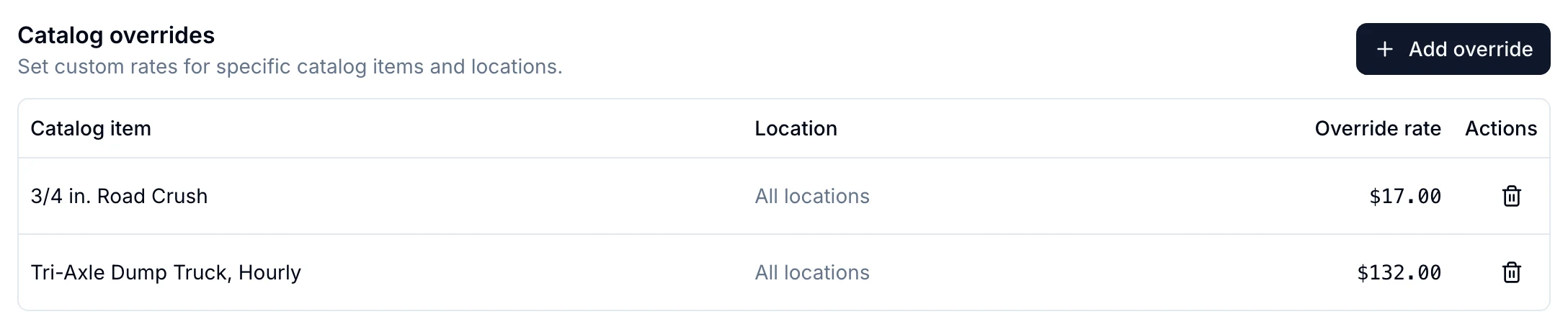
To remove one, click the delete button on its row and confirm with Delete override. The client goes back to paying the catalog rate from then on, and tickets that already have the old price don’t change.
Send a statement
A statement is an email listing everything the client hasn’t paid yet, with a PDF attached and a View and pay link for each invoice. Owners and admins can send one.
- On the client page, click Send statement.
- Check the email address, the number of unpaid invoices and the total shown for the client.
- Click the Send to 1 client button.
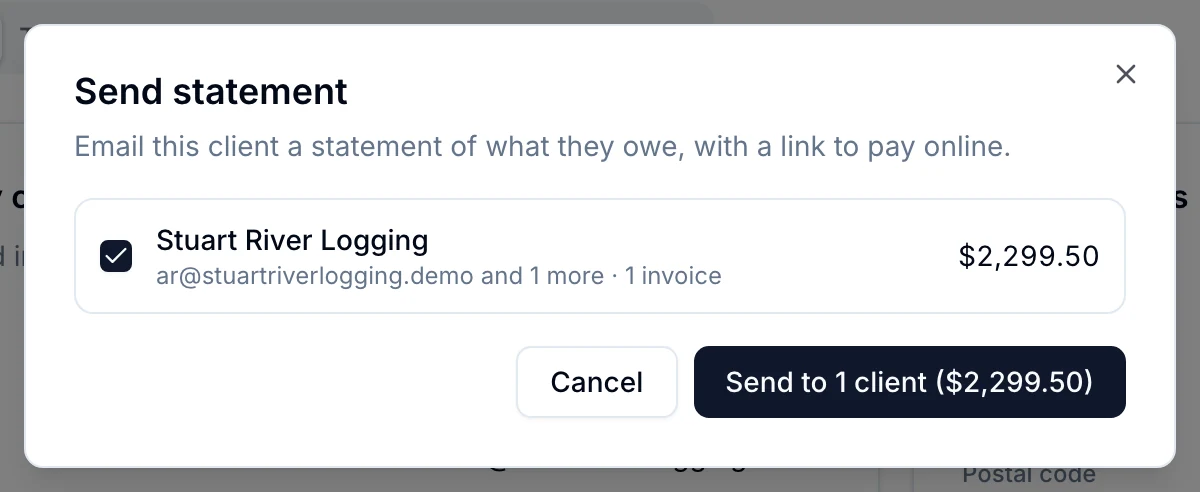
The statement goes to the contacts set to get invoices and reminders. A client with no billing email can’t be picked. To send statements to many clients at once, click Send statements on the Invoices page, then tick the clients you want or tick All clients with unpaid invoices. Sending keeps going if you close the window.