
You can download invoices from the Invoices list to bring them into your accounting software. Export as IIF makes a file for QuickBooks Desktop. Export as CSV makes a spreadsheet you can open in Excel or send to your bookkeeper.
The Export button is for owners and admins, and dispatchers who can see rates.
Export invoices
- Open Invoices. Set the list’s filters first if you only want some invoices, for example one client.
- Click Export, then Export as IIF or Export as CSV.
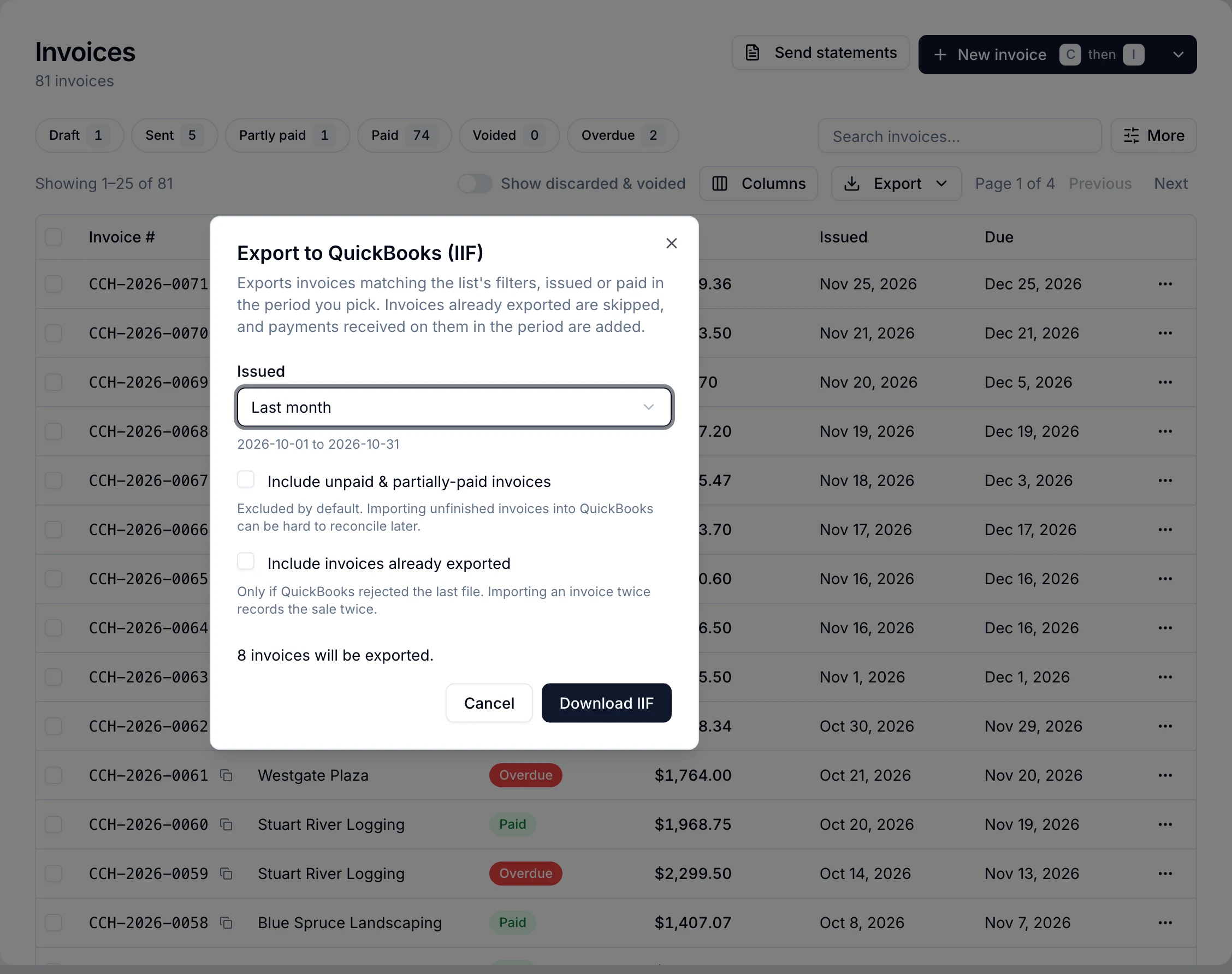
- Under Issued, pick a period: Last month, This month, This quarter, Year to date, Last year, All time or Custom range. For a custom range, set From and To.
- Check how many invoices will be exported.
- Click Download IIF or Download CSV.
To export only certain invoices, tick them in the list first. The button changes to Export with the number you picked, and the period choice goes away.
How the QuickBooks (IIF) export works
The IIF file includes invoices issued or paid in the period. Two things keep your books clean:
- Invoices that aren’t fully paid are left out. Tick Include unpaid & partially-paid invoices if you want them. Bringing unfinished invoices into QuickBooks can make them hard to match up later.
- Invoices you already exported are skipped, and payments received on them in the period are added. Tick Include invoices already exported only if QuickBooks rejected the last file. Importing an invoice twice records the sale twice.
If nothing new happened in the period, the window says Nothing new to export for this period.
Note: The account names in the IIF file have to match your QuickBooks chart of accounts exactly, or QuickBooks makes new accounts when you import. Set them under Settings > Add-ons > Accounting, in Export for QuickBooks.