
Every subcontractor company gets a paperwork checklist, such as insurance and a WorkSafeBC clearance letter. Dispatch reminds you and the company before a file expires, and it can warn you or stop you when you assign a driver whose company isn’t in order. This is part of the Subcontractors add-on.
Set the checklist
Owners and admins choose what goes on the checklist. Dispatchers can see it but not change it.
- Go to Subcontractors and click Edit requirements.
- To start with the common ones, click Add the usual four. That adds liability insurance, a WorkSafeBC clearance letter, a signed subcontract and a non-disclosure agreement.
- To add your own, click Add requirement, give it a Name and choose its Kind (a document or an agreement).
- Turn on Has an end date for anything that expires, like insurance. You’ll be asked for the date with each file and reminded before it passes.
- Turn on Required if a company isn’t compliant until it’s on file and accepted.
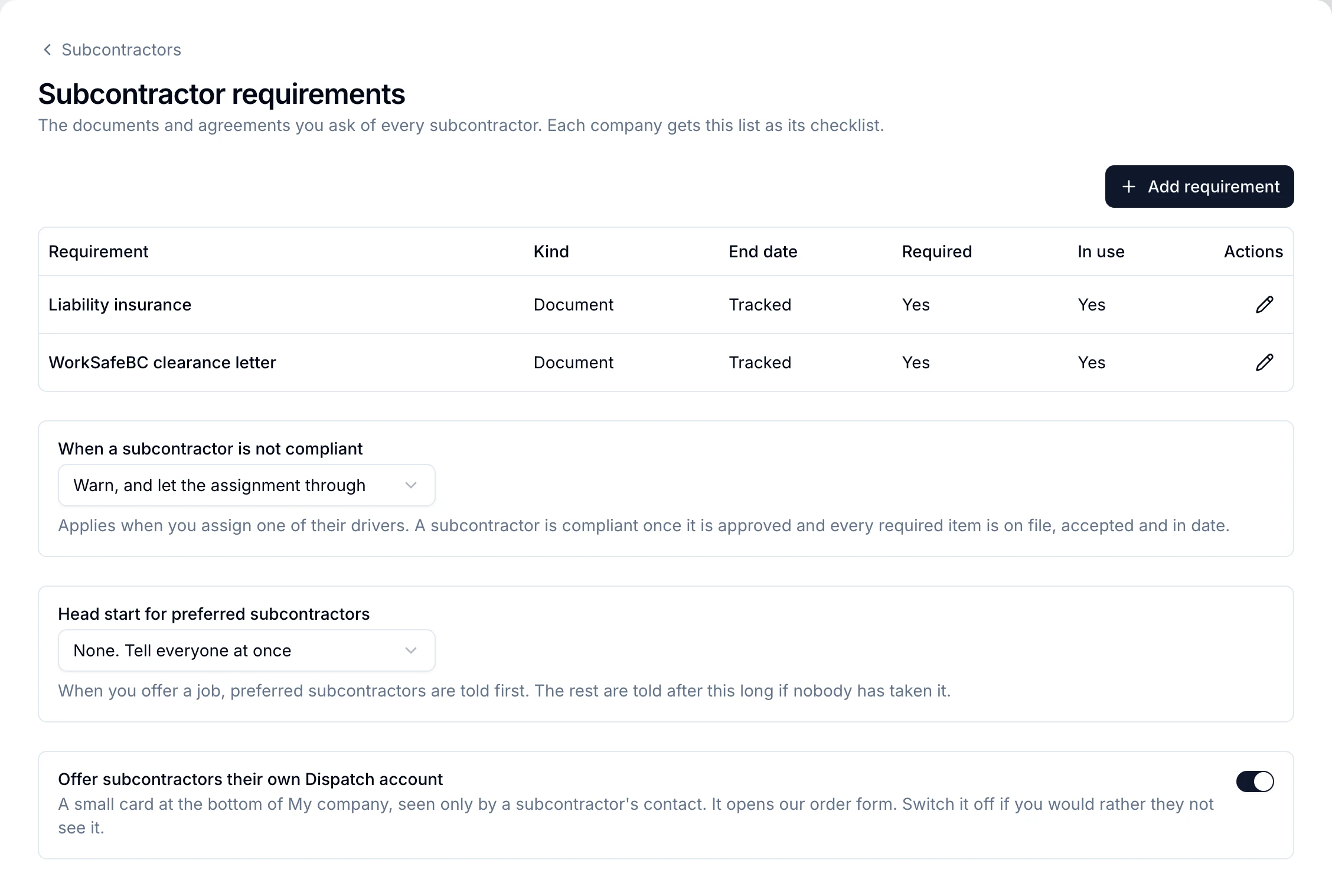
Every company gets the same list. To stop asking for something, turn off In use. It leaves every checklist, and files already uploaded are kept.
Upload and accept files
A file counts once someone in your office has looked at it and accepted it. That’s true even for files you upload yourself.
- Open the company and find the Paperwork card.
- Click Upload next to the item. Pick a PDF or a photo, up to 15MB.
- If the item has an end date, enter Expires on.
- Check the file, then click Accept.
Files sent by the company contact from their phone show as To review until you accept them. To swap in a newer copy, click Replace. The old one is kept in the history and the new one needs to be accepted again. Anything that isn’t on the checklist, like a rate sheet or a void cheque, can go under Other files with Add a file.
Each item shows where it stands: Missing, To review, Needs an end date, Expires soon (within 30 days), Expired or On file. The Subcontractors list sums it up for each company, such as Paperwork complete or how many items are missing or expired.
Expiry reminders
Once a day, Dispatch checks for files that are about to expire. It sends a reminder 60, 30 and 7 days before a file’s end date, and once more when it has expired.
Owners, admins and dispatchers get one summary covering every company. Each company’s contact gets a reminder about their own company’s files, which opens their My company page so they can send a new one.
Choose what happens at dispatch
The dispatch check decides what happens when you assign a driver whose company isn’t compliant. A company is compliant once it’s approved and every required item is on file, accepted and in date for the job’s day.
- Go to Subcontractors and click Edit requirements.
- Under When a subcontractor is not compliant, choose one:
- Do nothing
- Warn, and let the assignment through (the default)
- Block the assignment
Only owners and admins can change this.
With Warn, the operator picker shows what’s wrong next to the driver’s name, for example that the company is suspended or which paperwork needs sorting out, and you can still assign them. With Block, Dispatch refuses the assignment and tells you why. There’s no override, so fix the paperwork or the company’s status on the Subcontractors page first. Moving a job to another day checks again for that day.
Note: The check only applies to drivers linked to a subcontractor company. Your own operators are never affected.