
Two parts of Health & Safety look after your crew directly. Policies are the safety rules your operators read and sign on their phone, with a record of who signed which version. Working alone lets someone out of sight of other workers check in on a timer, and alerts the office if they miss a check-in.
Both are part of the Health & Safety add-on, which Dispatch turns on for your company. If you don’t see Safety in your menu, contact Dispatch to ask for it.
Write and share a policy
Owners and admins write and share policies. Dispatchers can open them and see who has signed.
- Go to Safety, Policies.
- Click Add starter policies for a set to begin from, or New policy to write your own.
- Open a policy, then edit the Title and Policy text to fit your company.
- If you’d like the crew to show they understood it, add a few questions under Quiz (optional). Type the answers and pick the right one for each question. Operators must answer correctly before they can sign.
- Click Save.
- Turn on the switch beside the policy to share it with the crew.
Note: Starter policies are a starting point, not legal advice. Read and adapt each one before you share it.
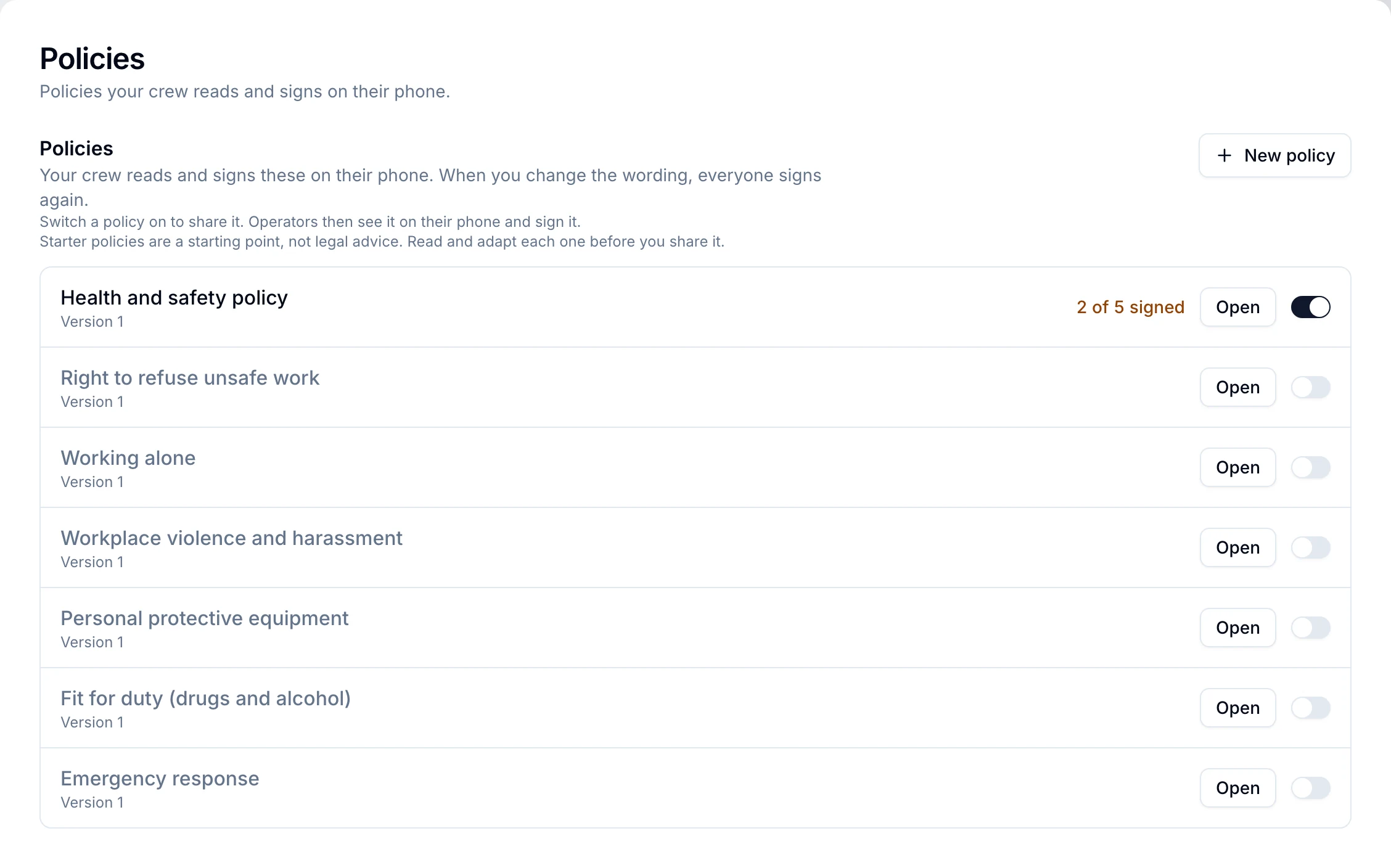
Each policy shows how many operators have signed it, such as “4 of 6 signed”. Open it to see the Signatures list with each person’s date, or Not signed.
When you change the wording or the quiz of a shared policy, saving publishes a new version and everyone signs again. People who signed the old one show Signed an earlier version until they do.
A shared policy someone hasn’t signed counts like a missing certificate. It shows in the Policies column on Certificates, and it’s included in the check when you assign that person to a job.
Sign a policy on the phone
Operators see what they need to sign on their phone’s safety page, under Account, My certificates.
- Tap Policies, or Sign beside the policies waiting for them.
- Open a policy under To sign and read it.
- Answer the questions under Check your understanding, if there are any.
- Fill in Your name, tick I have read and understand this policy, then tap Sign.
A policy that changed since they last signed shows Updated, sign again.
Check in while working alone
Anyone working out of sight or earshot of other workers can start timed check-ins from their phone.
- On the phone, open Account, My certificates and tap Start working alone.
- Under Check in every, choose 30 minutes, 1 hour, 2 hours or 3 hours.
- Under Where are you working?, type the location, for example “Pad 14-22, north gate”.
- Tap Start.
The phone reminds them when each check-in is due, and they tap I’m OK to check in. If a check-in is missed by 15 minutes, owners, admins and dispatchers get an alert, and the person shows at the top of the Safety overview with Call them now. When they check in after an alert, the office is told they’re safe.
When the work is done, they tap I’m done working alone and then Stop check-ins.
Watch check-ins from the office
Safety, Working alone lists everyone checking in right now, with their status (On time, Due now or Overdue), their last check-in, when the next one is due and where they’re working. Below that is a list of the last 7 days.
If someone forgot to stop their check-ins, or you’ve reached them after an alert, you can end their session from the office.
- Click End on their row.
- Add a Note (optional), such as “Called at 3:10, phone was in the truck”.
- Click End check-ins.
Only end check-ins once you know the person is safe, because the office won’t be alerted again for that session.