
The Subcontractors add-on is for the companies you sub work out to. Each company gets its own page with its contact details, its drivers, a paperwork checklist and a record of how its jobs went. You can also offer jobs to your subcontractors for a flat amount and let them accept from their phones.
This is an add-on that the Dispatch team turns on for your company. Once it’s on, Subcontractors appears in the menu under Team. If you’d like it, ask us to turn it on.
Owners, admins and dispatchers can open the Subcontractors pages and manage companies. A few things are for owners and admins only, and this guide says where.
The rest of the subcontractor guides cover:
- Paperwork and the dispatch check
- Offer jobs to subcontractors
- The My company page for a subcontractor’s contact
Add a company
- Go to Subcontractors and click Add subcontractor.
- Enter the Company name. Everything else can be filled in later.
- Add the legal name, contact person, email, phone, WorkSafeBC account number, GST number and notes if you have them.
- Click Add subcontractor.
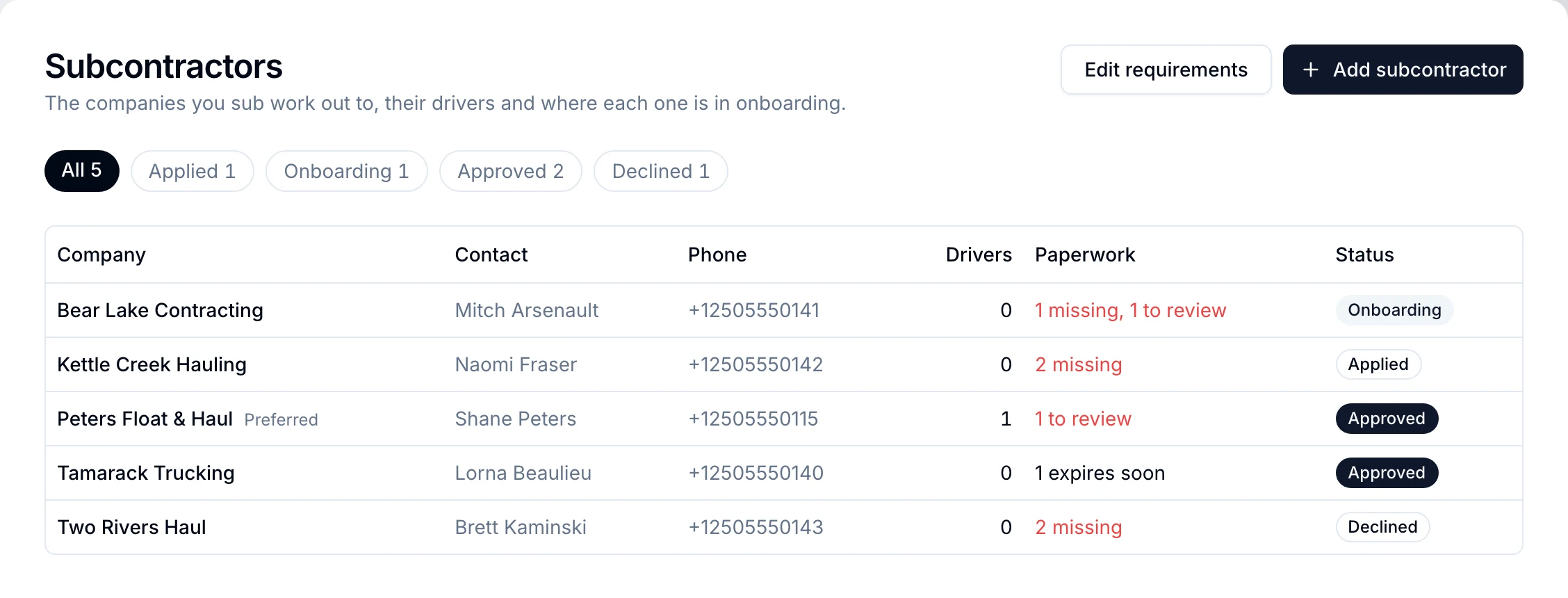
A new company starts as Onboarding. To change its details later, open it and click Edit details.
Move a company through onboarding
Each company has a status, which you change with the Status picker on its page.
- Applied: asked to work with you, not reviewed yet.
- Onboarding: being set up, with paperwork still coming in.
- Approved: cleared to take work. Dispatch records who approved it and when.
- Suspended: not to be given work for now.
- Declined: turned down and kept for your records. You can add a reason that only your office sees. Dispatch doesn’t tell the company.
Only approved companies can be offered jobs, and depending on your dispatch check setting, Dispatch may warn you or stop you when you assign a driver from a company that isn’t approved.
Link the company’s drivers
A company’s drivers use the operator app like anyone else on your team, so each driver needs to be on your team first.
- If the driver isn’t on your team yet, invite them from People as an operator.
- Open the company and, under Drivers, use Link an operator to search for them.
- Click Link.
A person can only belong to one company. To take someone off, open the menu next to their name and click Remove from company.
Choose the company contact
The company contact is the person who speaks for the company. They get a My company page on their phone where they upload paperwork, ask to add drivers and accept jobs you offer. They also get your job offers and expiry reminders.
To set one, open the menu next to a driver’s name and click Make company contact. The contact has to be one of the company’s linked drivers.
Mark your preferred companies
Turn on Preferred on a company’s page for the subcontractors you’d rather give work to first. When you offer a job, preferred companies can hear about it before the others. See Offer jobs to subcontractors.
Take applications from your website
If you also use Web forms, you can make a “work for us” form that subcontractors fill in on your website.
- Open the form under Inquiries.
- Set What this form is for to Subcontractor applications.
Owners and admins can change this. Each application then shows up on the Subcontractors page as Applied, with the answers on the company’s page under Application, and your office gets a notification.
To take them on, change the status to Onboarding or Approved. Approving only changes the status, so you still need to invite the person, link them as a driver and make them the company contact.
See how a company is doing
The Last 90 days card on a company’s page counts the jobs led by its drivers: jobs finished, how many started on time (within 15 minutes of the planned start), jobs sent back by the office and offers accepted. If you use Health & Safety, it also shows incident reports.
See what you owe a company
Owners and admins see Owed to this company on the company’s page. It adds up the finished jobs its drivers haven’t been paid for yet. A job counts once it’s completed, at the flat amount for that job or at the driver’s hourly rate for their recorded time.
Click Go to Payouts to mark jobs paid. Payouts are recorded per driver, not per company, and each payment gets a pay statement you can print or save as a PDF.