
Every job goes the same way. You tap Start work when you begin, and Mark complete when you’re done. Dispatch times your work in between and lets the office know at each step.
Start work
- Open the job from your Active list.
- Check the Details tab: when it’s booked, the location, the work summary and the equipment and work listed for the job.
- Tap Start work at the bottom of the screen.
- Tap Start work again to confirm.
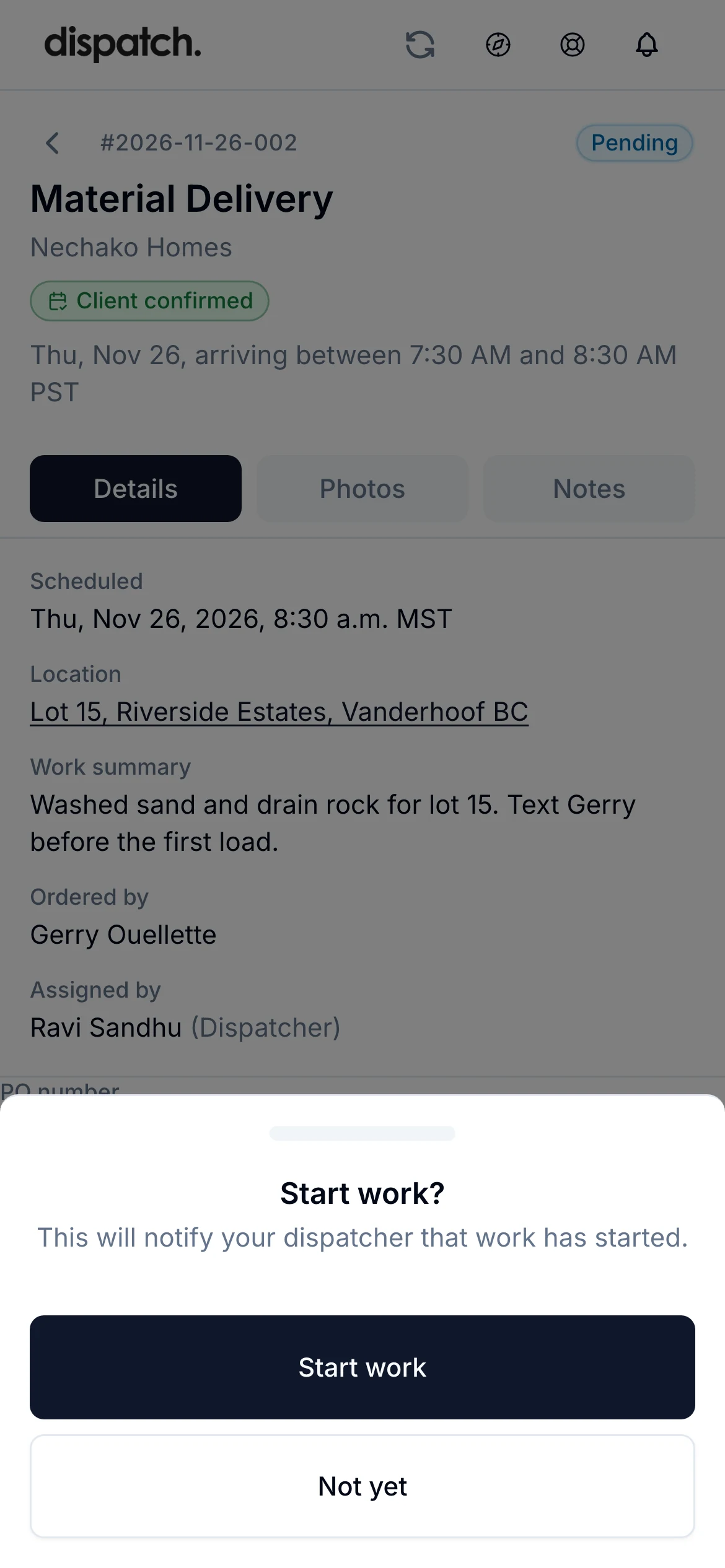
Your timer starts and the office gets a notice that you’ve started. The job now says In progress.
If your company uses the Health & Safety add-on, the button may say Do the hazard assessment instead. Tap it, fill in the form and send it, and then you can start work. Safety forms and inspections has more on these forms.
Pause and resume
When you stop for lunch or have to wait on something, tap Pause above the main button. The job shows Paused and your time stops counting. Tap Resume when you’re back at it.
The Work timer box on the Details tab shows your total time and each stretch you worked.
If you forgot to stop the timer
If you left the site and your timer kept running, tap Forgot to stop? in the Work timer box.
- Under Work actually ended at, pick the time you really stopped.
- Type a short Reason, like “Forgot to stop the timer when I left the site”.
- Tap Stop timer.
The change is saved on the job and your manager gets a notice. To fix any other time, ask the office.
Clean up, if the job has a checklist
Some jobs have a cleanup checklist. On those, the main button says Clean up while you’re working. Tap it when the work is done and you start cleaning up. Your timer keeps going, but the time now counts as cleanup.
When you tap Mark complete, the Cleanup checklist opens. Tick each item as you do it. Items marked Required must be ticked before you can finish.
Mark the job complete
- Tap Mark complete.
- If your company lets you log expenses, Dispatch asks Any expenses to log? Tap Log expense for fuel, dump fees, tolls or parts you paid for, or tap Continue if there were none.
- Under Work log, describe the work you did. You can’t finish without it.
- Tap Mark complete.
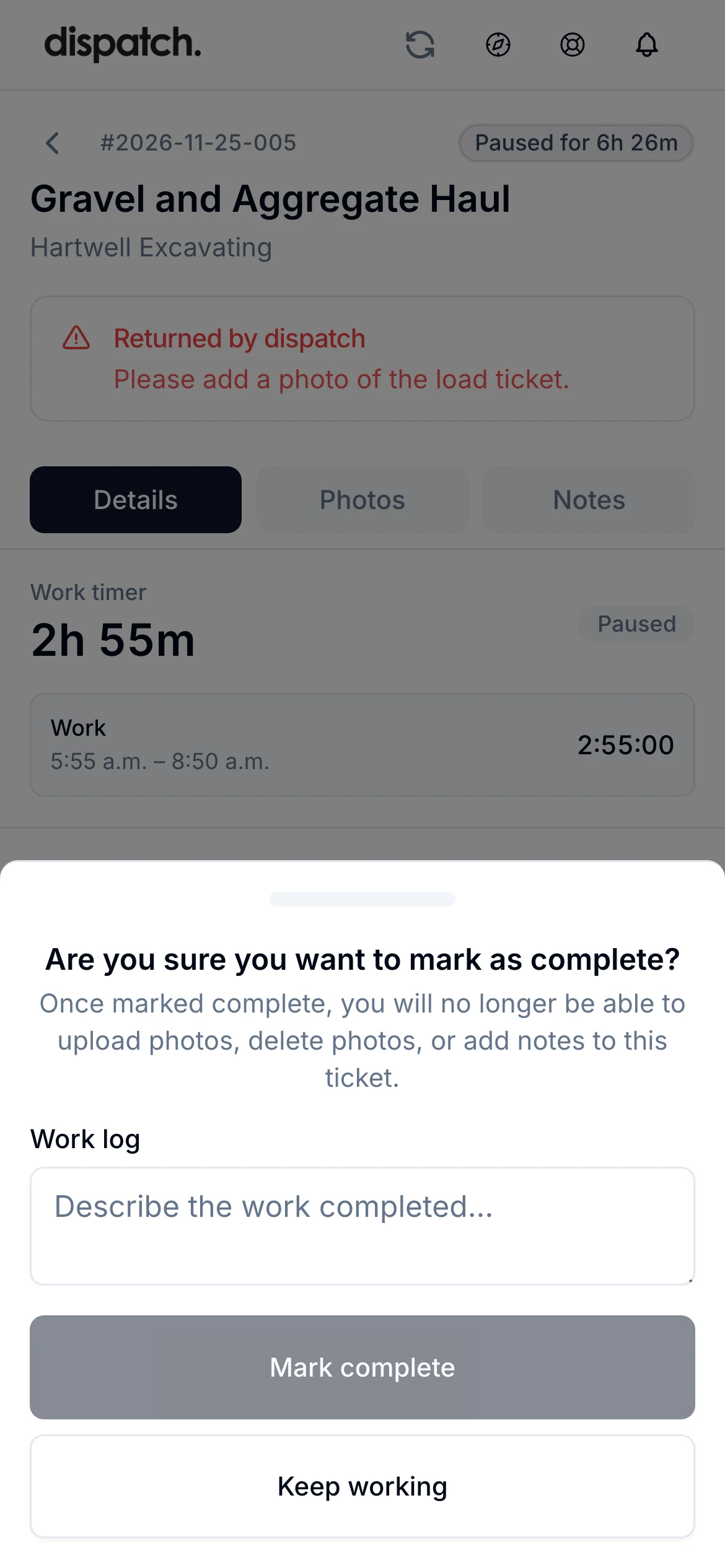
Your timer stops and the office gets a notice that the job is ready for review. The job stays on your Active list with Awaiting dispatcher review at the bottom. Once the office approves it, it moves to History.
After you mark a job complete, you can’t add or delete photos, so take them all first.
Get a signature
Some jobs need a signature on site, usually from the client. On those, Mark complete opens Field signature instead.
- Type the Signer name.
- Fill in the Work log.
- Hand over your phone so they can sign in the box with a finger. Tap Clear to start the signature again.
- Tap Submit signature.
Sending the signature marks the job complete in the same step.
If you’re helping on someone else’s job
When another operator runs the job and you’re there to help, the job says “You are an additional operator” at the top. You don’t start or finish the job. Instead, the My time box tracks your own hours. Tap Start my time when you start, and Stop my time when you leave. You can only start your time once the main operator has started the job.
When the main operator marks the job complete, your timer stops too.