
Every ticket moves through the same steps, from a draft in the office to a job on an invoice. The status shows as a coloured badge next to the ticket number, and the main button at the top of the ticket is always the next step.
| Status | What it means | Next step |
|---|---|---|
| Draft | Saved in the office. Nobody has been told. | Submit ticket |
| Pending | Sent out and waiting for work to start. | Start work |
| In progress | The operator has started. | Mark operator complete |
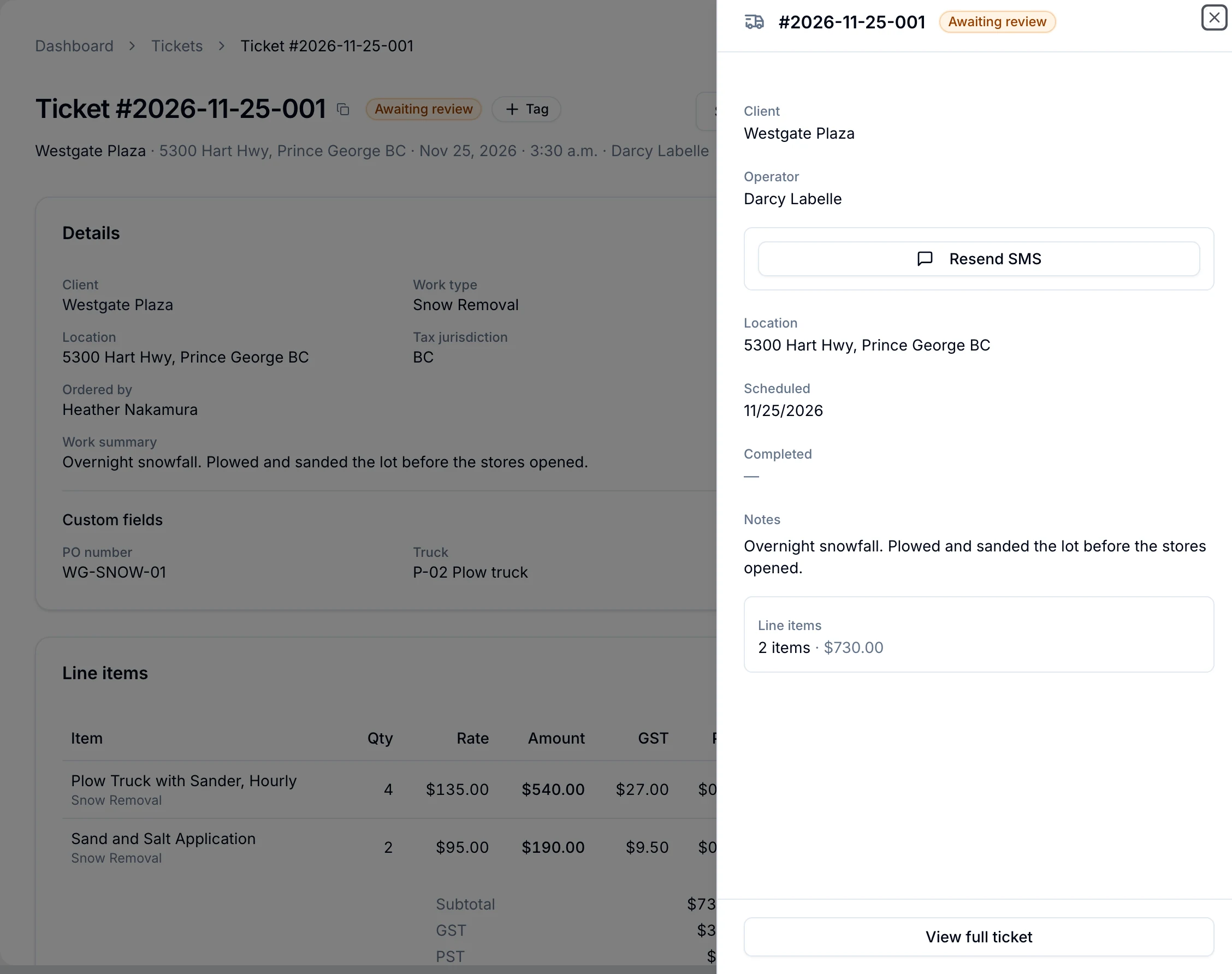
| Awaiting review | The operator says the job is done. | Approve complete or Send back… |
| Completed | The office has checked and approved it. | Create invoice |
| Invoiced | It’s on an invoice. | None |
| Voided | Cancelled. It stays on record. | None |
Owners, admins and dispatchers can do every step on this page unless it says otherwise.
Submit the ticket
A new ticket starts as a draft. Click Submit ticket when it’s ready to go out. If an operator was picked on the form, they’re assigned at that moment and get a text if texts are on for them. See create a ticket and assign operators.
What the operator does
The operator sees the job on their phone once it’s submitted. From there they tap Start work when they begin, which moves the ticket to In progress. While they work they can track their time, add photos and notes and, if your company allows it, log expenses. When they finish, they write a short work log, collect a signature if your company asks for one, and tap Mark complete. The ticket moves to Awaiting review. Start and finish a job shows what they see.
If an operator can’t do one of these steps, the office can do it for them. Start work and Mark operator complete are on the ticket page for that reason.
Review and approve the work
When a ticket is Awaiting review, open it and check the line items, photos, notes and time.
- Click Approve complete.
- The Review job costs window opens. Add anything the job cost that isn’t there yet, such as fuel or dump fees. If the operator logged expenses, approve or reject each one first, or click Approve all.
- Click Confirm costs & approve.
The ticket moves to Completed. Job costs explains the review in more detail.
Send it back to the operator
If something needs fixing before you can approve it, send the ticket back.
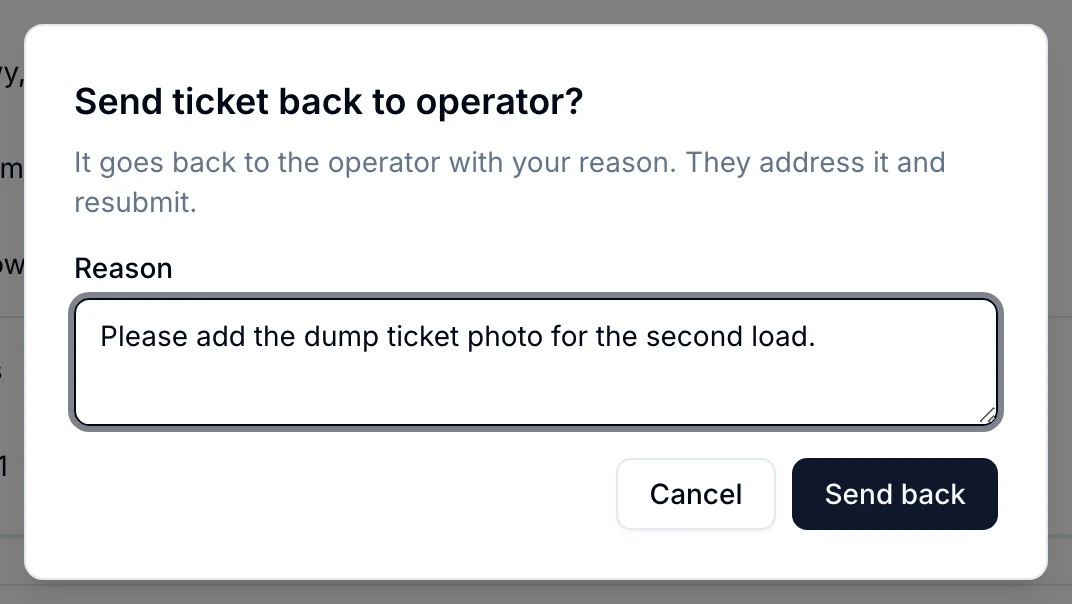
- Click Send back….
- Under Reason, say what needs to change before it can be approved.
- Click Send back.
The ticket returns to In progress. The operator sees your reason on the job, fixes it and marks it complete again. See when the office sends a job back.
Invoice it
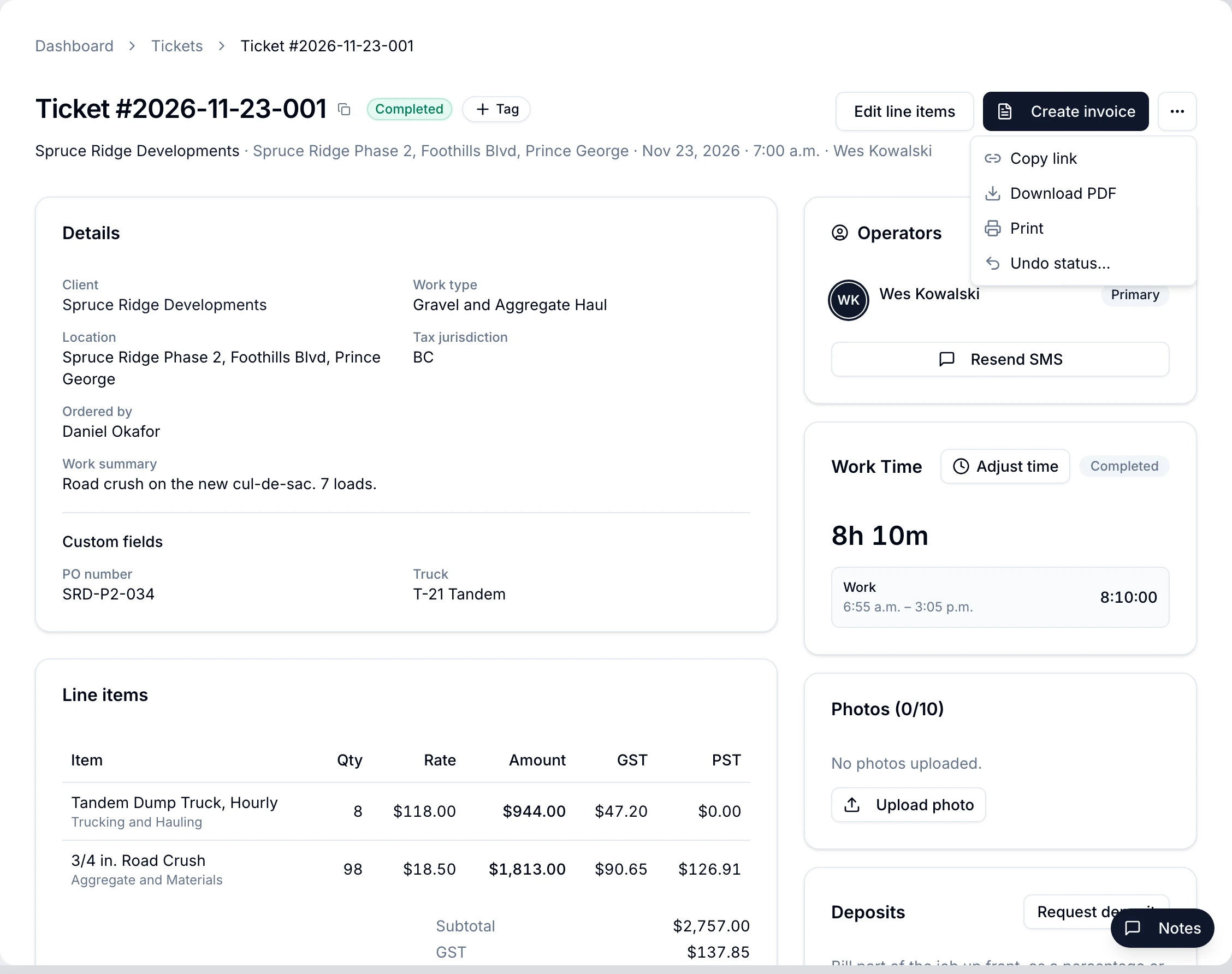
A completed ticket shows Create invoice. That opens a new invoice with this ticket’s line items on it. Once the ticket is on an invoice it moves to Invoiced, and its line items are locked.
Change a ticket after it’s sent
On a draft or a pending ticket, Edit opens the full form. Once work has started, only the line items can change: use Edit line items. The client, work type, schedule, location and job details are locked from that point.
Undo a status
Owners can step a ticket back one status if it was moved by mistake. Open the More actions menu (the three dots at the top right), choose Undo status…, give a reason and confirm. The change is recorded in the audit log with your name and reason.
Undoing an invoiced ticket voids the invoice built from it and puts any other tickets on that invoice back to Completed. You’ll be asked to confirm that this corrects a real mistake. If a payment has already been applied to that invoice, the undo isn’t available.
Void a ticket
Voiding cancels a ticket that won’t go ahead but should stay on record. It works on draft, pending and in-progress tickets. Owners and admins can void, and so can dispatchers whose role includes Void tickets (see roles and permissions).
- Open More actions and choose Void ticket….
- Under Reason for voiding, say why.
- Click Void ticket.
Voiding can’t be undone. If the ticket came from a booking, you can tick Let the client know the appointment is cancelled before you confirm.
Discard a ticket
Discarding hides a ticket that was never real, such as a duplicate. It disappears from lists, the schedule and reports, but it isn’t deleted. You can discard a ticket while nobody is assigned to it: choose Discard… in the More actions menu, or Discard in its row menu on the tickets list.
To bring one back, turn on Show discarded & voided on the tickets list, open the ticket’s row menu and choose Restore.
Download or print a ticket
The More actions menu also has Download PDF, Print and Copy link. The PDF is a copy of the ticket you can send or file.