
When a client pays you by cheque, e-Transfer, cash or a card terminal, record it on the invoice so the balance stays right. Card payments the client makes online through the invoice link are recorded for you. See Card payments and deposits.
Owners, admins and dispatchers can record payments and refunds.
Record a payment on one invoice
Payments go on invoices that are Sent or Partly paid. If the invoice is still a draft, send it or click Send invoice > Mark as sent first.
- Open the invoice and click Record payment.
- Enter the Amount ($).
- Set the Date received. It can’t be in the future.
- Pick the Method: Cheque, E-Transfer, Direct Deposit, Cash, a card type such as Visa or Interac Debit, or Other.
- For a card, enter the Terminal reference # from your card machine. For anything else, add a Reference (optional) such as the cheque number.
- Leave Send payment receipt email to client ticked if you want them to get a receipt.
- Click Record payment.
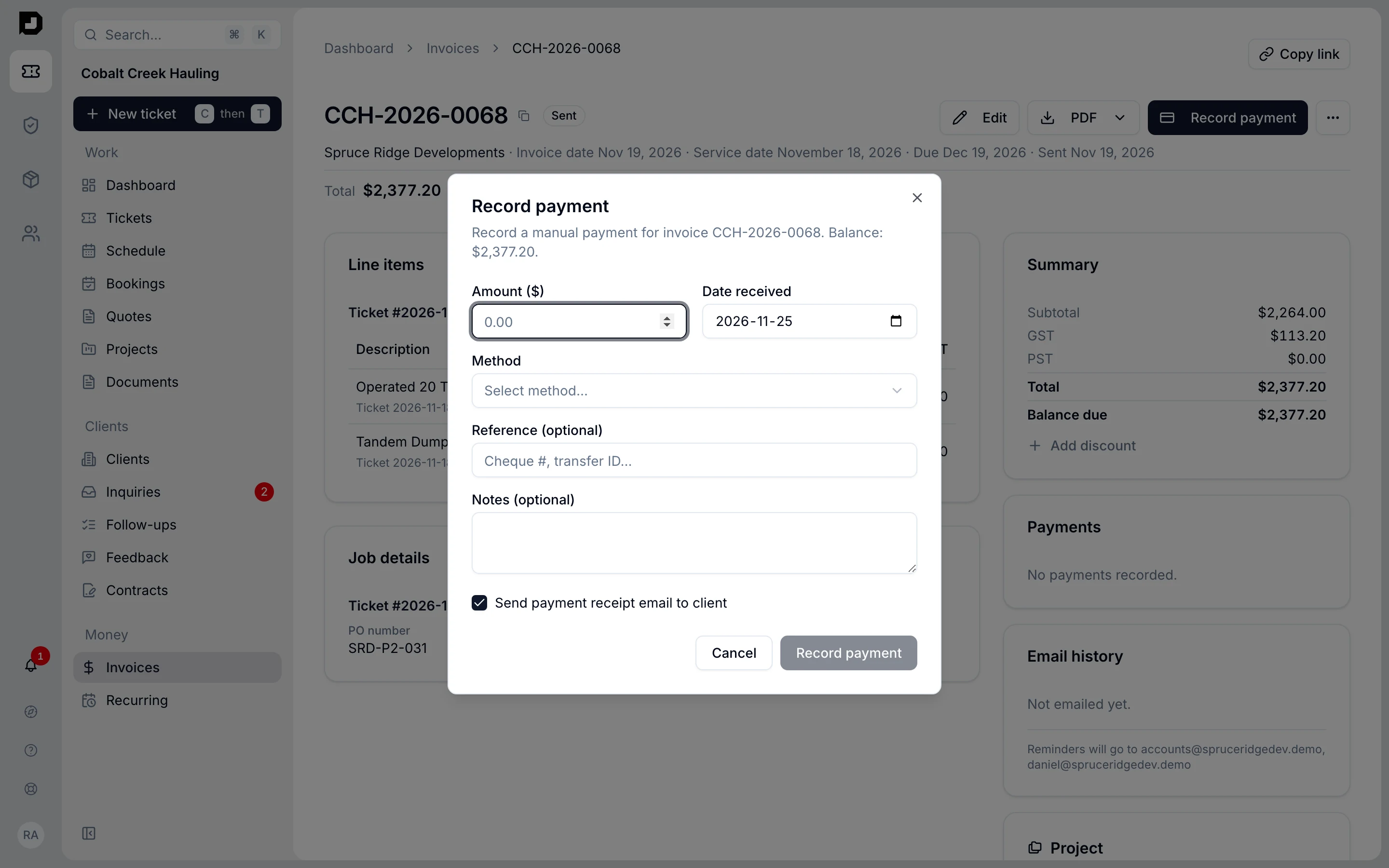
If the amount covers the whole balance, the invoice becomes Paid. If it’s less, the invoice shows Partly paid with the Balance due, and you can record the rest when it comes in. Every payment is listed under Payments on the invoice.
Cash and rounding
If your company has Cash rounding turned on in Settings > Getting paid, the window offers the cash amount rounded to the nearest 5 cents. Use it and the invoice is marked paid, with the 1 or 2 cent difference kept on the payment.
Record one payment for several invoices
Clients often pay a few invoices with one cheque. Record it once and split it across them.
- Open the client’s page and click Record payment. Or, on the Invoices list, tick invoices for the same client and click Record one payment.
- Enter the Amount received, Date received and Method, plus a Reference or Note if you like.
- Under Apply to invoices, tick each invoice the money is for and check the amount on each. Use Find invoice # to jump to one.
- Click Record with the amount on the button.
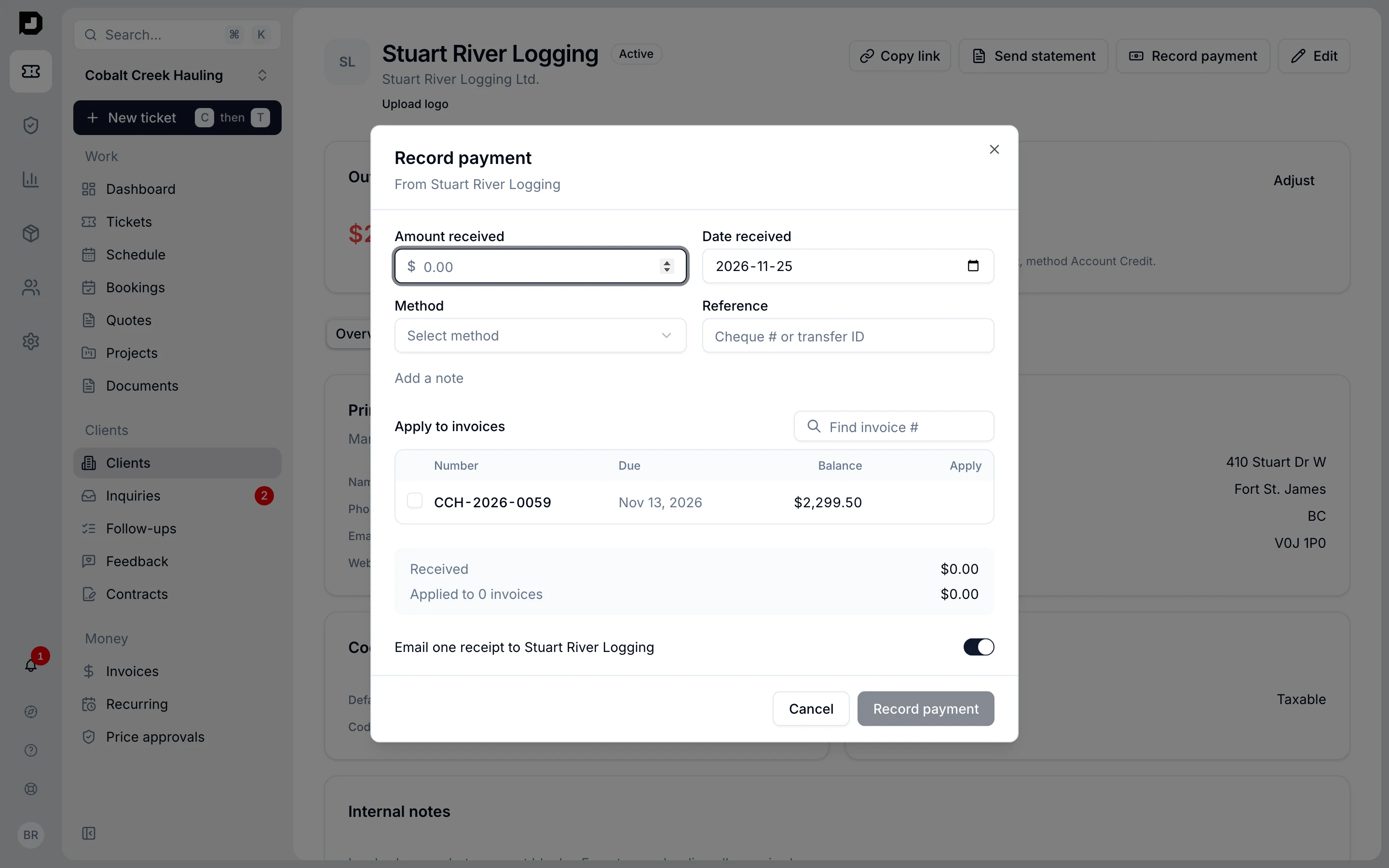
Anything you don’t apply is Kept as credit on account. If the client has no open invoices, the whole amount becomes credit. Tick the box to email one receipt to the client if you want them to get a single receipt for the lot.
Use credit on account
When a client has credit, Account Credit shows as a method in the Record payment window with the amount available. Pick it to pay an invoice from their credit. The credit can’t pay more than the invoice’s balance.
You can see and adjust a client’s credit on their page. See The client page.
Record a refund
- Open the paid or partly paid invoice.
- Click ⋯, then Record refund….
- Pick the Payment being refunded.
- Enter the Invoice amount to refund ($) and pick the Method.
- Click Record refund.
A refund on a payment you recorded by hand shows right away. Recording it doesn’t move any money, so pay the client back the way you agreed. A refund on a card payment the client made online through Stripe is sent through Stripe and shows as Refund pending until Stripe confirms it. If that payment had a card surcharge, the surcharge is refunded too.
Reverse a payment that didn’t go through
If a cheque bounced or a payment was entered twice, an owner can reverse it. In the Payments list on the invoice, click the menu at the end of the payment’s row, then Reverse payment…, and confirm. Dispatch adds a correcting entry and works out the invoice’s status again.