
The client portal is a private page where your clients sign in to see everything they have with you: quotes waiting for an answer, open invoices, change orders to approve, their statement, reports on finished jobs and shared files. It carries your company’s name, logo and colours.
This is an add-on. Dispatch turns it on for your company, and once it’s on you’ll see Client portal under Settings, Add-ons. If you don’t see it, contact Dispatch and ask for it.
Owners and admins set up the portal. Owners, admins and dispatchers invite client contacts and share documents with them.
Set up the portal
- Go to Settings, Add-ons and open Client portal.
- Turn on Portal is on.
- Copy the Portal address if you’d like to put it on your website or in your emails.
- Add a Welcome message (optional) for the portal home page, for example “Questions about a job? Call the office at 403 555 0100.”
- Turn on Clients can upload files if you’d like clients to send you PDFs and photos.
- Under Job reports, turn on Share job reports to let clients see their jobs with the work summary and work done. Then choose whether to include Photos, Hours worked and Sign-off. Crew notes are never shown.
- Click Save changes.
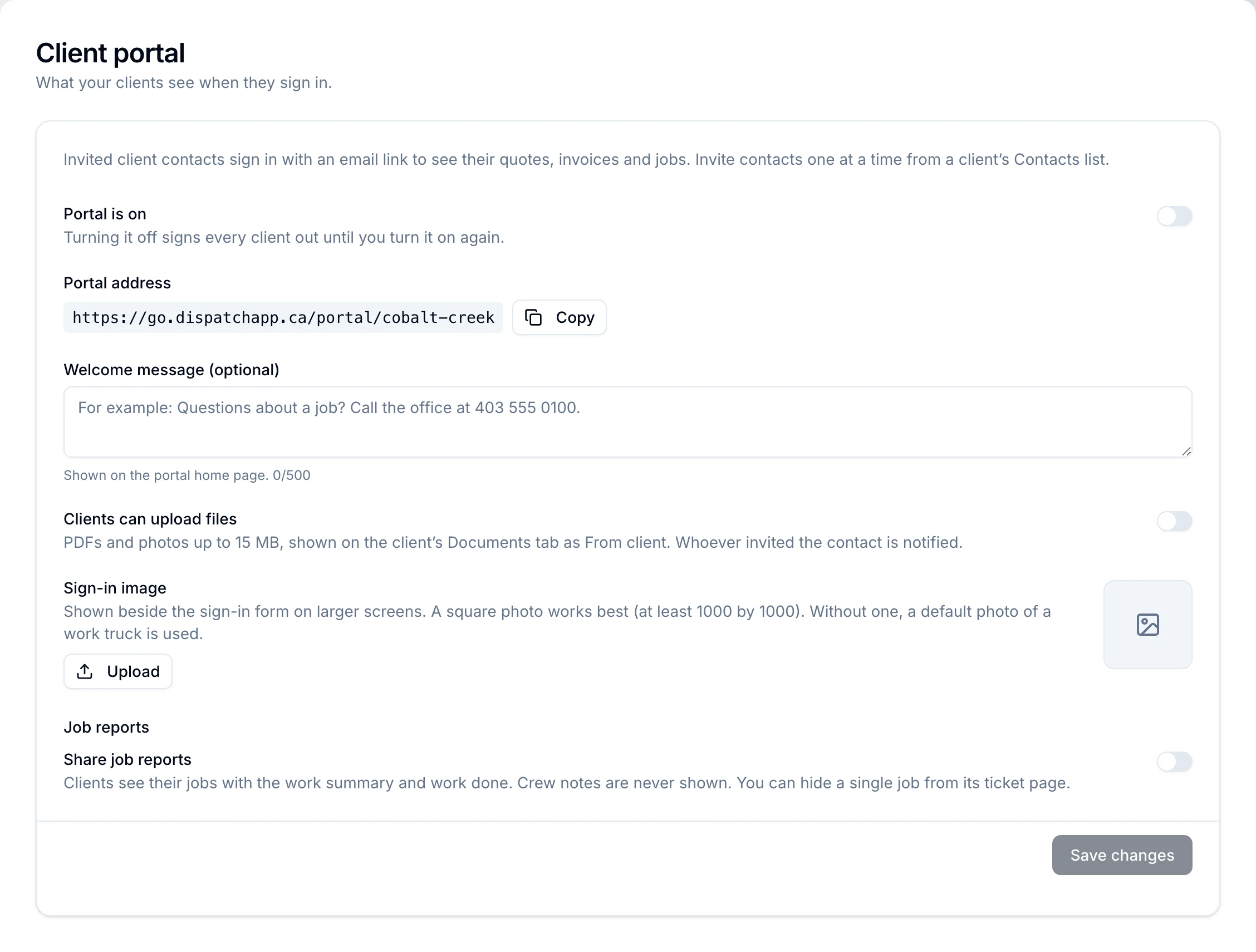
You can also upload a Sign-in image, shown beside the sign-in form on larger screens. A square photo of at least 1000 by 1000 works best.
Note: Turning the portal off signs every client out until you turn it back on.
Invite a client contact
You invite people one at a time from a client’s contacts. Each contact needs an email address.
- Open the client and go to the Contacts tab.
- Open the menu on the contact’s row and choose Invite to client portal.
The contact gets an email from your company with a button to open the portal. The Portal column shows Invited until they first sign in, then the date they last signed in.
Your plan may limit how many contacts can have portal access at once. Settings, Plan and usage shows how many are in use. Remove access for contacts who no longer need it to free one up.
To take access away, choose Remove portal access from the same menu. Sign out of portal everywhere signs them out on every device but keeps their access.
How clients sign in
There’s no password. The client goes to your portal address, enters their email and clicks Email me a sign-in link. The link in the email works once, for 15 minutes. If they’re signing in on another device, they can type the 6-digit code from the email instead.
A contact who works with more than one of your clients can switch between them once signed in.
What clients can do
- Home shows what’s waiting for them, their balance and recent invoices.
- Quotes lists their quotes. They open one to accept or decline it.
- Invoices shows open invoices to pay online, and lets them download any invoice as a PDF.
- Changes lists change orders, the extra work that needs their approval before it’s billed. They open one to approve or decline it.
- Statement shows their unpaid invoices by age, with Download PDF.
- Jobs shows reports for their jobs, if you share job reports.
- Files has their accepted quotes, approved changes and contracts, the documents you’ve shared with them, and, if uploads are on, a place to send you a file.
When a client uploads a file, it shows on the client’s Documents tab as from the client, and whoever invited that contact gets a notification.
Share a document or hide a job
To share a file with a client, open the client’s Documents tab, open the menu on the document’s row and choose Share with client. Choose Stop sharing with client to take it back.
Every job shows in the portal while job reports are shared. To keep one job out of it, open the ticket, find the Client portal card and turn on Hide from client portal.