
Your account page holds the settings that belong to you rather than the company. Anything you change here only affects you.
To open it, click your picture or initials at the bottom of the left bar and choose Account.
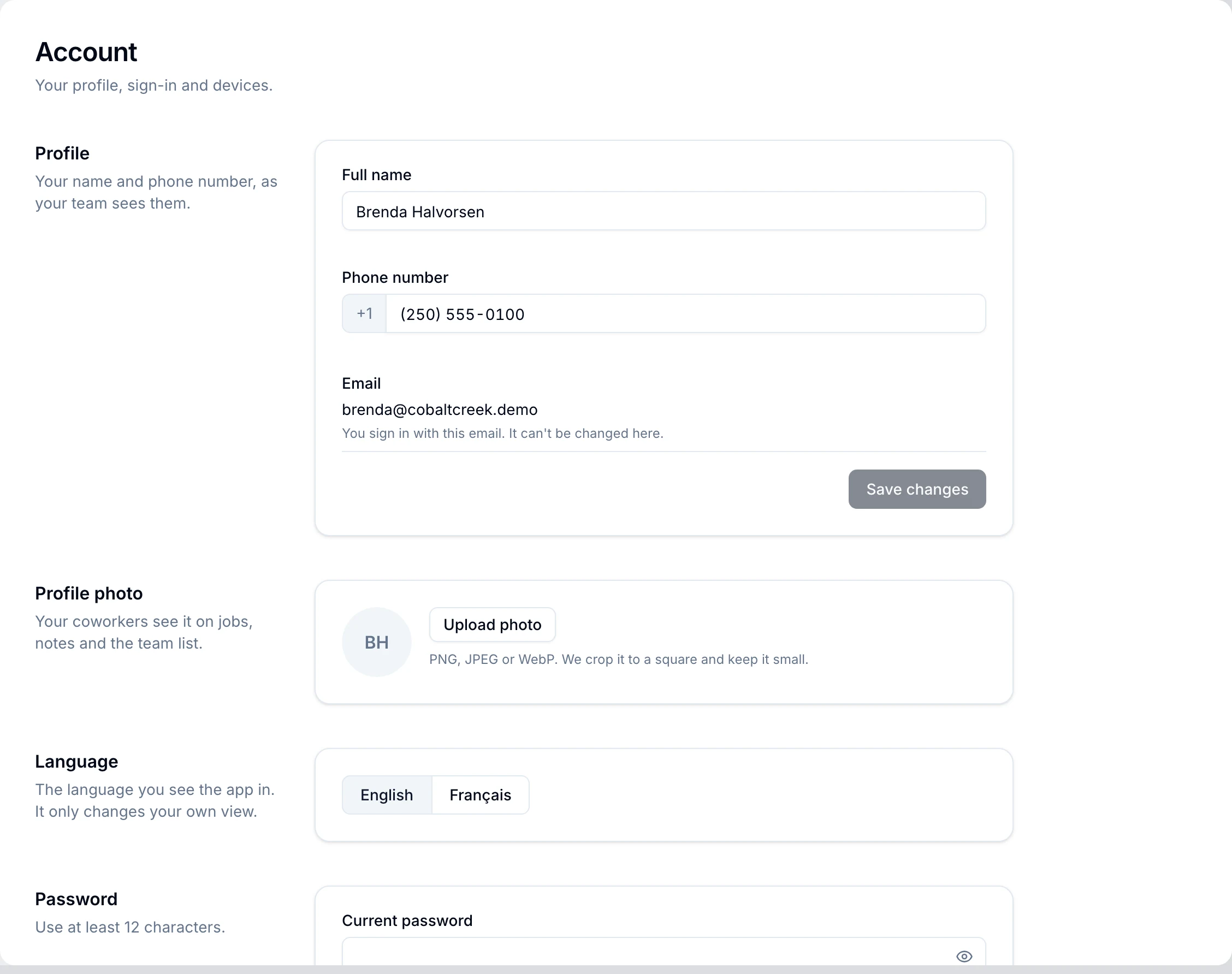
Update your profile
- Under Profile, change your Full name or Phone number.
- Click Save changes.
Your email is what you sign in with, so it can’t be changed here.
Under Profile photo, click Upload photo to add one. Your coworkers see it on jobs, notes and the team list. Use a PNG, JPEG or WebP photo under 8 MB, and Dispatch crops it to a square.
Pick your language
Under Language, choose your Display language: English or Français. It only changes what you see. Your company’s default language for clients is set in Business.
Change your password
- Under Password, enter your Current password.
- Enter a New password of at least 12 characters, and enter it again under Confirm new password.
- Click Update password.
If you’ve forgotten your password, sign out and click Forgot password? on the sign-in page instead.
Sign out other devices
Active sessions lists every device signed in to your account, with when each was last active. If you see one you don’t recognize, click Sign out everywhere and confirm. You’ll be signed out on every device, including this one, and you’ll need to sign in again.
Choose your notifications
Under Preferences, click Notifications.
- Turn on the ways you want to hear from Dispatch: In-app notifications, Email notifications, SMS notifications, Desktop notifications or Push notifications.
- Under What to notify you about, pick Everything, Only what needs me or Custom.
- With Custom, use the table to choose each update and where it goes, such as a job assigned to you, a payment recorded or a quote response.
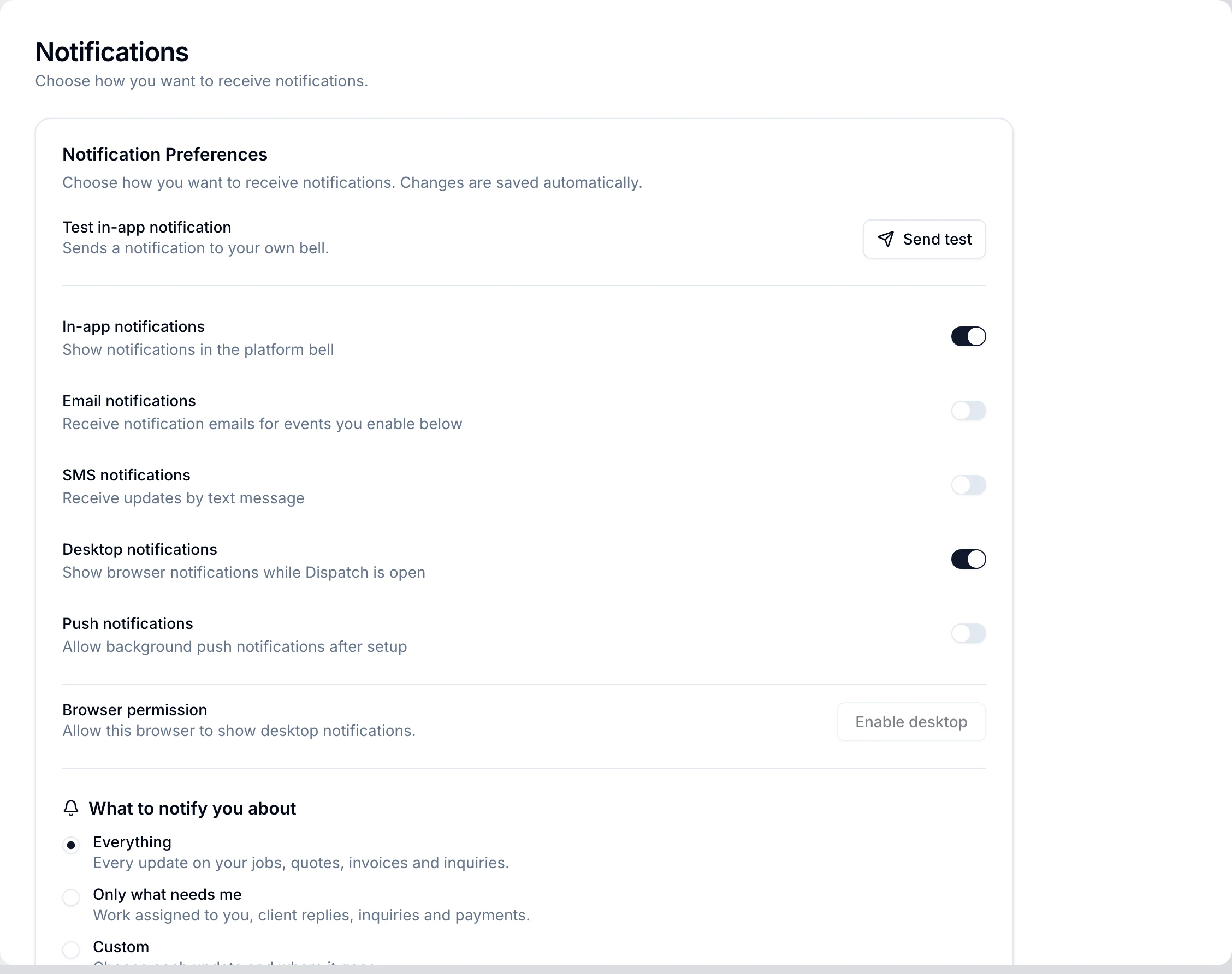
Changes save as you make them. Desktop notifications also need your browser’s permission, so click Enable desktop when asked. To check everything works, click Send test to send a notification to your own bell.
Some emails are always sent no matter what you choose, like password resets, two-step sign-in codes and security alerts.
To set up a code for signing in, click Security under Preferences. See two-step sign-in.
Switch between companies
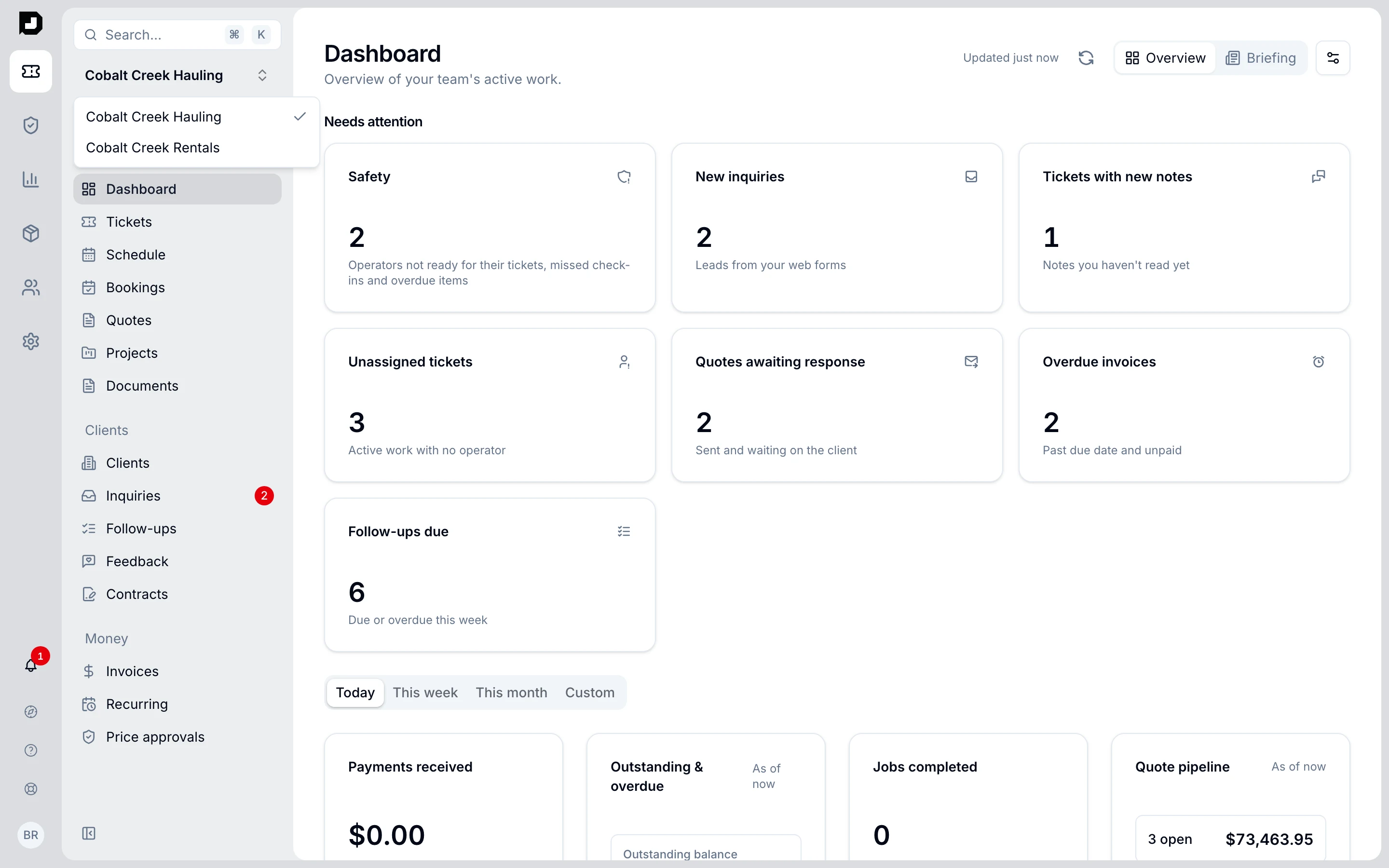
If you work for more than one company in Dispatch, the company name at the top of the side panel is a menu.
- Click the company name.
- Pick the company you want.
Dispatch reloads into that company. Each company’s tickets, clients and settings stay separate, and your role can be different in each one.
Note: Operators manage their account from the Account page in the operator app, which has its own notification and language settings.