
A follow-up is a task with a due date, tied to one client. Use it for things like “call back about the spring contract” or “check the gravel order arrived”. Owners, admins and dispatchers can add and close follow-ups.
Add a follow-up
- Open Follow-ups in the menu, under Clients.
- Click Add follow-up.
- Pick the Client.
- Give it a Title and a Due date.
- Choose an Assignee, or leave it unassigned.
- Add Notes if they help, then click Add follow-up.
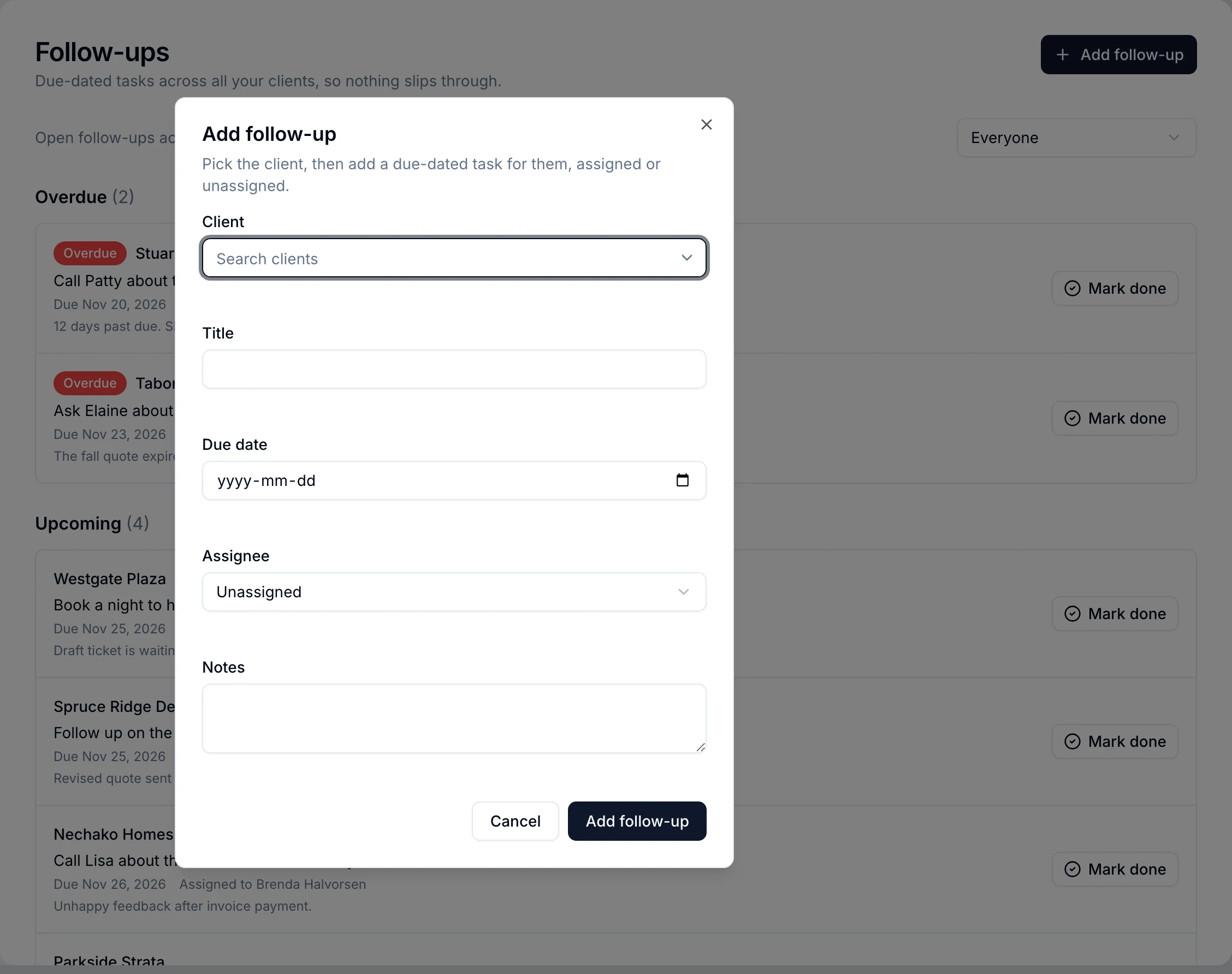
You can also add one from a client’s page. Open the Follow-ups tab (under More) and click Add follow-up. The client is filled in for you.
Work through your list
The Follow-ups page shows every open follow-up across all your clients. Overdue ones come first, then Upcoming, soonest first. The menu above the list is set to Everyone. Change it to see one person’s follow-ups or the Unassigned ones.
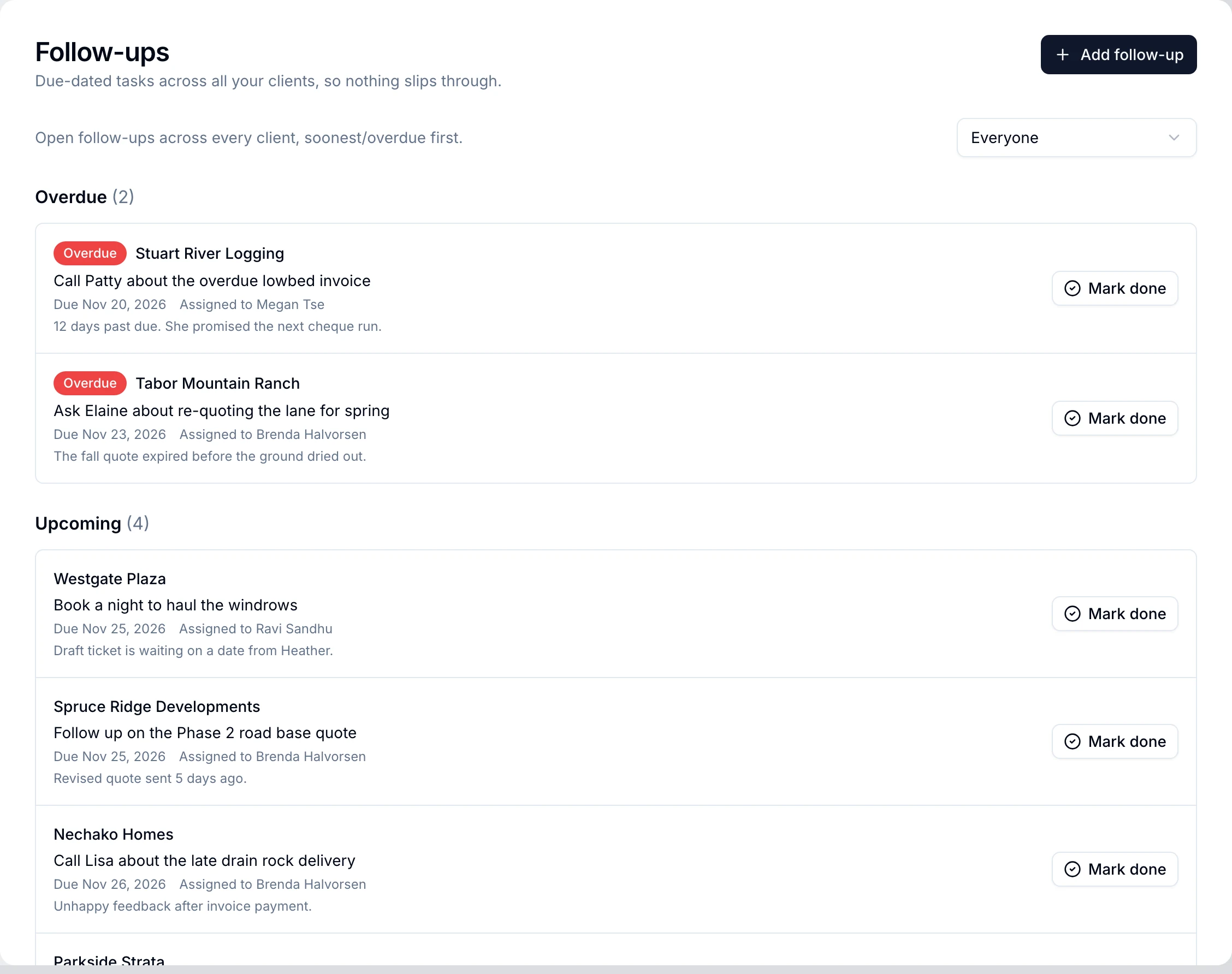
When it’s done, click Mark done. If you clicked it by mistake, click Undo on the same row to open it again.
On a client’s Follow-ups tab you can also see the ones already done. Use Edit to change a follow-up and Reopen to make a finished one open again.