
A change order is extra work the client didn’t agree to at the start, such as one more load or a longer rental. You write down what changed and what it costs, send it to the client, and they approve it online with their name and a signature. Once approved, its lines are added to the ticket.
Owners, admins and dispatchers who can see prices can create and send change orders. You’ll find the Change orders card under the line items on a ticket, and on a quote once the client has accepted it.
Add a change order
You can add a change order to a ticket once it’s submitted, up until it’s invoiced.
- In the Change orders card, click Add change order.
- Under What changed, describe the extra work, for example “The client asked for one more load to the north pad.”
- Under Lines, pick an item from the price list or type a custom line. Set the quantity, the unit price and the tax. Click Add line for more.
- Check the subtotal at the bottom and click Save draft.
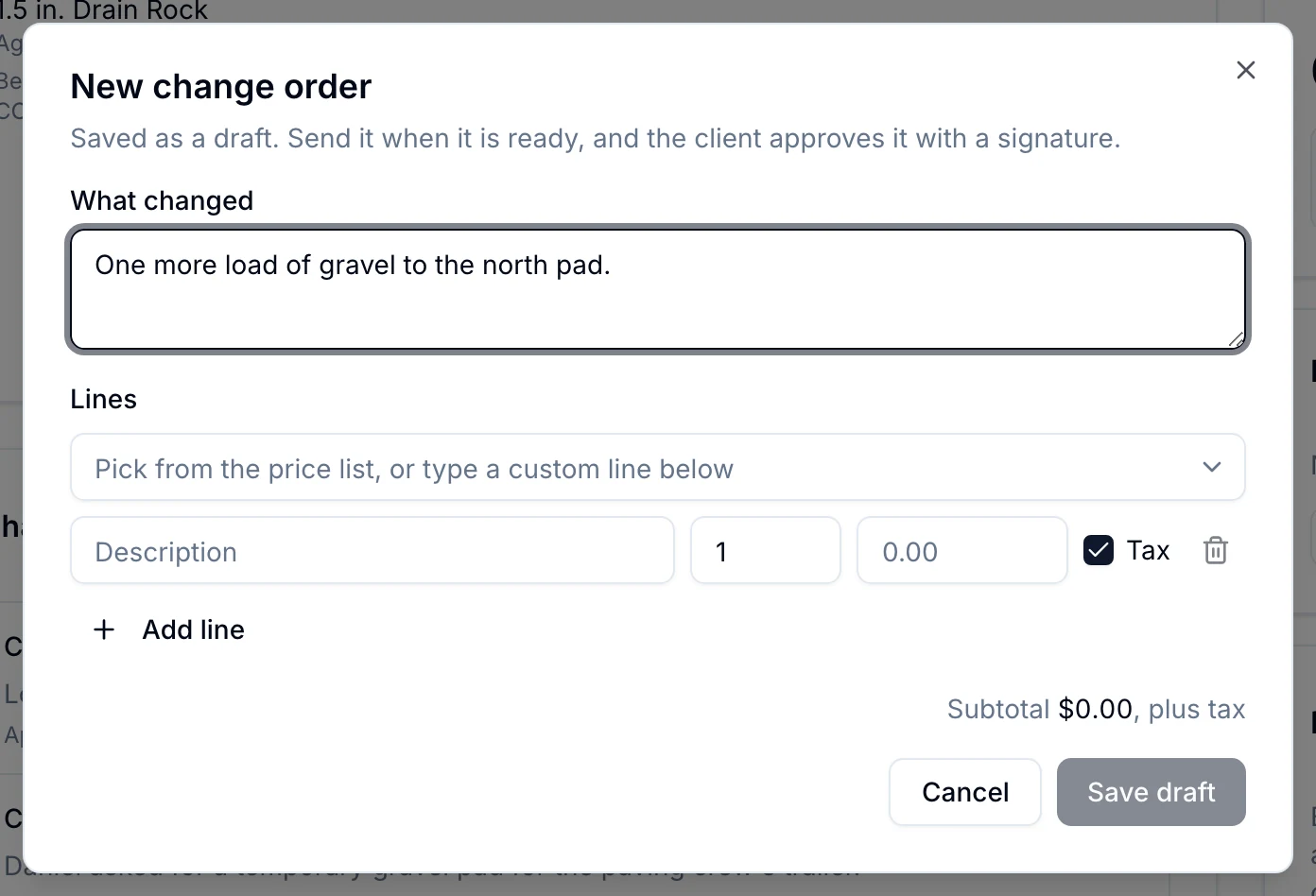
The change order is saved as a draft. Nothing goes to the client until you send it.
Send it for approval
- Open the menu beside the change order (the three dots).
- Choose Send for approval.
Dispatch emails the client a link to approve the change and copies the same link for you, so you can also text it or paste it in an email of your own. It goes to the client’s billing email. If the client doesn’t have one, add it to the client first.
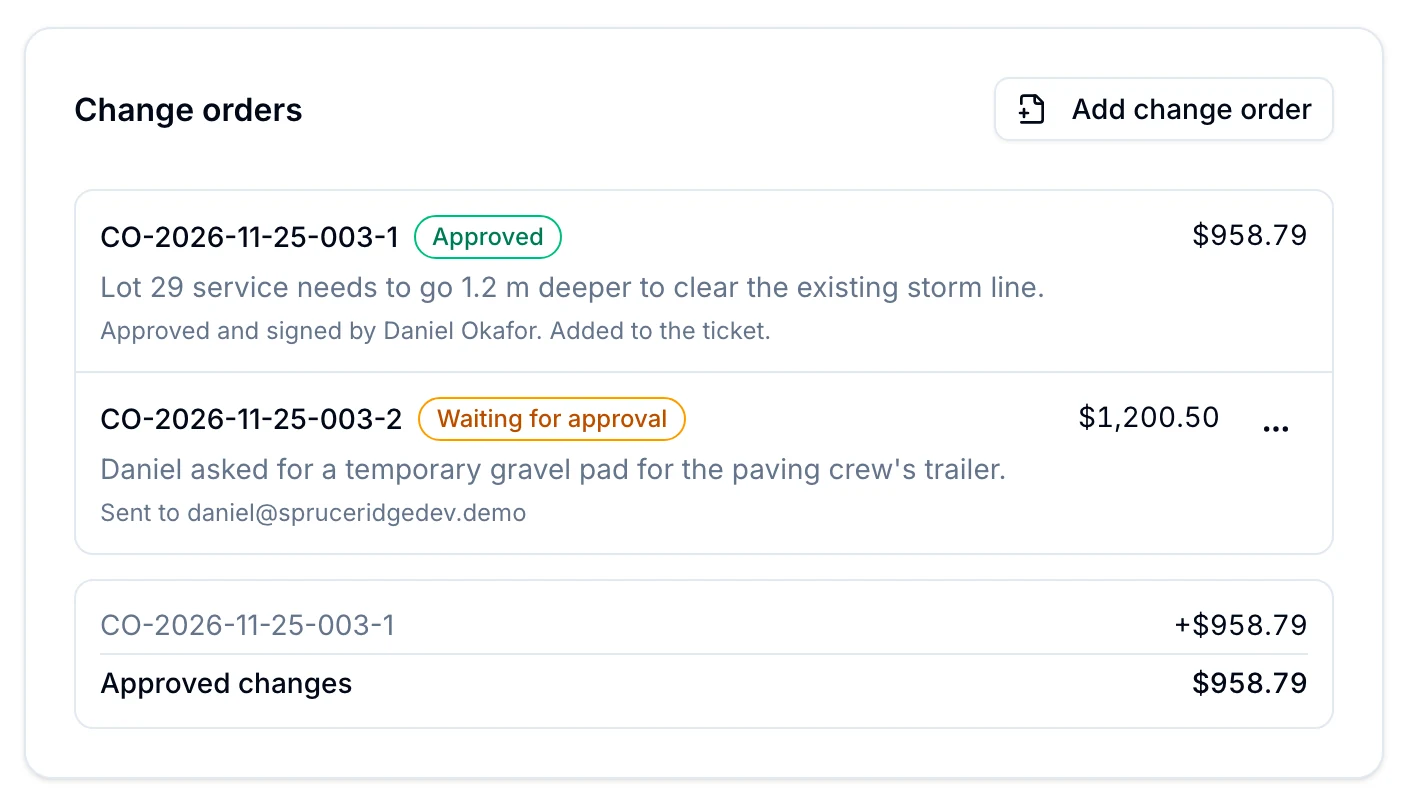
The card then shows the change order as Waiting for approval, with the address it was sent to. Copy approval link in its menu copies the link again.
What the client sees
The link opens a page with your company’s request, what changed, the lines and the total for this change. To approve, the client types their full name, signs with a finger or mouse, ticks I approve this change and agree to pay the amount above and clicks Approve change. They can also click Decline and tell you why.
When the client approves, the change order shows as Approved with their name, and its lines are added to the ticket. If it was on a quote, the lines are added to the ticket when the quote is converted. If they decline, it shows Declined with any reason they gave.
Edit, delete or void
- A draft can be changed with Edit or removed with Delete draft.
- A change order that was sent but not answered can be withdrawn with Void. Its link stops working, and the client sees that there’s nothing to approve.
Once a ticket is invoiced, the client can no longer approve a change order on it from the link. They’re asked to contact you instead.