
A subcontractor company’s contact gets a My company page in the operator app on their phone. From there they send you paperwork, ask to add drivers and accept the jobs you offer. This is part of the Subcontractors add-on. Share this page with your subcontractors’ contacts if it helps them get started.
How the contact gets the page
The contact signs in to the operator app like any of your operators. To give them the page, your office does three things:
- Invite them to your team from People as an operator.
- Link them to their company under Drivers on the company’s page.
- Open the menu next to their name and click Make company contact.
The contact then finds My company under the Account tab in the app. It shows Paperwork complete or how many items they still have to sort out. Other drivers in the company don’t get this page.
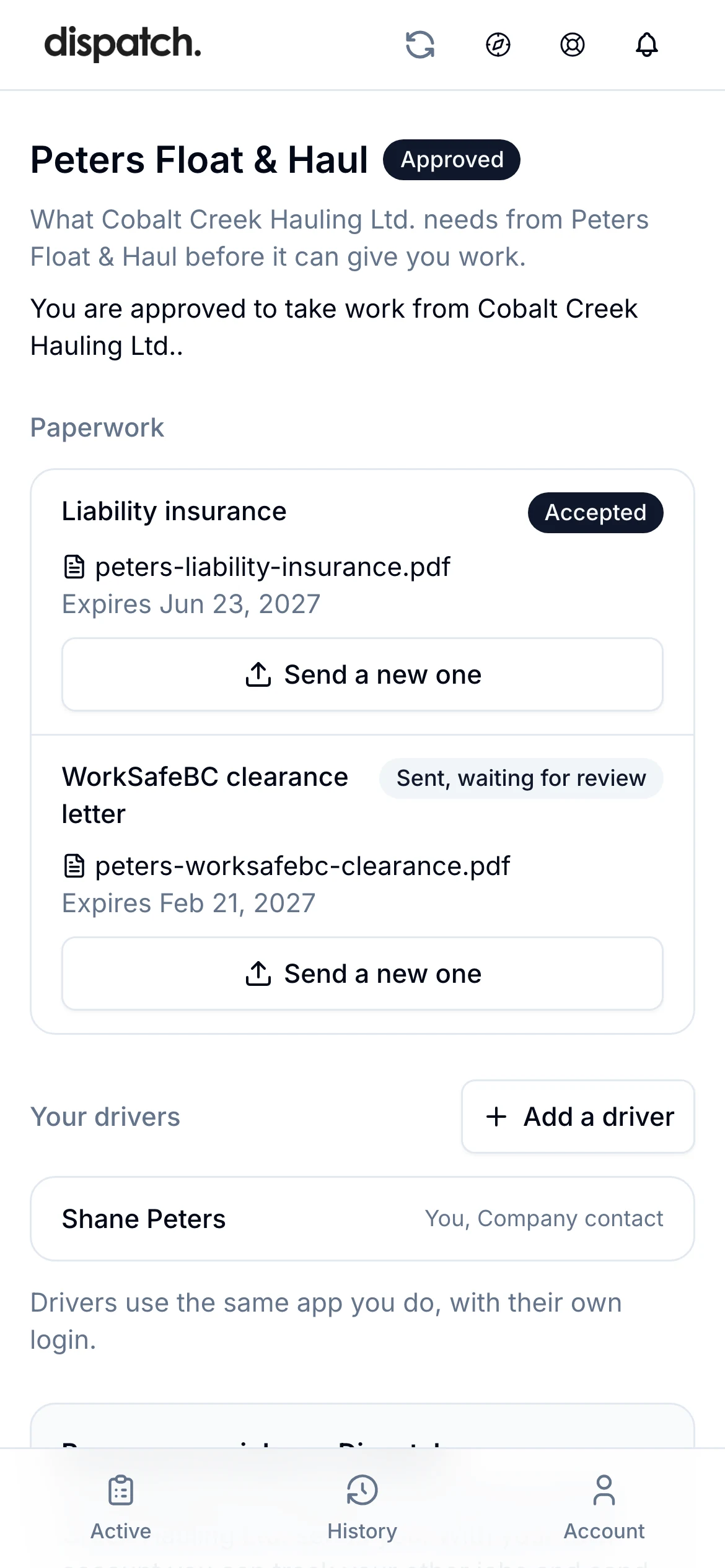
What the contact sees
The top of the page says what you need from the company before you can give it work, and whether it’s approved.
Jobs on offer lists the jobs you’ve offered to the company, with what each one pays. It only appears when there’s an offer open.
Paperwork shows the company’s checklist. Each item is Missing, Sent, waiting for review, Expires soon, Expired or Accepted. Contacts can send files but can’t accept or remove them. Your office does that.
Your drivers lists the company’s drivers. Each driver uses the same app with their own login.
Send paperwork (contact)
- On My company, find the item under Paperwork.
- Tap Upload, or Send a new one to replace an expiring file.
- Pick a PDF or a photo, up to 15MB, and enter the expiry date if it asks for one.
- Tap Upload. The item shows Sent, waiting for review until your office accepts it.
When a file is about to expire, the contact gets a reminder that opens this page.
Ask to add a driver (contact)
Contacts can’t add drivers themselves. They ask, and your office decides.
- Under Your drivers, tap Add a driver.
- Enter the driver’s Full name, Email and, if they like, Phone (optional).
- Tap Send request.
The request appears on the contact’s page in the list of requests waiting for you, and under Driver requests on the company’s page in your office. Dispatch doesn’t send your office a notification, so check the company’s page.
Approving a request sends the driver an invitation to join your team, and they’re linked to the company when they accept. Approving needs someone who can invite people to your team, usually the owner or an admin. Any office staff member can decline a request. The contact sees whether each request is waiting, approved or declined.
Accept a job (contact)
When you offer a job, the contact gets a notification with the date and what it pays. It comes by text unless they’ve changed their notification settings.
- On My company, find the job under Jobs on offer and tap Accept.
- Under Who will do it, choose yourself or one of your drivers.
- Tap Accept job.
The first company to accept gets the job, and it goes straight into the chosen driver’s list. After that, only your office can take it off them. The driver doesn’t see what the job pays unless the contact takes it themselves.