
When something goes wrong on a job, or someone spots something unsafe, your crew reports it from their phone and the office hears about it right away. You then record what will be done about it as a corrective action, assign it to someone and track it until it’s closed.
This is part of the Health & Safety add-on, which Dispatch turns on for your company. If you don’t see Safety in your menu, contact Dispatch to ask for it. The incident and hazard forms come with the standard forms, so add those first (see safety forms and inspections).
Report an incident or near miss
Operators report it the same day, even if nobody was hurt.
- On the phone, tap Account, My certificates, Fill a form, then Incident or near miss report.
- Under What happened, choose Near miss, Injury, Property or equipment damage, Vehicle collision, Spill or release or Other.
- Fill in the Date, Where and Describe what happened. The Time is optional.
- Answer Was anyone hurt? If the answer is yes, the form also asks whether first aid was given.
- Add What was done right away, any Photos, and sign under Reported by.
- Tap Send.
Owners, admins and dispatchers get a notification for every incident report. Office staff can also fill one in from Safety, Forms and records by clicking Fill in beside the form.
Report a hazard
The Hazard report is for something unsafe that needs fixing, like a broken step or a leak in the yard. The operator describes What’s unsafe and Where, picks How serious it is (Low, Medium or High, stop work), and can add a Suggested fix and photos.
When a hazard is marked High, stop work, owners, admins and dispatchers get a notification.
Add a corrective action
A corrective action records what will be done, who does it and by when. Owners, admins and dispatchers can add one, either from the record it came from or on its own.
- Open the record from Safety, Forms and records, or go to Safety, Actions.
- Click New action.
- Under What will be done, describe the fix, for example “Replace the cracked mirror on unit 12”. Add Details (optional) if it helps.
- Choose Who does it. You can pick anyone on your team, operators included.
- Pick a Due date (optional).
- Click Add action.
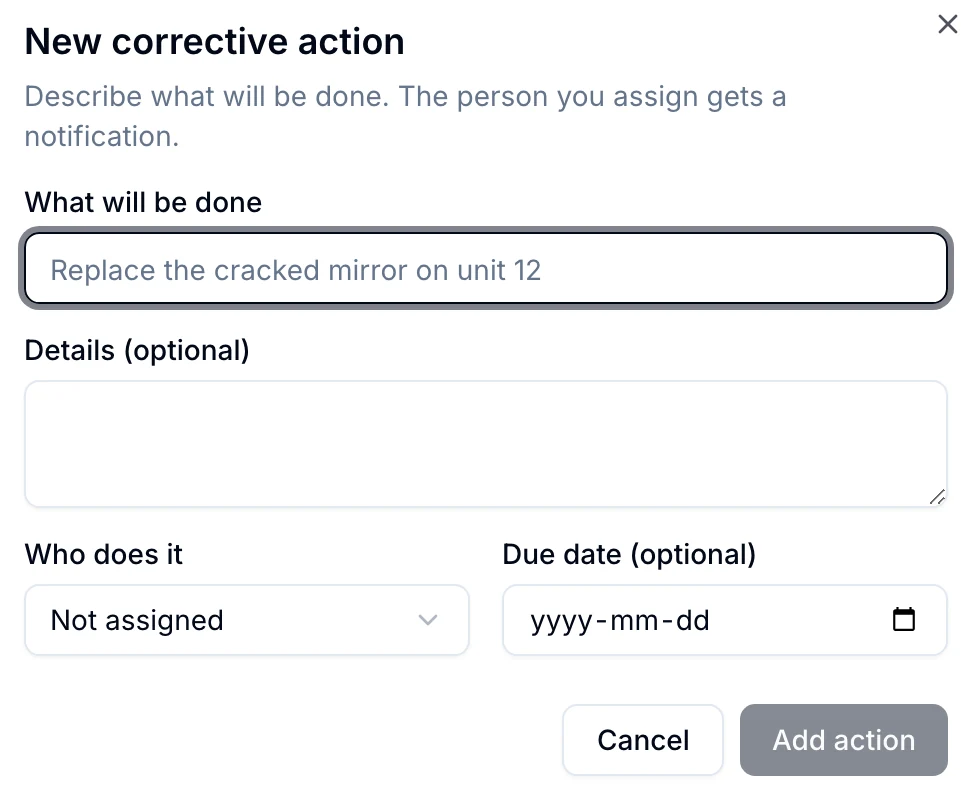
The person you assign gets a notification. An action added from a record stays linked to it, so you can see both together.
Close an action
Safety, Actions lists the open actions, with overdue ones marked Overdue. Overdue actions also show on the Safety overview.
- Click Mark done on the action.
- Under What was done (optional), note the fix, for example “Mirror replaced, checked on the pre-trip”.
- Click Mark done again to close it.
Operators see their own actions under Actions for you on their phone’s safety page and can mark them done there with a note. Owners, admins and dispatchers can close any action, and click Reopen if the fix didn’t hold.
Every action, with who closed it and when, goes into the COR binder as evidence for your audit.