
Contracts are agreements your clients read and sign online, such as a rental agreement or a service agreement. You write the text once as a template, then start a contract from it for each client. Dispatch fills in the client’s details, emails them a link, and keeps the signed PDF.
Owners and admins write the templates. Dispatchers can start, send and void contracts from them.
Write a template
- Open Contracts in the menu, under Clients.
- Click Contract templates.
- Click New template, or Start from an example and pick Equipment rental agreement or Service agreement.
- Write the Title on the contract and the Contract text. There’s an English tab and a French tab. Fill in at least one. Clients who read French get the French version when there is one.
- Click Insert a field to add details that fill in when you send, such as the client’s name, the quote total or the job address.
- In the template settings, give it a Name your team sees and a Signing deadline in days. Leave the deadline empty for none. On a wide screen the settings sit beside the text. On a smaller one, click Settings.
- Click Save template.
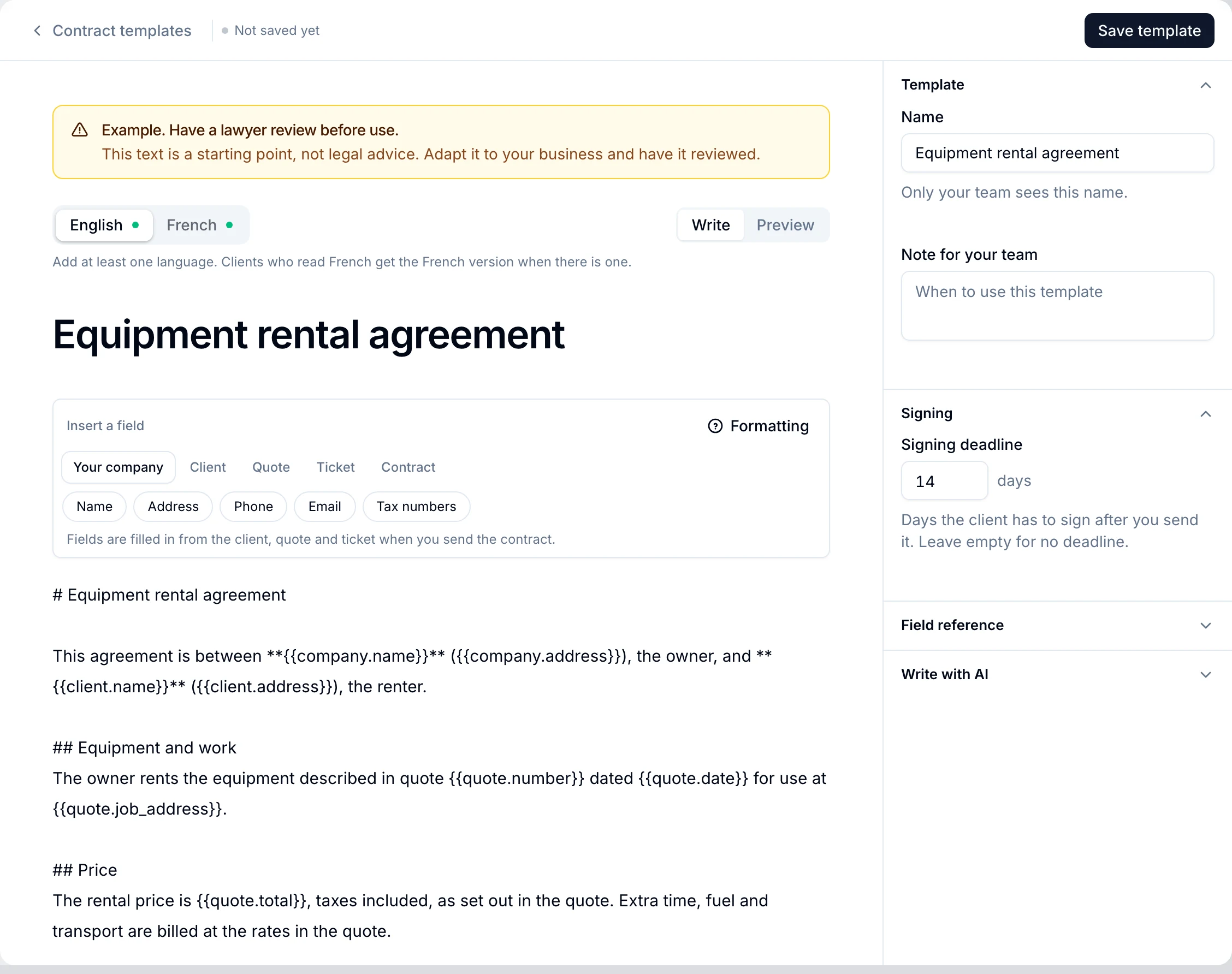
Use Preview to see the contract with sample values. The client’s signature, name and date are added at the end of every contract, so you don’t need to write a signature block.
Note: The examples are a starting point, not legal advice. Have a lawyer review a template before you use it with clients.
Start a contract
You can start a contract from the Contracts page, or from the Contracts card on a client, quote or ticket. Starting from a quote or ticket links it, so fields like the quote total or job address can fill in.
- Click New contract.
- Pick the Template and the Client.
- Click Create draft.
The draft opens. You can change the Title on the contract, the Language of this contract and the text itself. Click Save draft when you’re done, and Preview PDF to see what the client will get.
If any field is empty, for example the client has no address on file, Dispatch lists it and won’t send until you fill it in on the client, quote or ticket, or replace it with text.
To show the Contracts card on every ticket, turn on Show contracts on tickets in Settings > Documents.
Send it for signature
- On the draft, click Send for signature.
- Check Send to. It’s the email of the person who signs.
- Set Sign by if you want a deadline, or leave it empty.
- Click Send contract.
Once it’s sent, the text is locked. To fix a mistake, void it and send a new one.
What the client does
The client gets an email with a link. They read the contract, type their full name, sign by typing or drawing, tick the box agreeing to sign electronically, and click Sign contract. They can also Decline and tell you why.
You get a notification when they sign or decline. The status on the Contracts list changes from Sent to Opened, Signed, Declined or Expired (if the deadline passes).
After it’s signed
Open the contract and click Download signed PDF. The Signature record on the page shows who signed, when, how, and from which IP address.
Email it again or void it
On a sent contract, click Email again to resend the link.
To withdraw a contract, click Void, give a Reason (only your team sees it), and click Void contract. The client can no longer sign it. Tick Start a new draft with the same text if you want to fix it and send it again.