
Health & Safety keeps your crew’s safety paperwork in Dispatch. It tracks certificates and when they expire, collects the forms operators fill in on their phone, has your crew sign your policies, watches over people working alone, and gathers everything an auditor asks for at a COR audit. It can also check, when you put someone on a job, that they hold the certificates they need.
This is an add-on. Dispatch turns it on for your company, and once it’s on you’ll see Safety in the main menu and Health & Safety under Settings, Add-ons marked Managed by Dispatch. If it isn’t there, contact Dispatch and ask for it.
Who can do what
Owners, admins and dispatchers can open every Safety page. They add and verify certificates, read form records, add corrective actions and keep the document library.
Only owners and admins can change the rules on Setup, add certificate types, turn forms on or off and write policies. Only an owner can let someone work while a required certificate is missing.
Operators never see the office pages. They use Safety from their phone: they send photos of their certificate cards, fill in forms, sign policies and check in when they work alone.
Find your way around
Safety has its own section in the menu, split into four groups:
- Overview shows what needs someone today.
- Crew holds Certificates, Policies and Working alone.
- In the field holds Forms and records, Actions and Trucks and equipment.
- COR and setup holds Documents, COR binder and, for owners and admins, Setup.
Set the rules for your crew
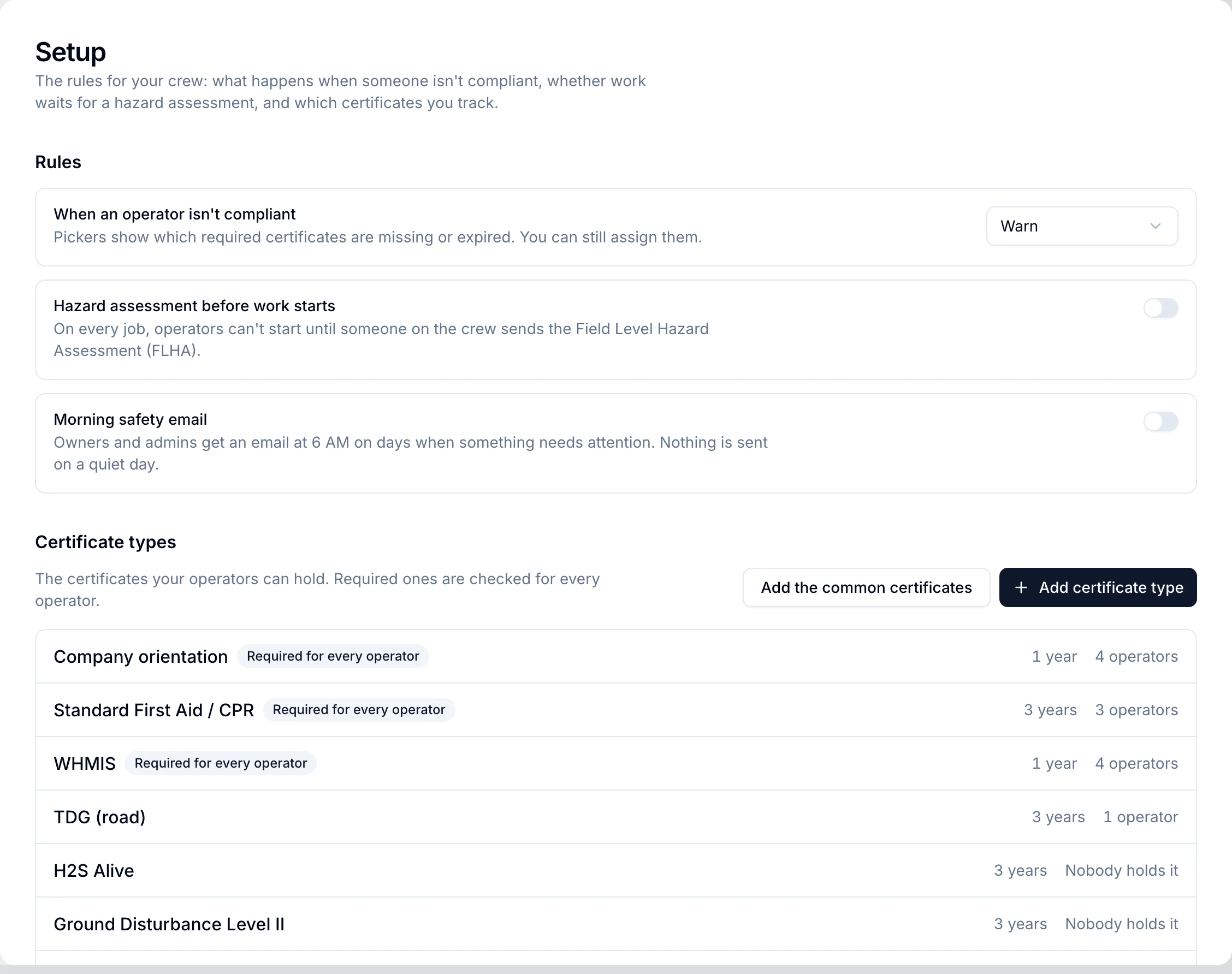
An owner or admin sets these once, on Safety, Setup. Each one saves as soon as you change it.
- Under When an operator isn’t compliant, pick what happens when you assign someone who is missing a required certificate or hasn’t signed a policy:
- Warn: the operator picker shows what’s missing or expired, and you can still assign them.
- Block: someone missing a required certificate on the job date can’t be assigned. An owner can let one person work for up to 30 days.
- Do nothing: no check when assigning operators.
- Turn on Hazard assessment before work starts if operators shouldn’t start a job until someone on the crew sends the Field Level Hazard Assessment (FLHA). The FLHA form has to be turned on in Forms and records first.
- Turn on Morning safety email if you’d like owners and admins to get an email at 6 AM on days when something needs attention. Nothing is sent on a quiet day.
- Under Certificate types, choose the certificates you track. Track certificates and expiry dates walks through this.
Tip: If your company also has Dispatch’s AI assistants, owners and admins see Ask Nehemiah to help on this page. Nehemiah asks you a few questions in a chat and suggests a setup that fits your crew. Nothing changes until you say yes.
After the rules, most companies add the standard forms (see safety forms and inspections) and the starter policies (see policies and working alone).
Check the overview each day
Safety, Overview opens with a one-line summary under Safety today, such as how many operators aren’t ready for work or how many corrective actions are overdue. Below it are four counts: Ready for work, Expiring soon, Open actions and Working alone.
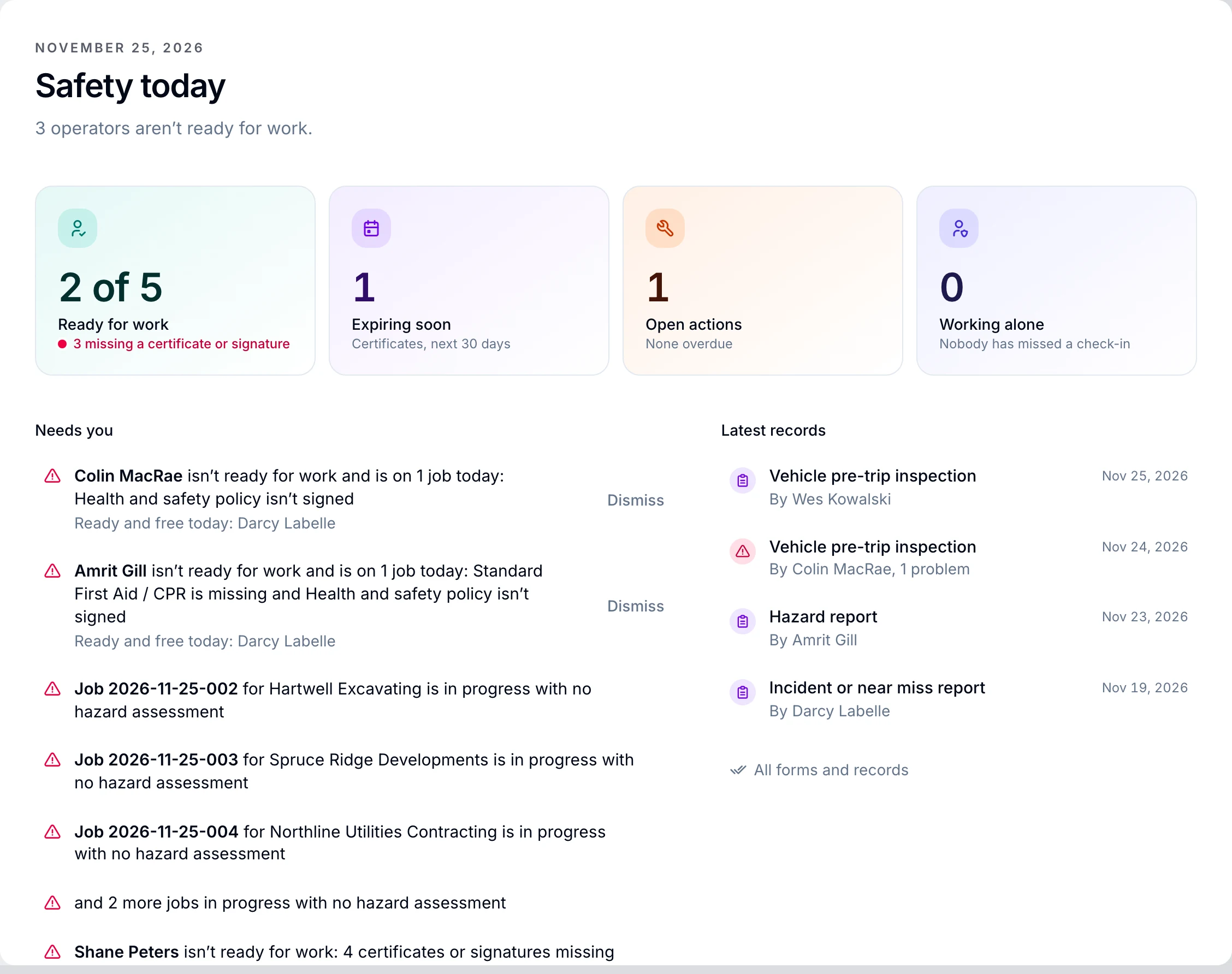
Needs you lists what someone should act on, most urgent first. Dispatch looks at today and tomorrow, so you hear about a problem before the crew heads out. You might see:
- someone working alone who missed a check-in
- an operator who isn’t ready for work and is on a job today or tomorrow, with the names of operators who are ready and free that day
- a job in progress with no hazard assessment
- a certificate that runs out before a longer job ends
- someone on a job under an owner’s override
- a truck or piece of equipment that’s out of service or overdue for inspection, and booked on a job
- overdue corrective actions, and certificates sent from the phone app that are waiting for you to check
When there’s nothing to do, it says All caught up. Nothing needs you right now. Each line links to the page where you fix it.
Let someone work anyway for a day
Sometimes you know an operator is fine to work even though Safety flags them, for example when their renewal course is booked for Friday. Owners, admins and dispatchers can dismiss the flag for that day.
- On the flagged person’s line under Needs you, click Dismiss.
- Under Reason, say why. The reason is kept with your safety records.
- Tick the box that says you’ve checked they can work, then click Dismiss flag.
The flag is hidden for those days only and comes back on the next working day if nothing has changed. Every dismissed flag, with its reason, appears in the COR binder.