
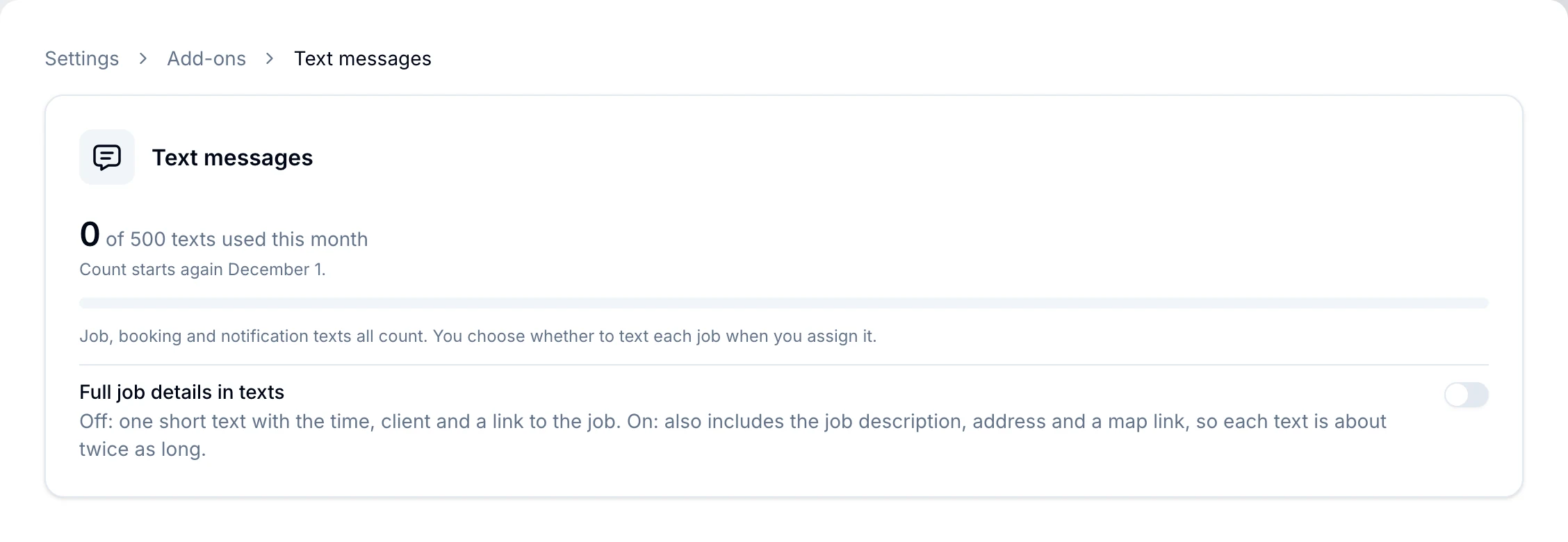
Dispatch can text job details to your operators when you assign them, send your team their notifications by text, and text clients about appointments and feedback. Every text counts toward a monthly allowance that you can check under Settings, Add-ons, Text messages.
Text messages is listed with the add-ons because it has its own allowance, and it’s already on for every company. The Dispatch team sets your monthly allowance, so contact us if you need a bigger one.
What gets texted, and to whom
Operators get a text when you assign them a job. When you assign an operator, the Text the job details box is checked. Uncheck it if you don’t want to text that person this time. Crew members added to a job get a text too, telling them who the primary operator is.
Your team can get notifications by text. Each person chooses this for themselves under their account’s notification settings by turning on SMS notifications. It’s off until they turn it on. Job assignments aren’t repeated as notification texts, since the job text already covers them.
Clients get appointment texts if you use the Bookings add-on and the client gave written consent to get texts at that number. These are the booking request, a reminder, time changes and cancellations. The first text to a client ends with “Reply STOP to opt out.”
Clients can get a feedback request by text if you use the Feedback add-on and they agreed to get it that way.
Short or full job texts
By default, a job text is one short message with the ticket number, time, client and a link to the job. If your operators would rather see everything in the text itself, turn on Full job details in texts on the Text messages page. Full texts also include the job description, address and a map link, so each one is about twice as long.
Texts go out in each operator’s own language, English or French.
Resend a job text
If an operator says they didn’t get the text, open the ticket and click Resend SMS. You have to wait 5 minutes between sends, and the button shows how long is left. The ticket also shows whether the text was queued, sent, delivered or failed.
Turn texts off for one person
Owners, admins and anyone whose role can manage users can switch texting off for a person. Open the person under your team, set Text messages to Off and save. They won’t get job texts or notification texts until you turn it back on. Nobody can change this switch on their own profile.
A person also needs a valid 10-digit mobile number on their profile to get texts. If someone can’t be texted, the Text the job details box is greyed out and tells you why.
Your monthly allowance
The Text messages page shows how many texts you’ve used this month, out of your allowance, and the date the count starts again. Job, booking and notification texts all count.
Texts keep sending when you go over the allowance. The page shows how many you’re over, and the extra texts are added to your next invoice. The owner gets an email and a notification at 80% and again when the allowance is used up.
When someone replies
Dispatch acts on a few one-word replies from clients and ignores everything else. There’s no texting inbox, so a client who replies with a question won’t reach you. Ask clients to call or email you instead.
- STOP turns off texts to that number. Dispatch marks the client as opted out and you’ll see “This number opted out of texts (replied STOP).” when you book them. To text them again, you need to record new written consent from the client.
- YES confirms an appointment when exactly one booking is waiting on that number. The client gets a text back saying they’re confirmed, and the booking shows it was confirmed by text reply. If more than one booking is waiting, or a deposit is due, they’re sent the link to confirm instead.
Note: Replies from operators and staff aren’t read by Dispatch. If a job text to an operator keeps failing, check the phone number on their profile and reach them another way.
Who can see this page
Owners and admins can open Text messages under Settings, Add-ons. Dispatchers can only if their role includes Add-ons. The owner can also see texting under Settings, Plan and usage.