
Health & Safety keeps a record of each operator’s certificates, like First Aid, WHMIS or H2S Alive, and the date each one expires. Dispatch reminds people before a card runs out and can check certificates when you put someone on a job.
This is part of the Health & Safety add-on, which Dispatch turns on for your company. If you don’t see Safety in your menu, contact Dispatch to ask for it. See Get started with Health & Safety for the basics.
Owners and admins choose which certificates you track. Owners, admins and dispatchers can add, edit and verify each operator’s certificates. Operators can send in their own cards from their phone.
Choose the certificates you track
- Go to Safety, Setup and find Certificate types.
- Click Add the common certificates to start with the usual ones for trucking and field work, such as Standard First Aid / CPR, WHMIS, TDG (road), H2S Alive, Ground Disturbance Level II and Driver’s licence. Then remove or change what you don’t need.
- To add one of your own, click Add certificate type.
- Fill in the Name. Under Standard validity in months, enter how long the certificate lasts, if you know. Dispatch uses it to work out the expiry when a card has no date printed on it. Leave it empty if the date on the card is the only expiry.
- Turn on Required for every operator if everyone must hold it. Operators without it show as missing.
- Click Save.
To stop tracking a certificate, open it and turn off In use. Existing certificates are kept. You can only delete a type that nobody holds.
See where everyone stands
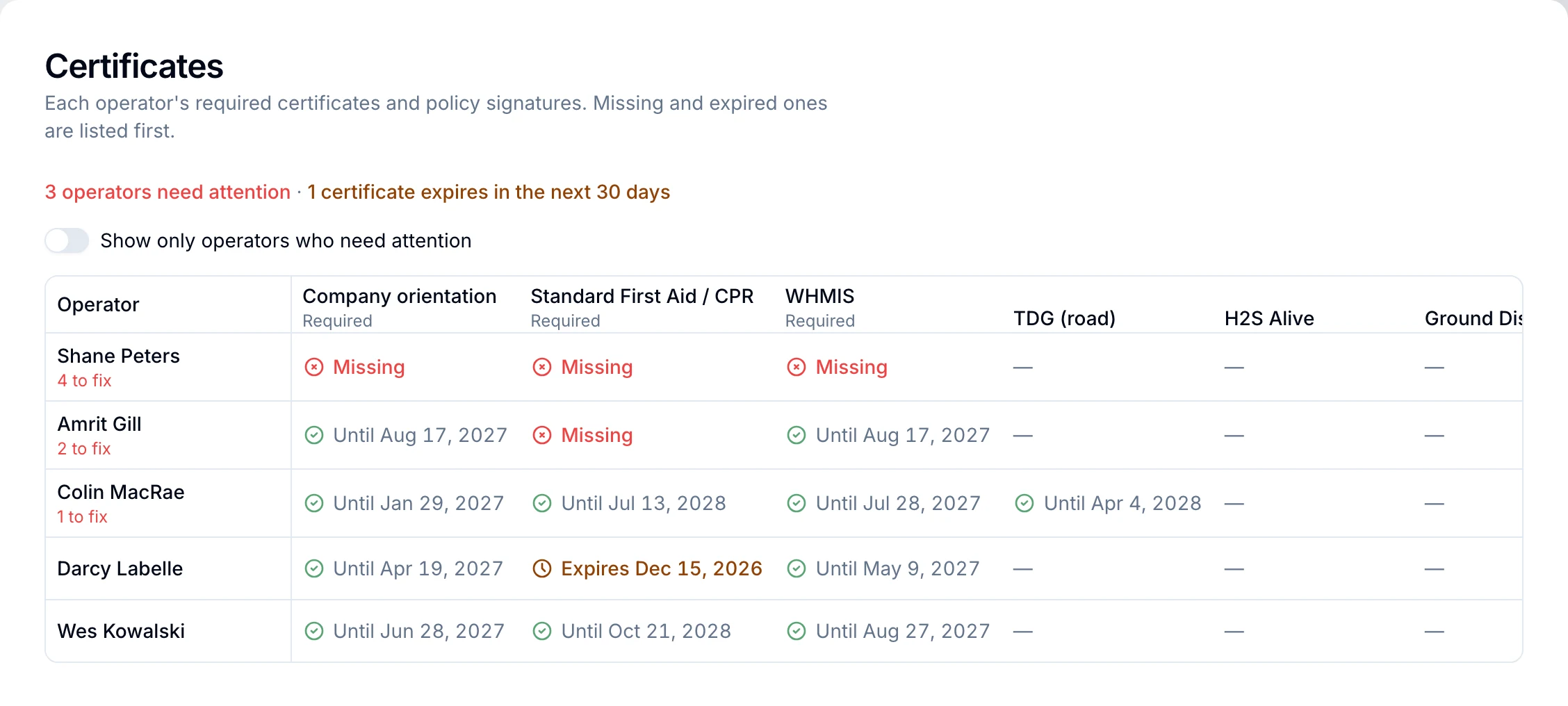
Safety, Certificates shows a table with one row per operator and one column per certificate. Operators with missing or expired certificates are listed first. Each cell shows the certificate’s status:
- Valid, with the expiry date or No expiry
- Expires soon, when it runs out in the next 30 days
- Expired or Missing
- Waiting to verify, when an operator sent it from their phone and nobody has checked it yet
If you’ve shared policies, a Policies column shows who still has some to sign. Tick Show only operators who need attention to hide everyone who’s up to date.
Add an operator’s certificate
- On Safety, Certificates, click the operator’s cell under the certificate. You can also click the operator’s name and then Add certificate.
- Check the Certificate and enter the Certificate number, Issued date and Expires date. If you leave Expires empty, Dispatch uses the standard validity from the issue date.
- Under Photo of the card, click Add photo if you have a picture of it.
- Click Save.
Click a filled cell to edit the certificate, replace the photo or delete it.
Check cards sent from the phone
Operators can keep their own certificates up to date. On their phone they tap Account, then My certificates. Anything they’re missing is listed under Needed for work. They tap Add, choose the certificate, tap Take a photo of the card, add the number and dates if they have them, and tap Send to the office.
A card sent this way shows as Waiting to verify, and Overview reminds you there are cards to check. It doesn’t count for the dispatch check until someone in the office verifies it.
- Open the certificate from the operator’s row.
- Click Open the photo and compare it with the details.
- Fix anything that’s wrong, then click Verify.
Reminders before a certificate expires
Dispatch sends a notification to the operator when one of their certificates is 60, 30 and 7 days from expiring, and again once it has expired. Owners, admins and dispatchers get one summary of the same certificates. The operator also sees a banner on their phone when a card is about to run out.
Certificates a client requires
Some clients ask for extra tickets on their sites, such as H2S Alive. You can record that on the client, and Safety then checks it whenever someone is put on that client’s work.
- Open the client’s page and find Safety requirements.
- Tick the certificates this client requires. Ones every operator already needs are marked Already required for everyone.
- Click Save requirements.
Only owners and admins can change these.
What happens when someone is missing a certificate
The rule you choose on Setup (Warn, Block or Do nothing) decides what happens when you assign an operator who is missing a required certificate or hasn’t signed a shared policy. Even after someone is assigned, the Safety overview flags anyone who isn’t ready and is on a job today or tomorrow.
Let one person work while a certificate is missing
With Block on, an owner can make an exception for one person, for example while they wait for a course date.
- On Safety, Certificates, click the operator’s name.
- Click Let them work anyway.
- Under Reason, say why, for example “First Aid course booked for next week”.
- Choose the date under Allowed until. It can be up to 30 days away.
- Click Save.
The operator’s row shows Override until and the date. To stop it early, open the operator and click End now. Every override and its reason is kept for your COR records and listed in the COR binder.