
Dispatch has one search box that finds both records and pages, plus filters on each list. Owners, admins and dispatchers can use both.
Search from anywhere
- Click Search… at the top of the menu, or press Ctrl+K (⌘+K on a Mac).
- Start typing a client name or a ticket, quote or invoice number.
- Pick a result with the mouse, or use the arrow keys and press Enter.
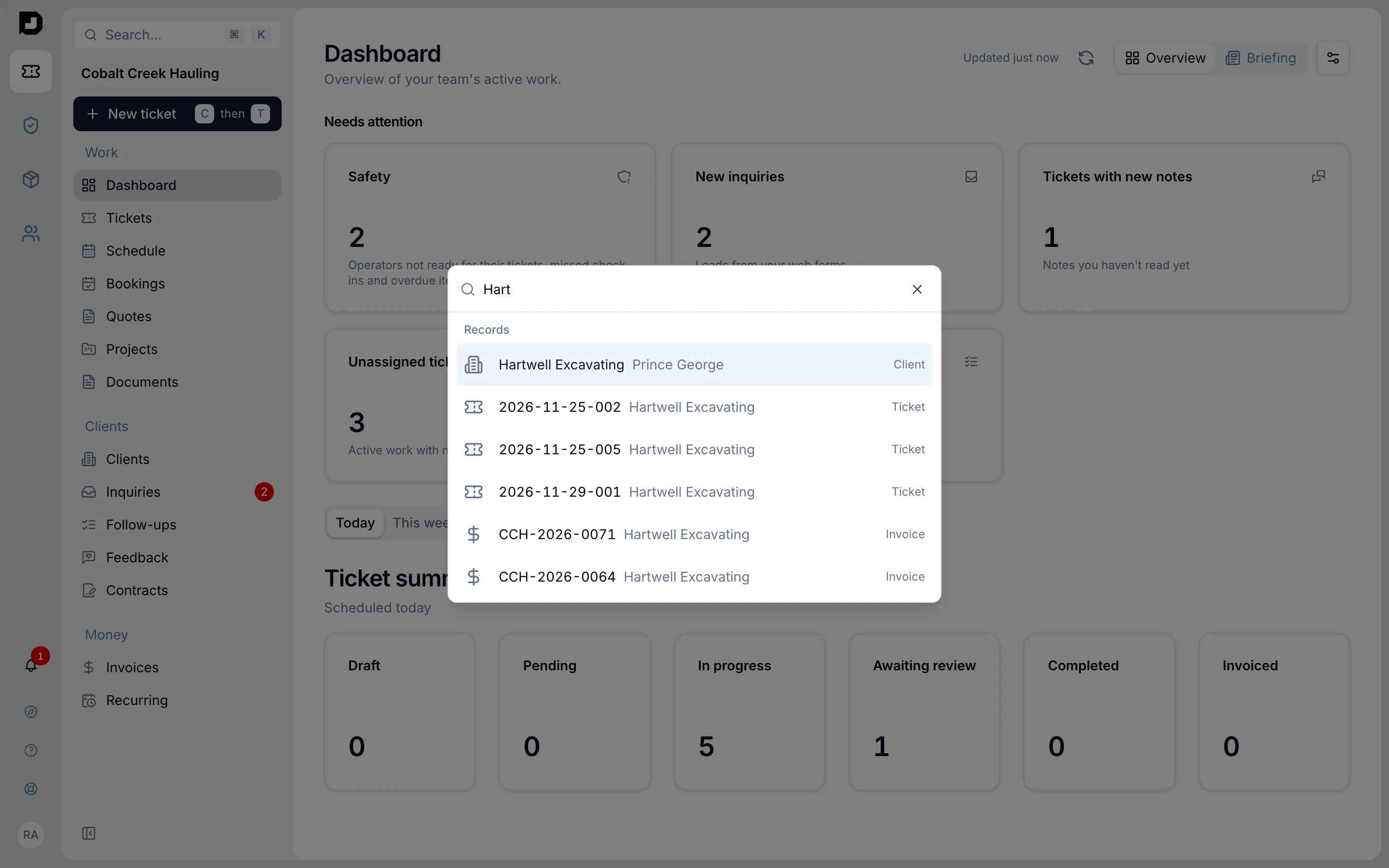
The results are split into records and pages:
- Records: clients by name, and tickets, quotes and invoices by their number or their client’s name. With the Projects add-on, projects show up too, by name or reference. Matches at the start of a number or name come first, then the most recent.
- Pages: any screen in the app, such as Schedule, Price approvals or a settings page, grouped under the same names as the menu. Type “tax” or “terms” to get to the right setting without hunting through menus.
Discarded tickets, quotes and invoices don’t show up in search.
Ask Noah from the search box
With the AI Agents add-on, the search box can also pass a question on. Type a question, such as “Which invoices are overdue?”, and choose the Ask Noah line in the results. That opens the AI Agents page with your question already asked. Ctrl+J (⌘+J on a Mac) opens the AI Agents page from anywhere.
Find a ticket on the tickets list
The Tickets page in the Work menu lists every ticket. Use the tools above the list to narrow it down:
- Type in Search tickets… to match a ticket number, a client name or words in the work summary. Press / on the keyboard to jump to the search box.
- Click a status to show only those tickets. You can pick more than one.
- Use Client, Operator, Scheduled and Tags to filter further.
- Turn on Show discarded & voided to include tickets that are normally hidden.
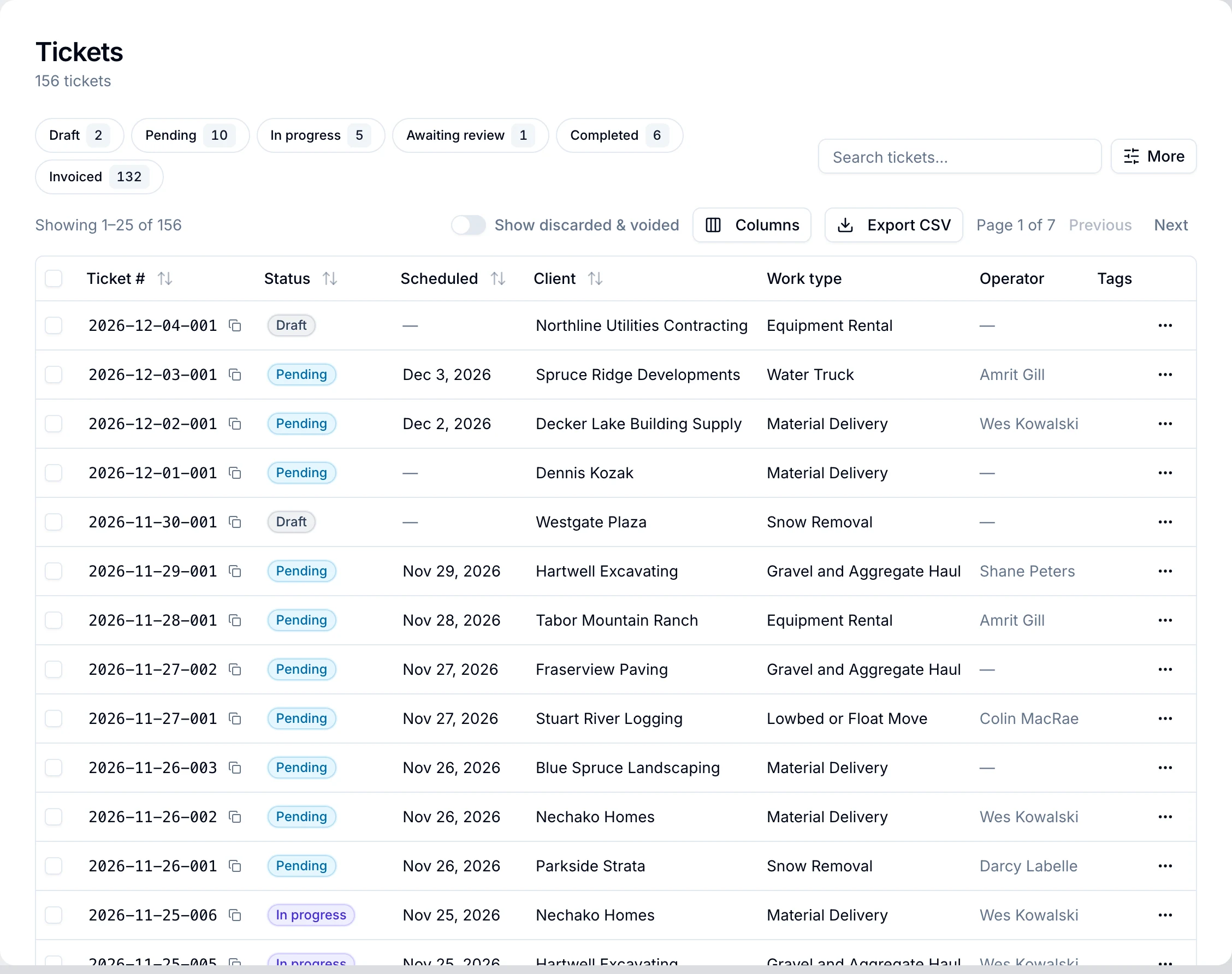
Click a ticket number to open a quick view of the ticket in a side panel, or open the row’s menu and choose View to go to the full ticket.
Columns chooses which columns the list shows, such as Work summary or Tags. Your choice is saved for you in this browser. Export CSV downloads the list as a spreadsheet, or only the rows you’ve ticked.
Tip: The filters live in the page address, so you can bookmark a filtered list, such as all tickets awaiting review, and come back to it.