
A quote is a price you send a client before the work is booked. They can accept or decline it from a link in the email, and once they accept, you turn it into a ticket with one click. Owners, admins and dispatchers can create and send quotes. Open them from Quotes in the Work menu.
Create a quote
- Click New quote.
- Pick the Client.
- Check the Expiry date. It starts 30 days from today.
- Fill in what helps the client understand the job: the Location, the Work type and any Notes.
- Under Line items, click Add line item and add each service from your catalog or as a custom line, the same way as on a ticket.
- Click Create quote.
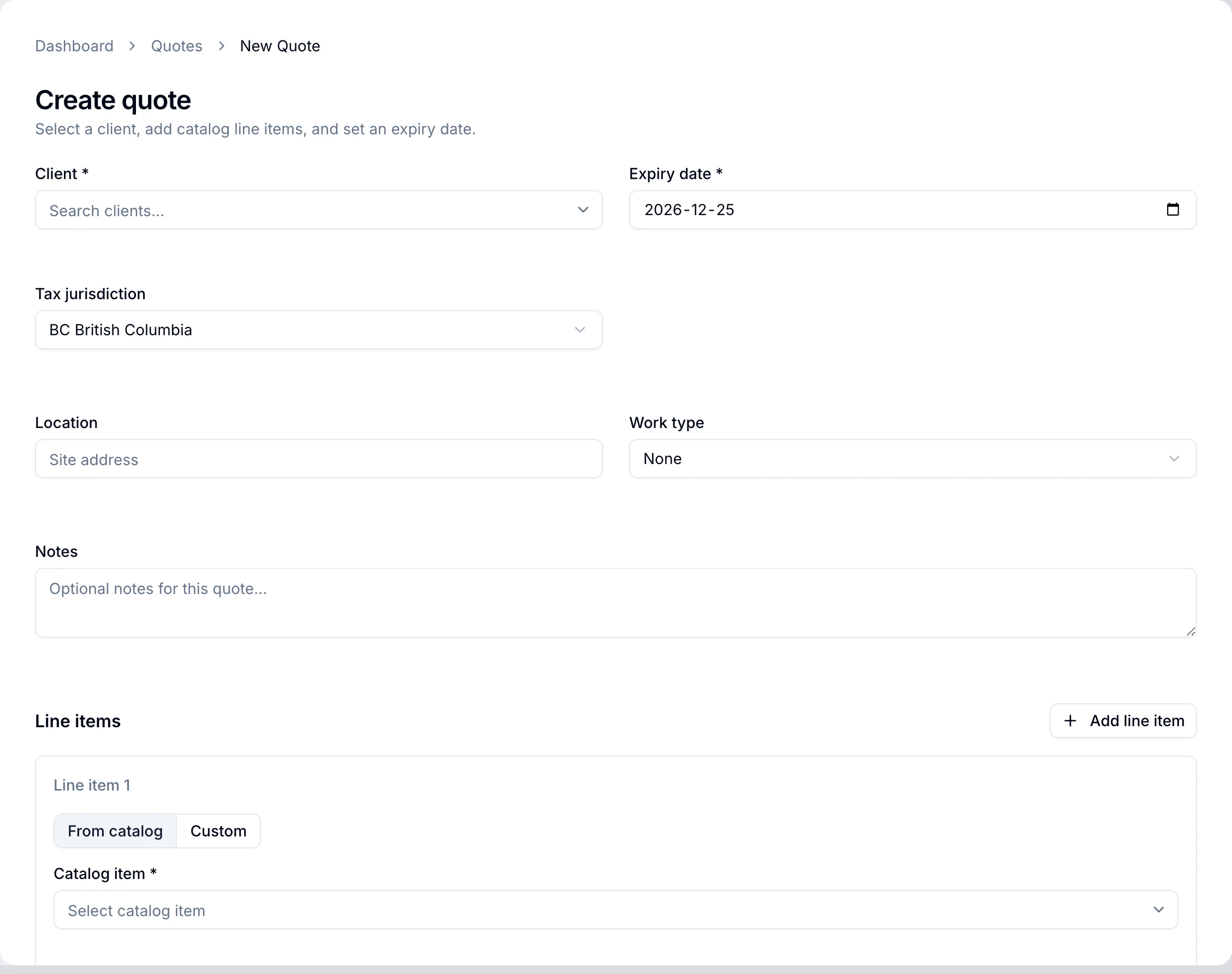
The quote is saved as a draft. While it’s a draft you can change anything with Edit.
Send the quote
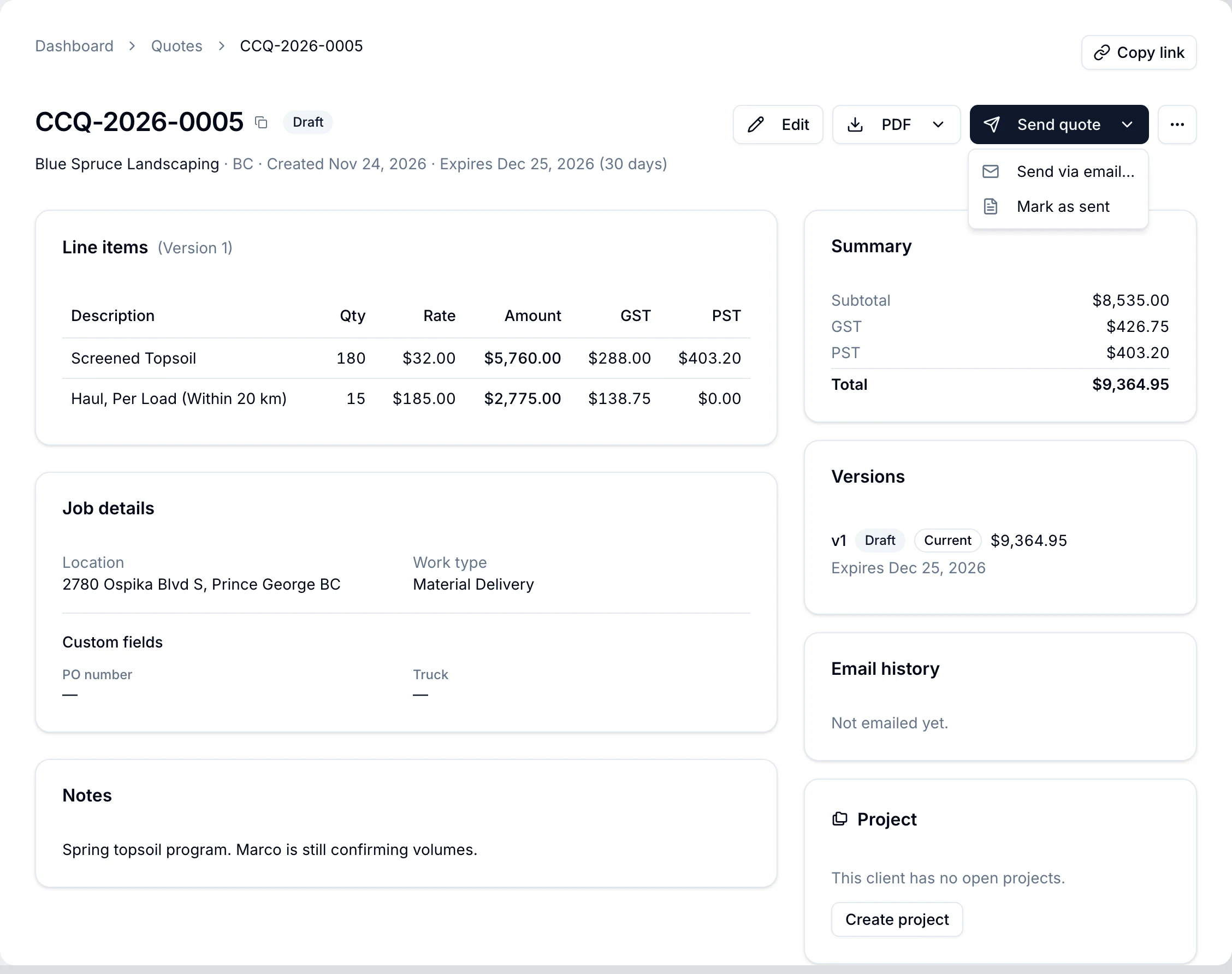
- Open the draft and click Send quote.
- Choose Send via email….
- Check who it goes To. The client’s saved addresses are listed, and Add recipient adds another. You can add a Note (optional) that shows at the top of this email only.
- Click Preview to see the email if you like, then Send email.
The client gets the quote with its PDF attached and a link to answer it online. The quote moves to Sent.
If you gave the client the quote another way, such as printing it, choose Mark as sent instead. To send a sent quote again, use Email again… in the More actions menu. Its status and expiry date stay the same.
When the client answers
The link in the email opens the quote with Accept Quote and Decline Quote buttons and a box for comments. When the client answers, the quote moves to Accepted or Rejected, and owners and admins get an email about it.
A sent quote that passes its expiry date moves to Expired on its own, and the client can no longer accept it from the link.
Revise a quote
If the price or the work changes after you’ve sent it, revise the quote instead of starting over.
- Open the quote and click Revise. For a quote that expired or was declined, the button is Revise….
- Make your changes and set a new expiry date.
- Click Revise quote.
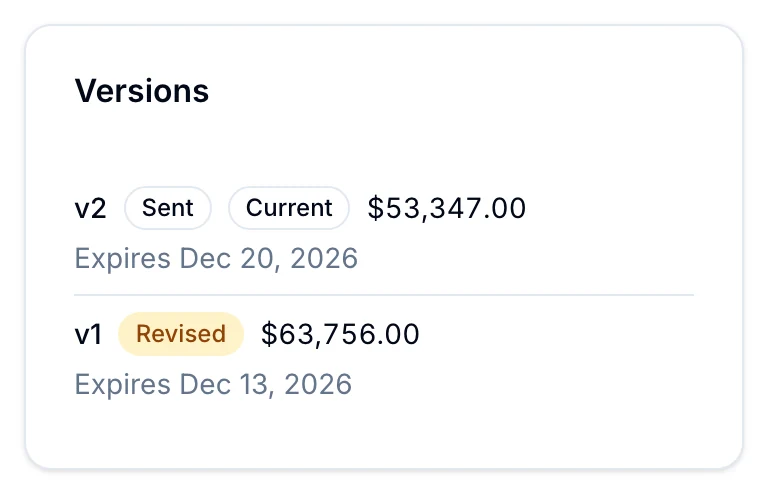
This makes a new version of the same quote as a draft. Send it the same way as the first one. The old version is marked Revised, and the client’s old link tells them the quote has been updated. Every version is listed under Versions on the quote, with the current one marked.
Turn an accepted quote into a ticket
On an accepted quote, click Convert to ticket. Dispatch creates a draft ticket with the quote’s client, location, work type and line items, and opens it. Check it, pick an operator and the schedule, and submit it. The quote moves to Converted.
If some of the quote’s fields have no place on a ticket, a message lists the ones that weren’t copied.
Other things you can do
These are in the More actions menu on the quote:
- Delete… removes a draft quote and all its versions for good.
- Void… cancels a draft or sent quote and turns off its link. You’ll need to give a reason of at least 10 characters.
- Undo status… steps a quote back one status. Only owners can do this.
- Discard… hides a quote from lists and reports without deleting it. Only owners can do this from the quote page.
PDF at the top of a quote downloads or prints it.
When prices are hidden
People whose role doesn’t see prices can open quotes, but they can’t edit, revise or download them.