
Job profitability lists every finished job in a period with what it brought in and what it cost. Use it to spot the jobs that lost money, check that costs were reviewed, and see where your expenses go.
You need report access and permission to see rates to open it (see who can see reports). Owners and admins also see labour cost and job profit. Dispatchers see revenue, expenses and net.
Open the report
- Click Reports in the sidebar.
- Click Job profitability.
- Pick a Period. A job belongs to the period it was completed in.
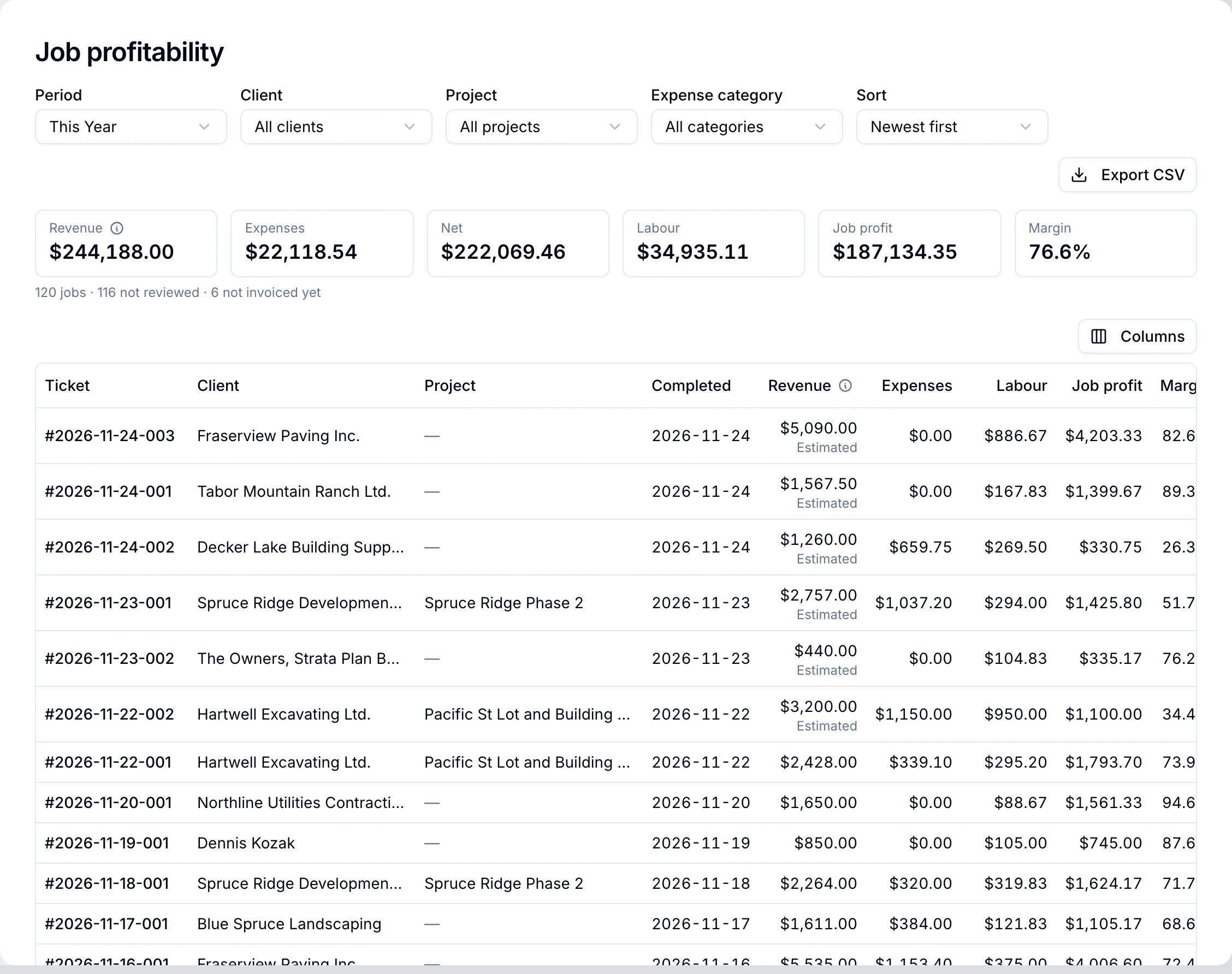
What each column means
There is one row for each ticket that is completed or invoiced. Click the ticket number to open the ticket.
Revenue is what the client was invoiced for the job, before tax and after discounts. When the job hasn’t been invoiced yet, the report uses the ticket’s own line items and marks the amount Estimated. Deposit invoices aren’t counted as revenue. If an invoice covers several tickets, lines added straight to that invoice can’t be split fairly between them, so they’re left out.
Expenses adds up the approved expenses on the ticket. Pending expenses aren’t counted until someone approves them.
Labour is shown to owners and admins. It’s the time each operator logged on the job multiplied by their hourly pay rate. When an operator has flat pay set for the job, the report uses that amount for them instead of their hours.
Job profit is revenue minus expenses minus labour. Dispatchers see Net instead, which is revenue minus expenses.
Margin is the profit as a percentage of revenue.
Costs shows Reviewed once someone has reviewed the job’s costs on the ticket, and Not reviewed until then.
Read the totals
The line above the table adds up every job that matches your filters, not only the page you’re looking at. It shows revenue, expenses, net, labour and job profit (for owners and admins) and the overall margin. Under it you’ll see how many jobs there are, how many haven’t had their costs reviewed, and how many aren’t invoiced yet.
Filter and sort the jobs
- Client shows one client’s jobs.
- Project shows the jobs in one project. It only appears when your company has projects.
- Expense category keeps the jobs that have an approved expense in that category, and the Expenses column then counts only that category.
- Sort orders the list by Newest first, Oldest first, Highest revenue, Highest expenses, Most net or Least net (losses first).
The list shows 50 jobs per page, with arrows at the bottom to move between pages.
Tip: Sort by Least net (losses first) to see the jobs that cost more than they earned at the top.
See where expenses go
Expenses by category under the table totals the approved expenses for the jobs in your filters, split into categories such as Fuel, Dump / disposal fees, Materials / parts and Subcontractor, with the number of expenses in each.

Export the list
Click Export CSV to download the jobs that match your filters. Owners and admins get the labour columns in the file as well.