
This is a tour of the app for owners, admins and dispatchers working on a computer or tablet. Operators have a simpler phone app, covered in your job list.
The side menu
The left edge of the screen has a narrow strip of icons. Each icon is a module, and the panel beside it lists that module’s pages. Point at an icon to see its name. What you see depends on your role and the add-ons your company has.
- Work holds the dashboard, tickets, the schedule, quotes and documents, plus clients, follow-ups, contracts and invoices.
- Reports shows revenue, job profit and hours.
- Catalog holds the services and items you charge for.
- Team lists the people in your company, and their timesheets and pay.
- Settings has your company details, documents, taxes and how you get paid.
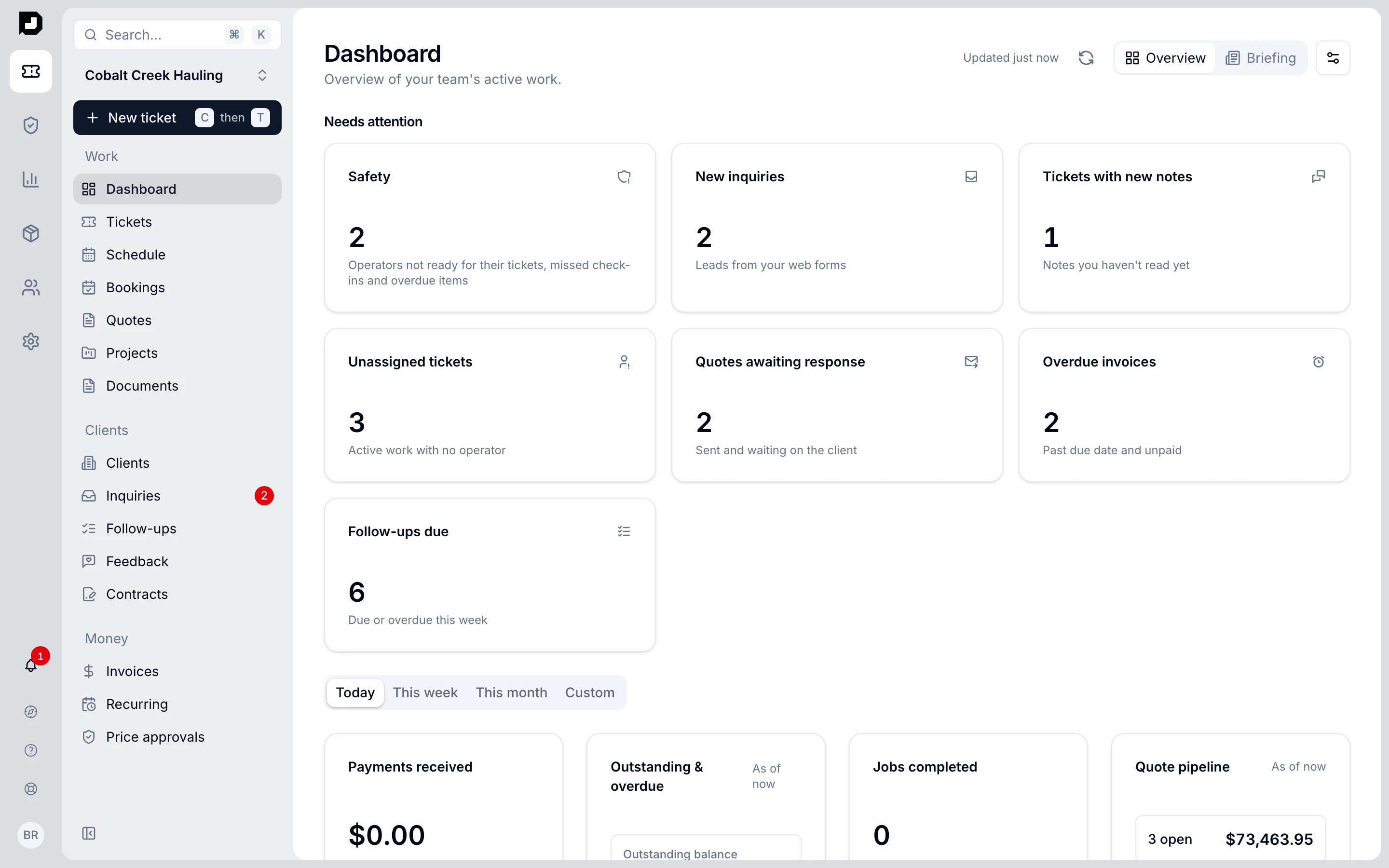
The top of the panel has a search box, your company’s name and a button for the most common task, such as New ticket in Work. To give the page more room, click Collapse sidebar at the bottom of the panel. The icons stay, and Expand sidebar brings the panel back. On a keyboard, Ctrl+B (Cmd+B on a Mac) does the same.
Search for anything
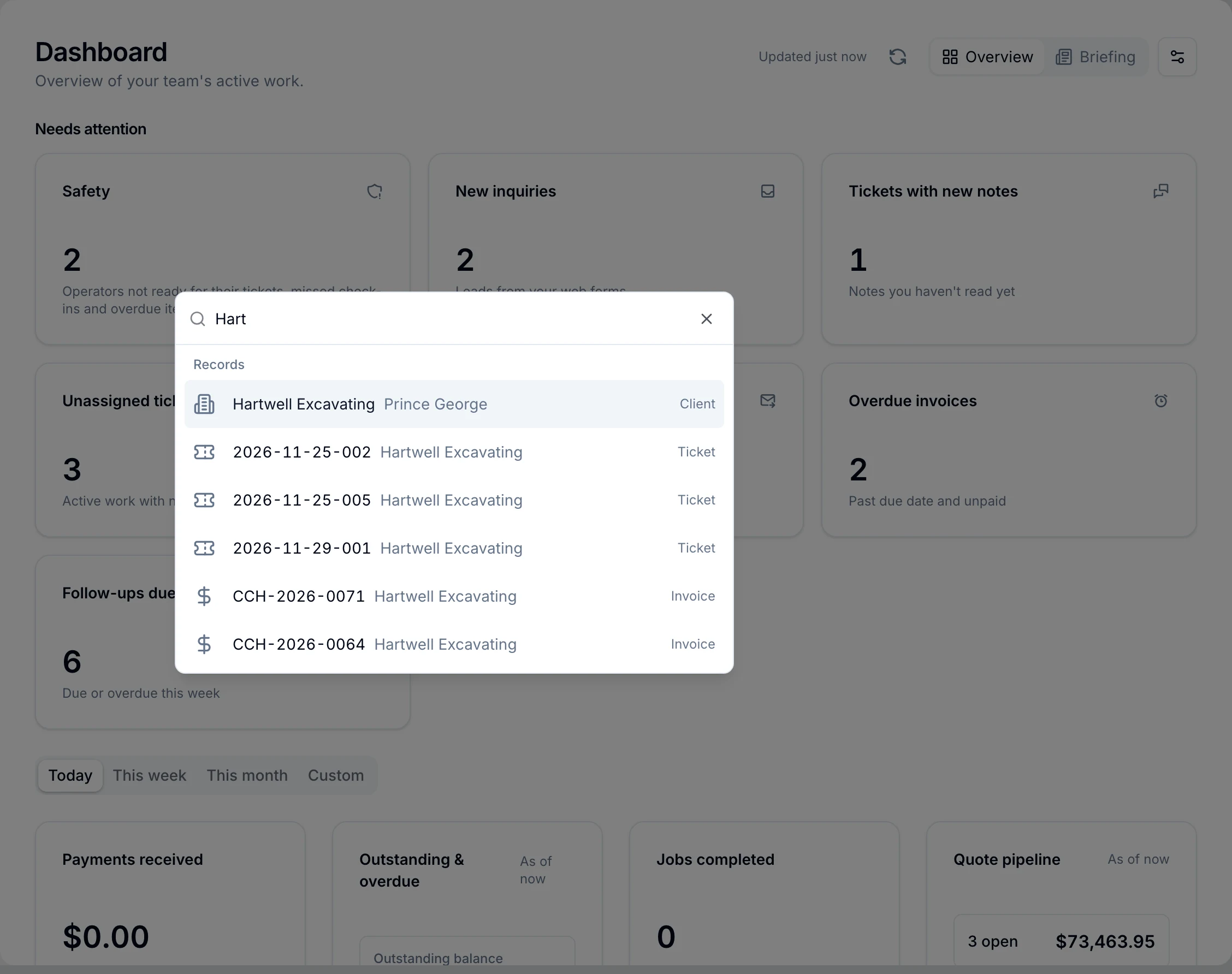
Click Search… at the top of the panel, or press Ctrl+K (Cmd+K on a Mac). Type a few letters to find clients, tickets, quotes, invoices and projects, or to jump to a screen such as tax settings. Use the arrow keys and Enter, or click a result.
Notifications
The bell at the bottom of the icon strip shows how many notifications you haven’t read. You’ll get one when an operator starts or finishes a job or adds a note, and when there’s other activity on your tickets and invoices. Click the bell to see the latest ones. The Conversations tab shows recent notes from the office and the field. Mark all read clears the count, and View all notifications opens the full list with filters.
You choose which notifications reach you by email or text from your account menu, under Account.
Help, the setup guide and support
Under the bell are three more buttons.
- The compass opens Getting started, your setup checklist and a short guide for each role. See set up your company.
- The question mark opens Help, with step-by-step guides for things like creating and assigning a ticket.
- The life ring opens a support form. Pick the kind of request, add a subject and what happened, and attach up to 3 screenshots if they help. Dispatch includes the page you were on so the team can see the problem, and you’ll get a confirmation email.
Your account
Your picture or initials sit at the very bottom of the icon strip. Click it for Account, where you change your name, phone, password and notifications, and for Sign out.
AI Agents
If your company has AI turned on, a sparkles icon near the top of the strip opens AI Agents, and the search box also lets you ask Noah, the AI assistant, a question. Ctrl+J (Cmd+J on a Mac) opens it from anywhere. The Work section explains what the assistants can do.