
Every person in Dispatch has a role. The role decides which pages they see and what they’re allowed to change. You pick a role when you invite someone, and the owner can change it later.
The four roles
Owner has full access to the company, including billing, branding, payment setup and Plan and usage. Owner permissions can’t be changed.
Admin runs the office. Admins see the whole dashboard, can approve timesheets, record subcontractor payouts and read the audit log. What else they can do depends on the switches on their role.
Dispatcher handles tickets, the schedule, quotes, invoices and clients. Like admins, their exact permissions come from their role.
Operator does the work in the field. Operators only see the tickets assigned to them, and their permissions are fixed.
Built-in and custom roles
The owner manages roles under Team > Roles. The page is split into Admin roles and Dispatcher roles. Roles marked System come with Dispatch and can’t be edited. If you want an admin or dispatcher with different permissions, create your own role and move people onto it.

Create a role
- Go to Team > Roles and click Create role.
- Give it a Name, like “Senior Dispatcher”, and a description if you want one.
- Pick the Role level: Admin or Dispatcher.
- Turn on the permissions this role should have.
- Click Create role.
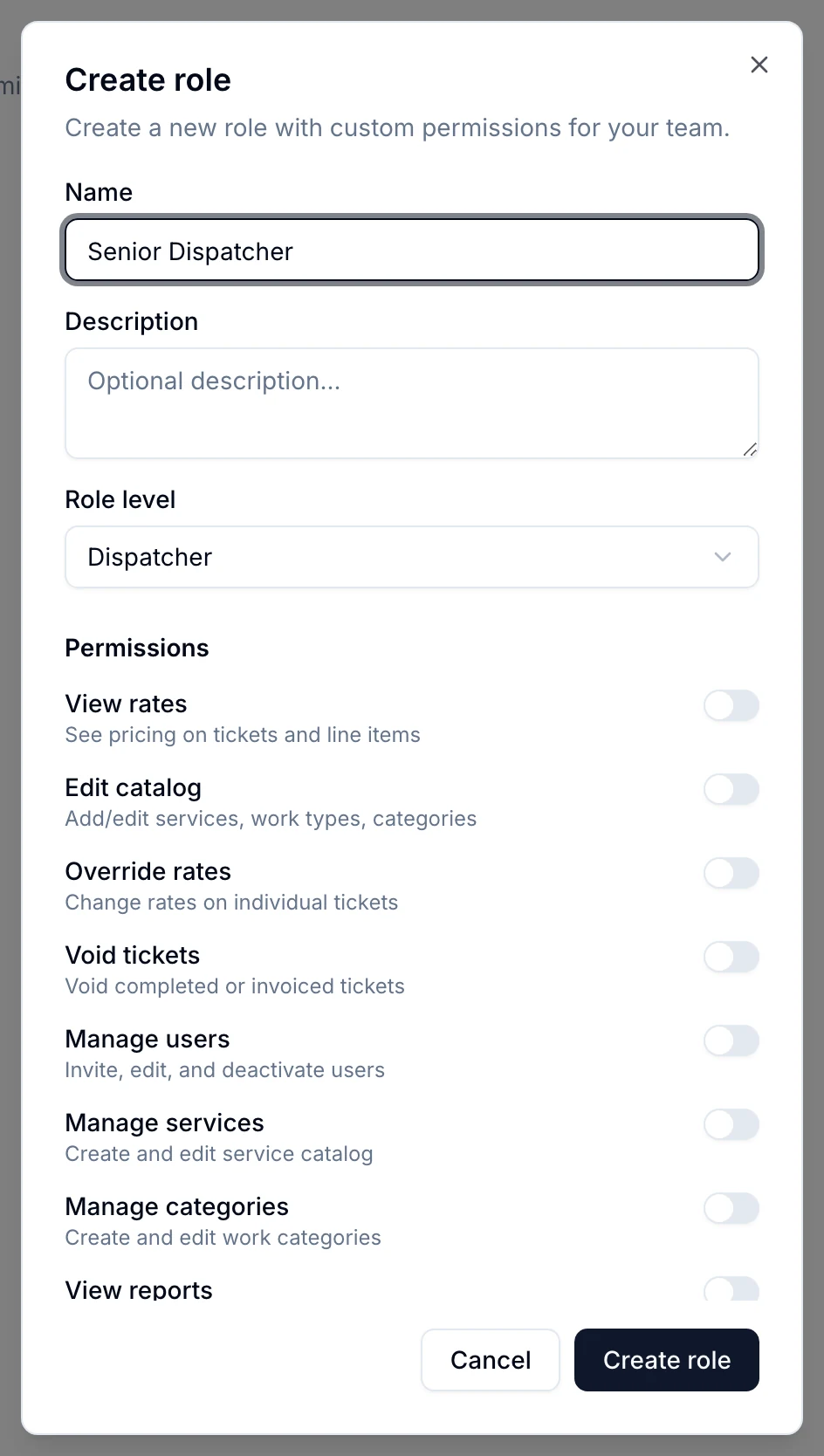
Then open each person who should have the new role from People, pick it under Role and click Save.
What each permission does
These switches appear under Permissions:
- View rates: see pricing on tickets and line items.
- Edit catalog: add and edit services, work types and categories.
- Override rates: change rates on individual tickets.
- Void tickets: void completed or invoiced tickets.
- Manage users: invite, edit and deactivate users.
- Manage services: create and edit the service catalog.
- Manage categories: create and edit work categories.
- View reports: open income reports and export report data.
Settings switches
Under Settings, each switch opens one area of Settings to people with this role:
- Company: edit tax IDs. Branding and payment details stay with the owner.
- Money: edit cash rounding and the accounting export.
- Add-ons: connect, disconnect and set up add-ons.
- Documents: edit document settings, contract templates and email messages.
- Jobs: edit terminology, job fields, tags, approvals and expenses.
If your company has the client portal or the AI playbook, you’ll also see Client portal and AI playbook switches.
When you create an Admin role, the Settings switches start on. For a Dispatcher role they start off. Some things are always kept for the owner, whatever the switches say: security, Plan and usage and billing. See how Settings are organized for what each area holds.
Edit, disable or move people off a role
On a custom role, click Edit to change its name, description or switches, then Save changes. The change applies straight away to everyone on that role.
To stop using a role, click Disable. If people are still on it, Dispatch asks you to pick another role under Move users to before you confirm with Disable role & move users. You can turn a disabled role back on with Enable.
To see who has a role, click the member count on its card. From that panel you can also move people to another role one at a time.