
Everything said and shown about a job stays on its ticket: notes between the office and the operator, photos from the site, the client’s signature and a PDF copy you can send or print. Owners, admins and dispatchers can use everything on this page unless it says otherwise.
Write a note to the operator
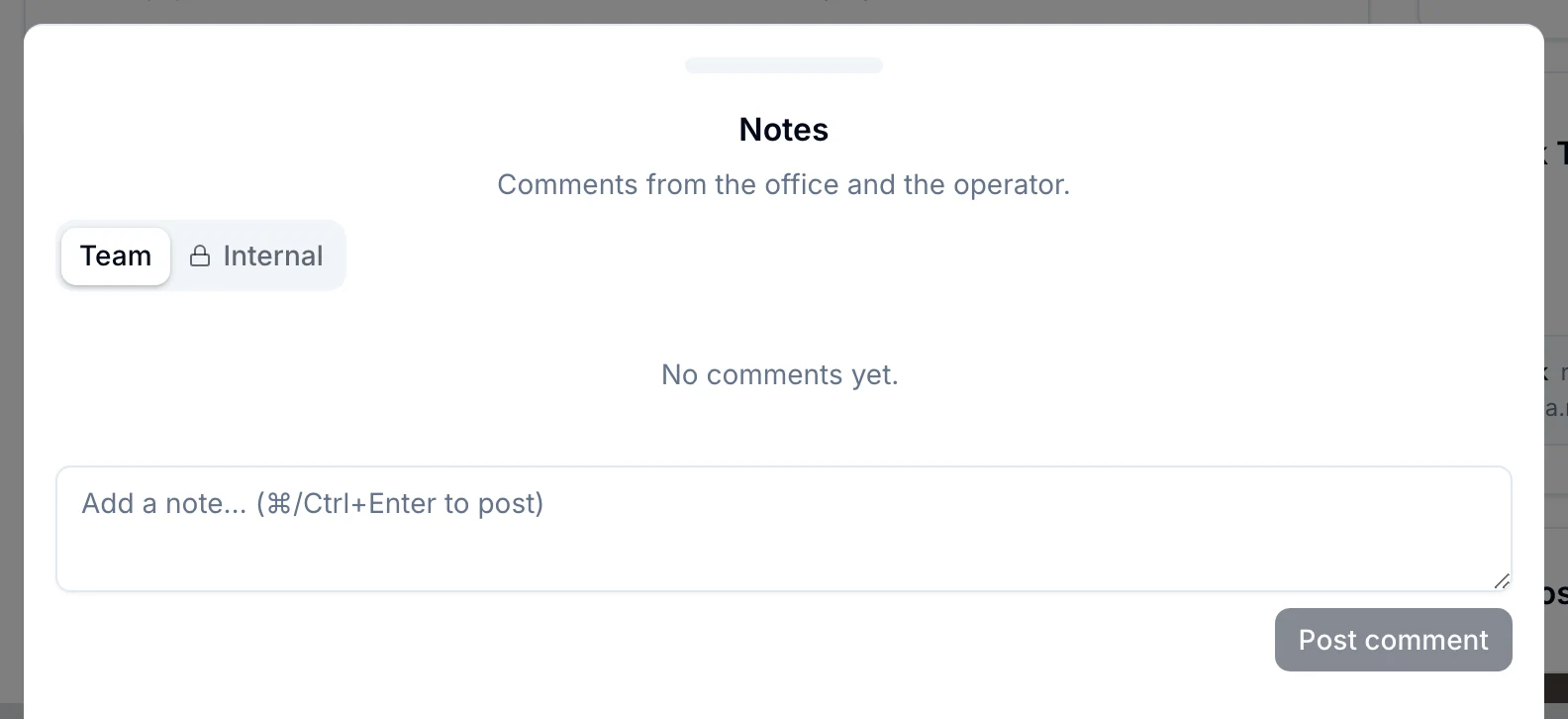
The Notes button floats at the bottom right of every ticket. It shows how many notes there are, and how many are new since you last looked.
- Click Notes.
- On the Team tab, type your note in the box at the bottom.
- Click Post comment, or press Ctrl+Enter (⌘+Enter on a Mac).
The operator sees these notes on the job and can reply from their phone. Notes stay open until the operator marks the job complete. After that they can’t add more from the phone.
When someone writes on a ticket you haven’t opened since, the dashboard shows a Tickets with new notes tile. It opens Conversations, which lists ticket notes from your team, newest first. Click Hide to take a conversation out of your inbox until someone writes again.
Keep a private note for the office
Owners and admins also get an Internal tab in the notes panel. Notes there are only for owners and admins: operators and dispatchers never see them. Use it for things like a client’s payment history or a dispute.
Type the note and click Post note. You can edit or delete your own internal notes, and owners can delete anyone’s.
Add photos
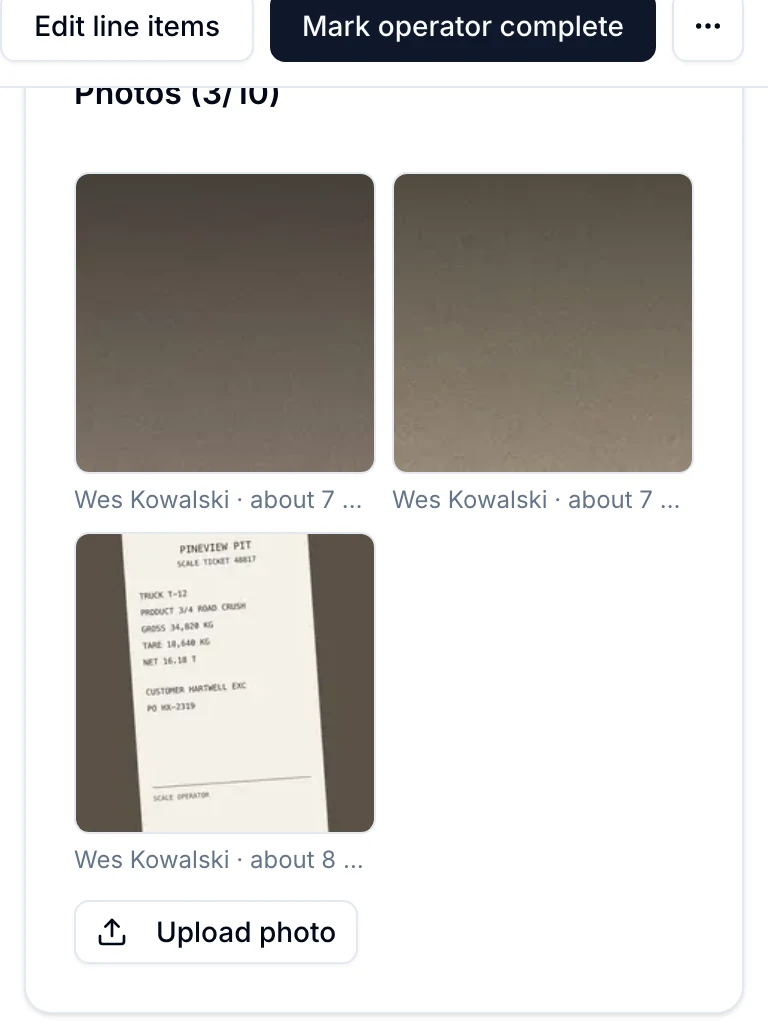
The Photos card on the right shows the first few photos, with a count of how many the ticket has out of 10. Most photos come from the operator on site, but the office can add them too.
- Click Upload photo in the Photos card.
- Choose a photo from your computer. Photos from an iPhone (HEIC) work too.
Click a photo to see it full size, and use Download to save it. When there are more than fit in the card, click View all to see them all.
Photos can’t be added once a ticket is invoiced or voided, or once it has 10.
The client’s signature
If the operator collected a signature on site, a Signature card shows it, with the signer’s name and the time they signed.
Tag a ticket
Tags help your team spot priority clients, hazards or disputes at a glance. They show as coloured chips next to the ticket number and in the tickets list. Owners and admins can add or remove them with Add tag at the top of the ticket, and can create a new tag by typing its name. Tags are managed in Settings.
Download or print the ticket
Open the More actions menu (the three dots at the top right of the ticket) and choose Download PDF or Print. Copy link copies the ticket’s address so you can send it to someone on your team.
Files that belong to the client
Contracts, site maps and other documents are kept with the client, not the ticket. Upload them from the Documents page or the client’s own page, and they’re there for every job you do for that client.