
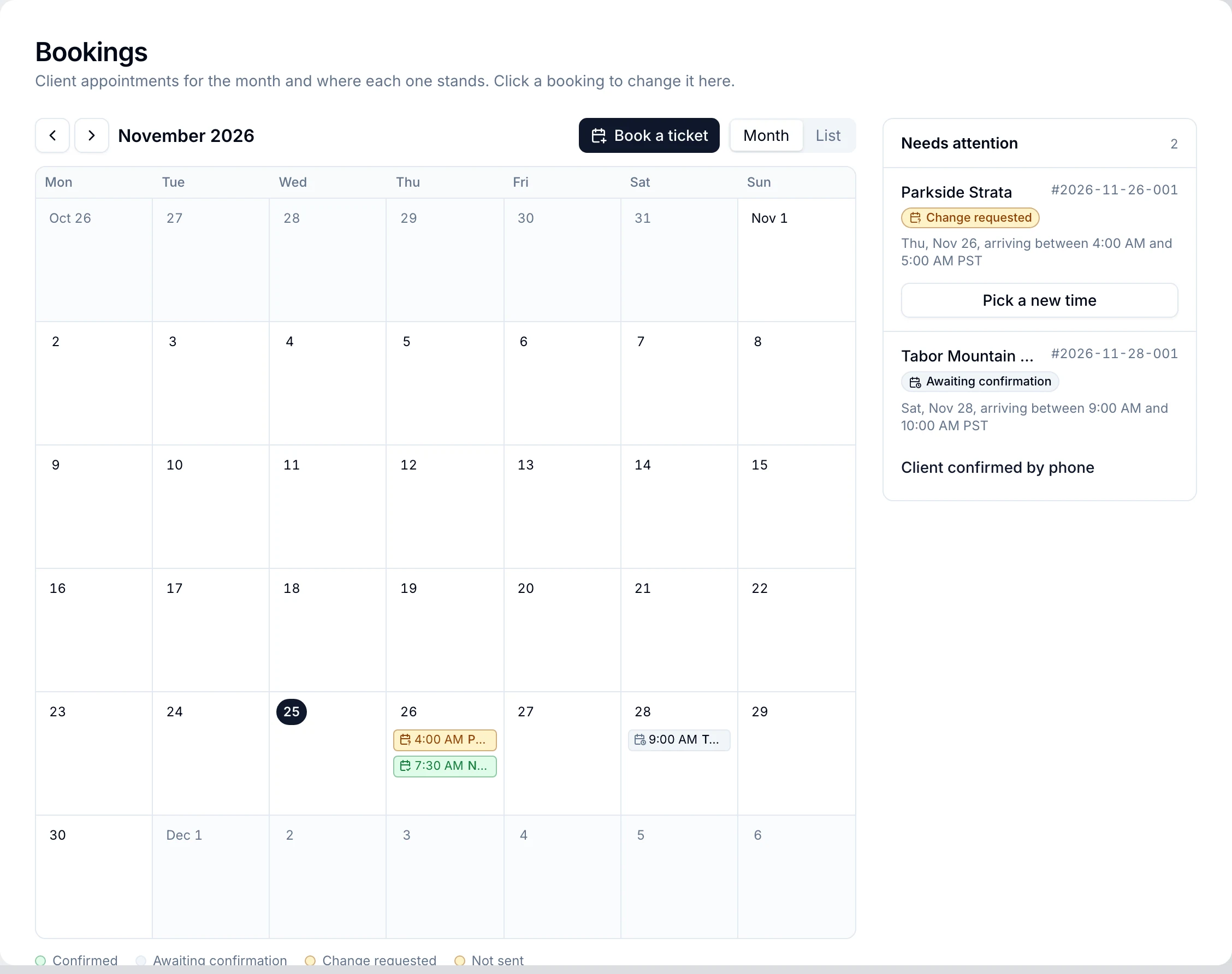
Bookings lets you set an appointment time on a ticket and send it to the client by email or text. The client opens a link to confirm the time or ask for another one, and Dispatch sends them a reminder before the day. Every booking shows on a monthly calendar so you can see at a glance which ones are confirmed.
This is an add-on. Dispatch turns it on for your company, and once it’s on you’ll see Bookings in the main menu and under Settings, Add-ons. If you don’t see it, contact Dispatch and ask for it.
Owners, admins and dispatchers can book, change and cancel appointments. Owners and admins set the defaults on the add-on page.
Set your booking defaults
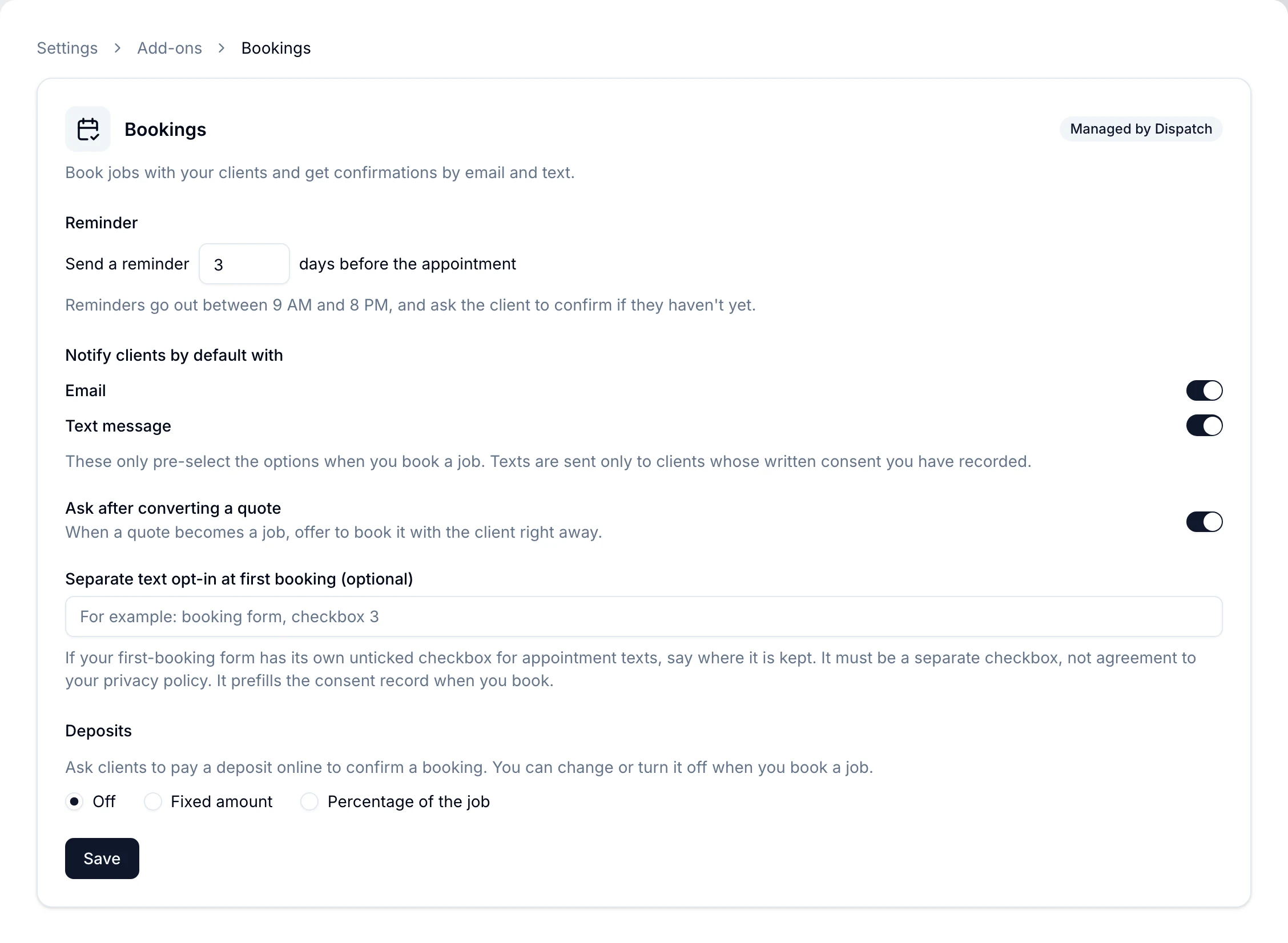
- Go to Settings, Add-ons and open Bookings.
- Under Reminder, tick Send a reminder and enter how many days before the appointment it goes out (0 to 14). Reminders go out between 9 AM and 8 PM and ask the client to confirm if they haven’t yet.
- Under Notify clients by default with, tick Email, Text message or both. These only pre-select the options when you book a job.
- Leave Ask after converting a quote on if you’d like Dispatch to offer to book the job as soon as a quote becomes a job.
- Set up Deposits if you take them (see below).
- Click Save.
Book a job
- Open the ticket and find the Booking card.
- Click Book appointment.
- Choose the Date and Arrival time.
- Pick an Arrival window, from Exact time up to a 4 hour window. The client is told they can expect you between the start and end of the window.
- Enter the Duration (hours) if you’d like a warning when the job overlaps the operator’s other work. The client doesn’t see it.
- Choose the Operator, or leave it unassigned for now.
- Under Notify the client, tick Email, Text message or both.
- Click Book and notify.
Booking a draft ticket also moves it to Pending. If the ticket runs over several days, only the first day is the appointment. If the time overlaps the operator’s other work, Dispatch shows the clash and you can choose Book anyway or Not now.
You can also book from Bookings in the menu. Click Book a ticket, then pick from the open tickets that don’t have a booking yet.
Texts need written consent
Dispatch only texts a client about appointments when you’ve recorded their written consent. The first time you text a number, tick The client gave written consent to get appointment texts at this number. and fill in How they agreed, the Date given and Where the consent is kept, such as “signed work order #1234”. If the client agreed on one of your web forms, this is filled in for you.
Without consent, the client is notified by email only. A number that replied STOP is never texted again unless you record new written consent.
What the client sees
The client gets a message with a link to their appointment. The page shows when and where, with two buttons: Confirm appointment and Request a different time. If they ask for another time, they can say what days and times work better, and the booking shows Change requested for you.
If the booking text invites them to reply YES, replying YES confirms it too. Anyone who’d rather not get booking emails can unsubscribe from the link in the email.
Track and change bookings
The Booking card on the ticket shows where the booking stands: Awaiting confirmation, Confirmed, Change requested, Time changed or Needs a time. Click History to see every message and answer. The operator also sees on their job whether the client confirmed.
- To move the appointment, click Change appointment. Choose Save and send update to ask the client to confirm the new time, or Save without notifying.
- If the client confirmed by phone, click Client confirmed by phone.
- To cancel, click Cancel booking. Tick Let the client know the appointment is cancelled if you’d like them told, then confirm. The ticket stays on the schedule. To cancel the ticket itself, void it.
See every booking on the calendar
Bookings in the menu shows client appointments for the month, coloured by status. Switch between Month and List, and move back or forward a month with the buttons at the top. Click a booking to change it without leaving the calendar.
Needs attention lists bookings that are waiting on you, such as ones with no time set or where the client asked for another time.
Ask for a deposit
You can ask clients to pay a deposit online before their booking is confirmed. Deposits are paid by card, so your company needs card payments with Stripe connected first.
- On Settings, Add-ons, Bookings, under Deposits, choose Fixed amount or Percentage of the job.
- Enter the Deposit amount, before tax ($) or the Deposit percentage (%). A percentage is of the job’s total before tax, after discounts.
- Under Refund window (hours before the appointment), enter how close to the appointment a client can cancel and still get a refund. Leave it empty if deposits are non-refundable. You decide each refund yourself. Nothing is refunded automatically.
- Write your Deposit and cancellation policy. Clients tick a box agreeing to it before they pay.
- Click Save.
The client’s booking page then says Pay the deposit to confirm, and the booking is confirmed once they pay. The deposit has no tax on it and is applied to the final invoice. You can change the deposit or turn it off for a single booking when you book the job, and Waive deposit from the ticket if you decide not to collect it.