
The Documents page holds the files you keep for your clients, such as contracts, site maps, permits and photos. Every document belongs to one client, and it also shows on that client’s Documents tab. Owners, admins and dispatchers can upload, search and manage documents. Open the page from Documents in the Work menu.
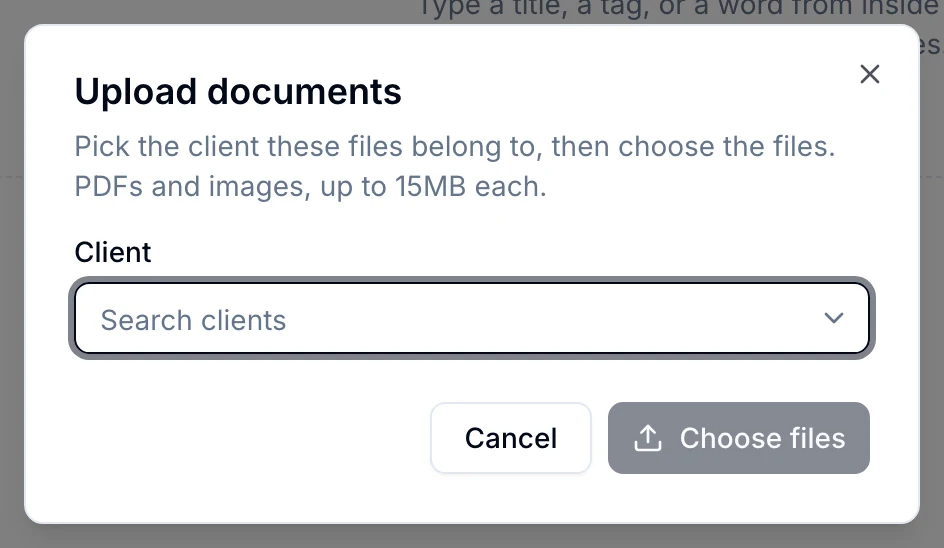
Upload documents
- Click Upload.
- Pick the client the files belong to.
- Click Choose files and pick one or more files.
PDFs and images work, up to 15MB each. Each file shows a message once it has uploaded.
Search your documents
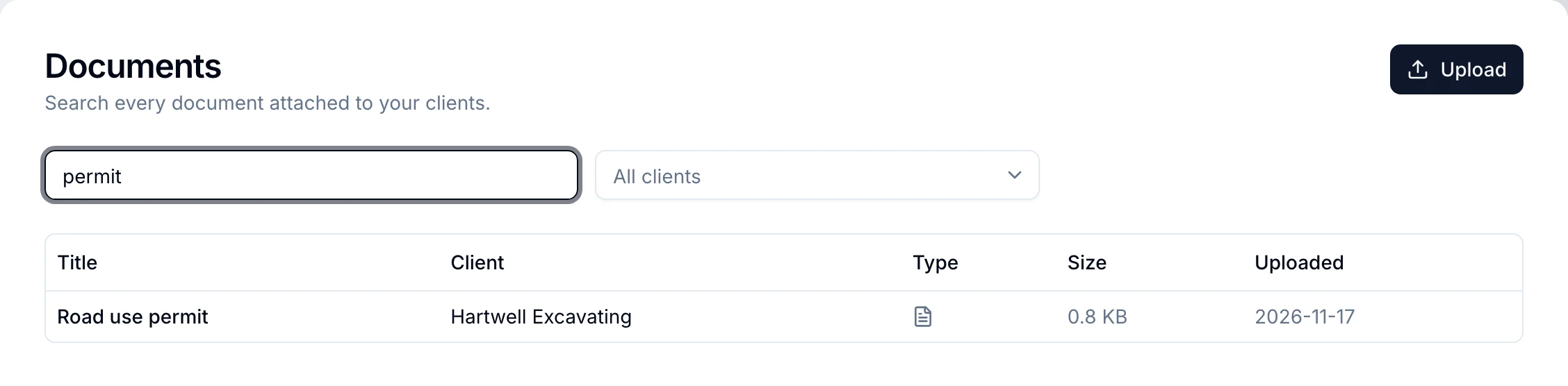
Type in the search box at the top. Dispatch looks through document titles, tags and the text inside PDFs, so you can find a contract by a word in its terms or a permit by its number. Results show as you type.
To see one client’s files only, pick them in All clients next to the search box. If nothing matches for that client, Search all clients widens the search again.
The results list the Title, Client, Type, Size, Tags and when each file was Uploaded.
Tip: To browse everything you have for one client without searching, open the client page and go to the Documents tab.
Download, edit or delete a document
Open the menu at the end of a row:
- Download saves a copy.
- Edit changes the document’s Title, Description and Tags. Separate tags with commas. Tags make documents easier to find later.
- Delete removes the document from the client’s file. This can’t be undone.
With the Client portal add-on, the menu on the client’s Documents tab also has Share with client, which shows the document to the client in their portal. Stop sharing with client takes it back out.