
Mistakes happen after an invoice goes out. How you fix one depends on whether the client has paid anything yet. Owners, admins and dispatchers can edit and void invoices. Taking an invoice back to draft and un-voiding are for owners only.
Fix a sent invoice that isn’t paid yet
A sent invoice with no payment on it can be edited like a draft.
- Open the invoice and click Edit.
- Make your changes.
- Click Save changes.
Saving updates the PDF and the client’s link straight away. The Email again window then opens so you can send the corrected invoice. Close it if you don’t need to resend.
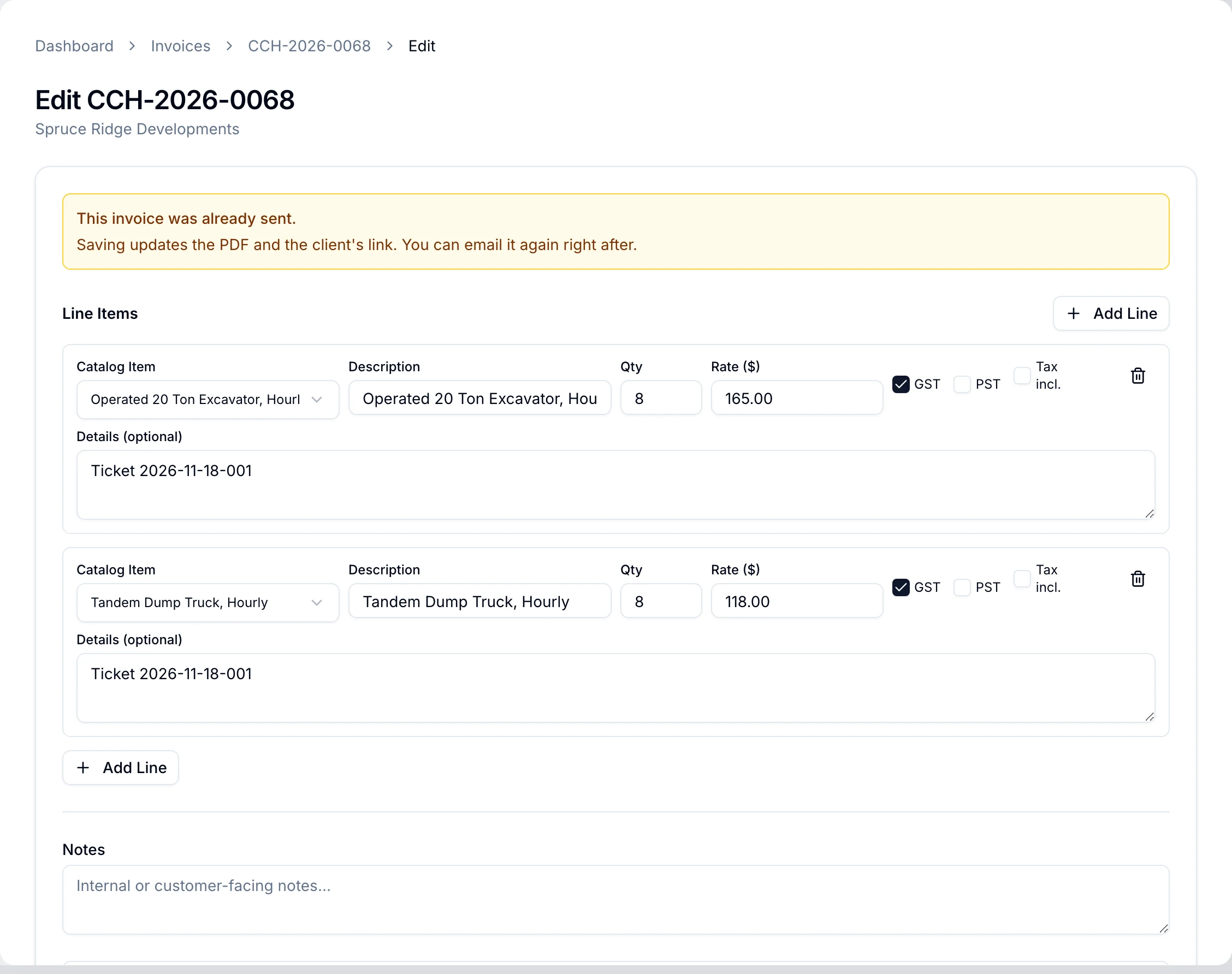
The invoice shows Edited after sending with the date, so your team can see it changed.
Amend an invoice that has a payment
Once a payment is recorded, the invoice can still be amended for a few days. Open the ⋯ menu and click Amend. The menu shows when the edit window closes.
- Click ⋯, then Amend.
- Make your changes.
- Click Save Amendment.
If the new total doesn’t match what’s been paid, Dispatch tells you. It shows Additional payment due if the client now owes more, or Customer credit if they’ve paid too much. No money moves on its own. Click Go to invoice to record payment or Go to invoice to record refund to settle it, or Later.
How long paid invoices stay open for changes is set in Settings > Documents under Lock paid invoices after (days). Set it to 0 to lock them as soon as they’re paid.
If you can’t see rates, you’ll see Edit notes… instead of Amend. It changes only the notes, never the lines, prices or discounts.
Take an invoice back to draft
An owner can undo a send on an invoice that hasn’t been paid. Click ⋯, then Undo send…, give a reason and click Undo. The invoice goes back to draft and the sent date is cleared.
Void an invoice
Void an invoice when it shouldn’t have been issued at all, for example a duplicate or the wrong client.
- Open the invoice.
- Click ⋯, then Void invoice….
- Write the Reason, at least 10 characters.
- Click Void invoice.
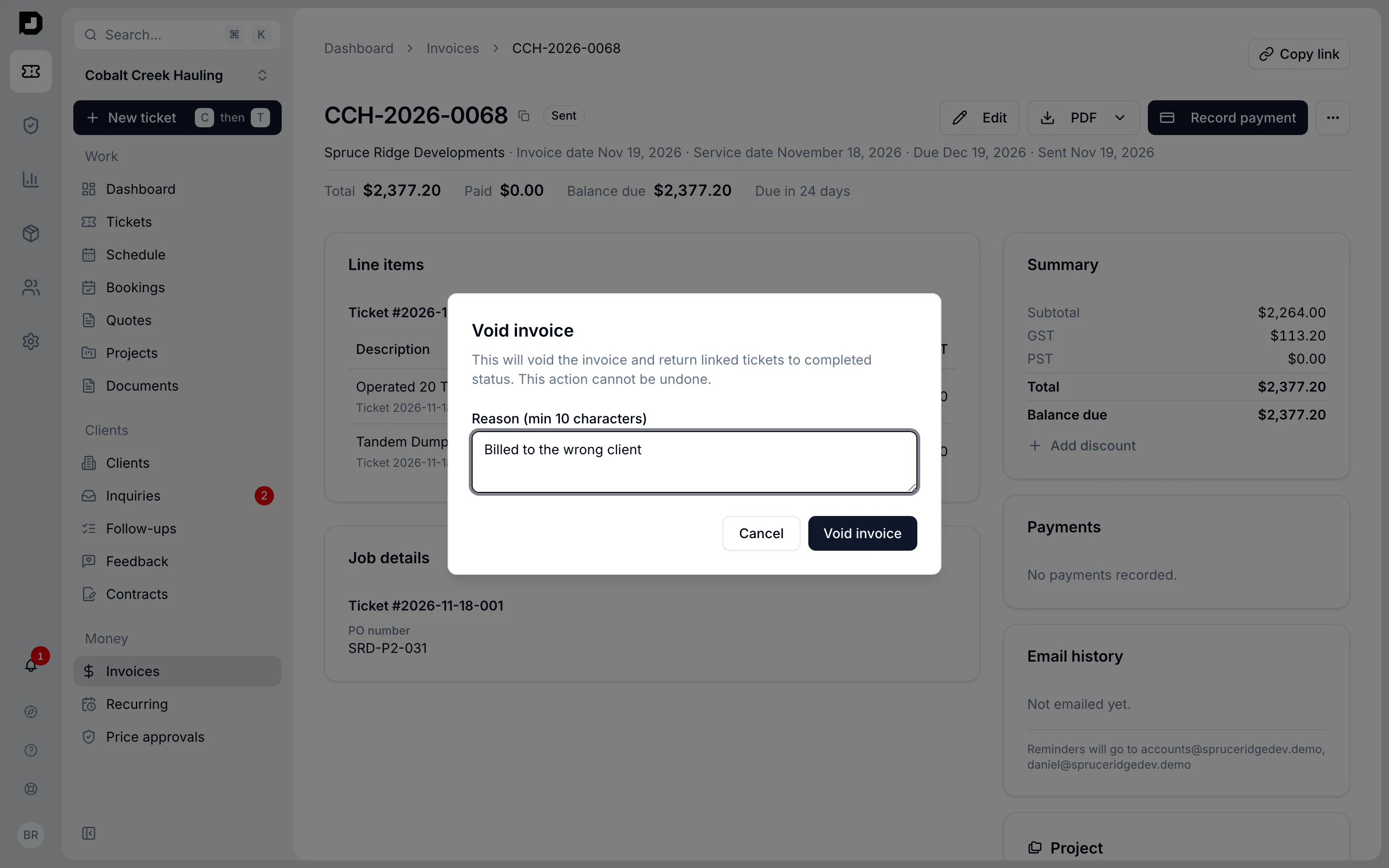
The invoice is marked Voided with the date and reason, and its tickets go back to Completed so you can bill them again. A voided invoice is hidden from the list unless you turn on Show discarded & voided.
If an owner needs it back, they can open it, click ⋯ and then Un-void…. It returns as a draft and its tickets are linked to it again.
Tip: A draft you haven’t sent can be edited freely. To get rid of a draft, use Discard…. See Create an invoice.