
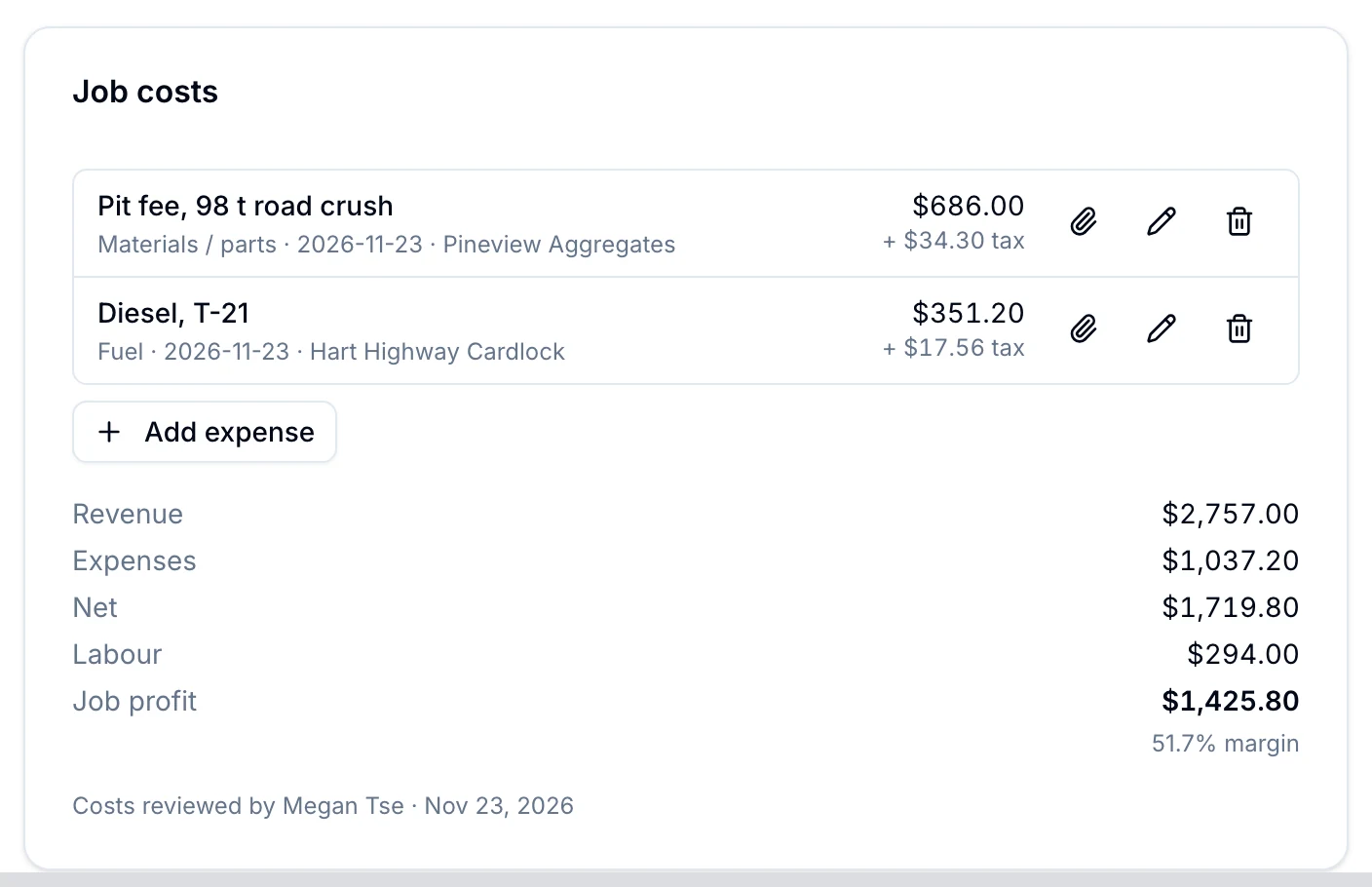
The Job costs card on a ticket keeps track of what the job cost you, so you can see whether it made money. It sits under the line items on every ticket. Owners, admins and dispatchers can add and change expenses.
Add an expense
- In the Job costs card, click Add expense.
- Pick a Category: Fuel, Dump / disposal fees, Materials / parts, Subcontractor, Equipment rental, Tolls / permits or Other.
- Fill in the Description and the Amount (before tax). Add the Vendor (optional) and the Tax paid (optional) if you have them, and check the Date.
- Click Save expense.
To attach a photo of the receipt, click the paperclip beside the expense once it’s saved (Attach receipt). The pencil and bin buttons beside it edit or remove the expense.
What the totals mean
Below the list, the card adds it all up:
- Revenue: what the line items on the ticket come to, before tax.
- Expenses: everything in the list that counts.
- Net: revenue less expenses.
- Labour and Job profit: owners and admins also see the labour cost, from the time logged on the job and each operator’s current pay rate, and the profit after labour, with the margin.
People whose role doesn’t see prices see the expenses only.
Expenses from your operators
Your company can let operators log expenses from their phone while they work a job. Turn it on in Job settings with Let operators log expenses. You can also require a photo of the receipt with each one.
An operator’s expense shows as Pending until someone in the office approves it, and it doesn’t count toward the job until then. Expenses the operator paid for themselves are marked Paid by operator, reimburse.
- To approve one, click the tick beside it.
- To turn one down, click the cross, give a Reason and click Reject expense. The operator sees your reason.
Review the costs when you approve the job
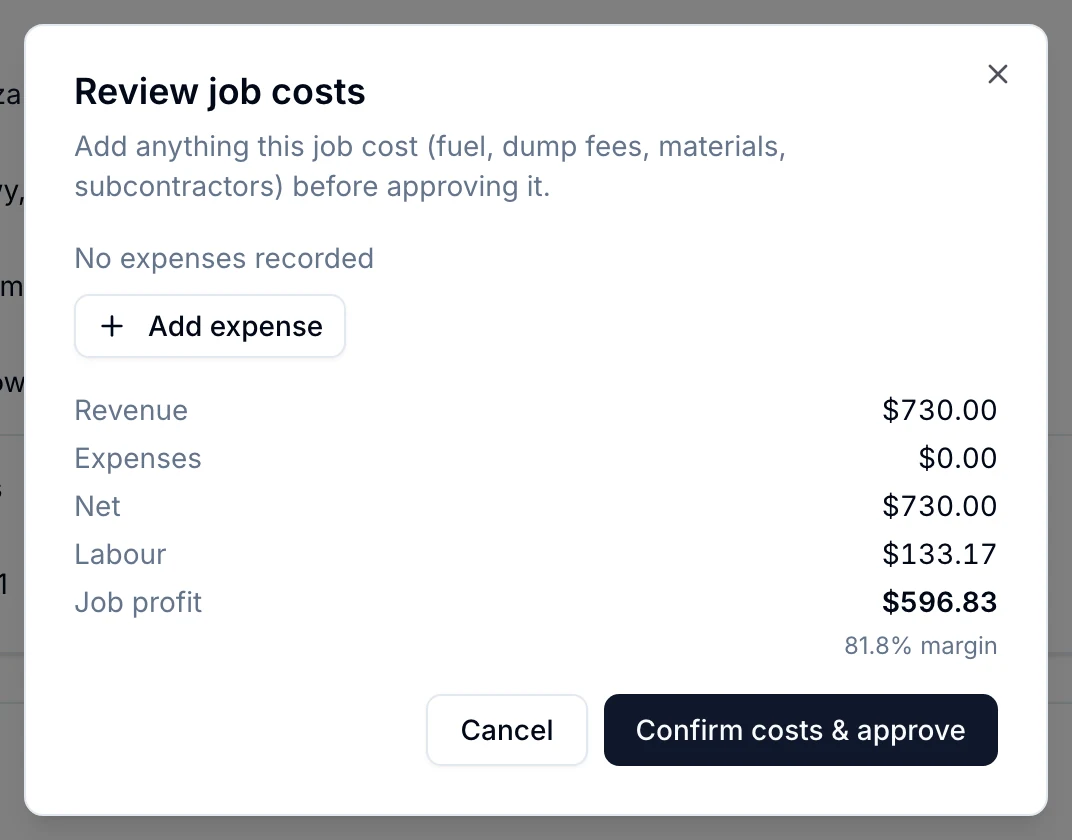
Approving a finished job goes through a cost review, so nothing is forgotten.
- On a ticket that’s Awaiting review, click Approve complete.
- In Review job costs, add anything the job cost that isn’t listed yet.
- If there are pending expenses, approve or reject each one, or click Approve all.
- Click Confirm costs & approve.
The ticket moves to Completed, and the card shows who reviewed the costs and when.
When expenses lock
Expenses on a voided or discarded ticket can’t be changed. Once a ticket is invoiced, only owners and admins can change its expenses.
To compare jobs side by side, see the Job profitability report.