
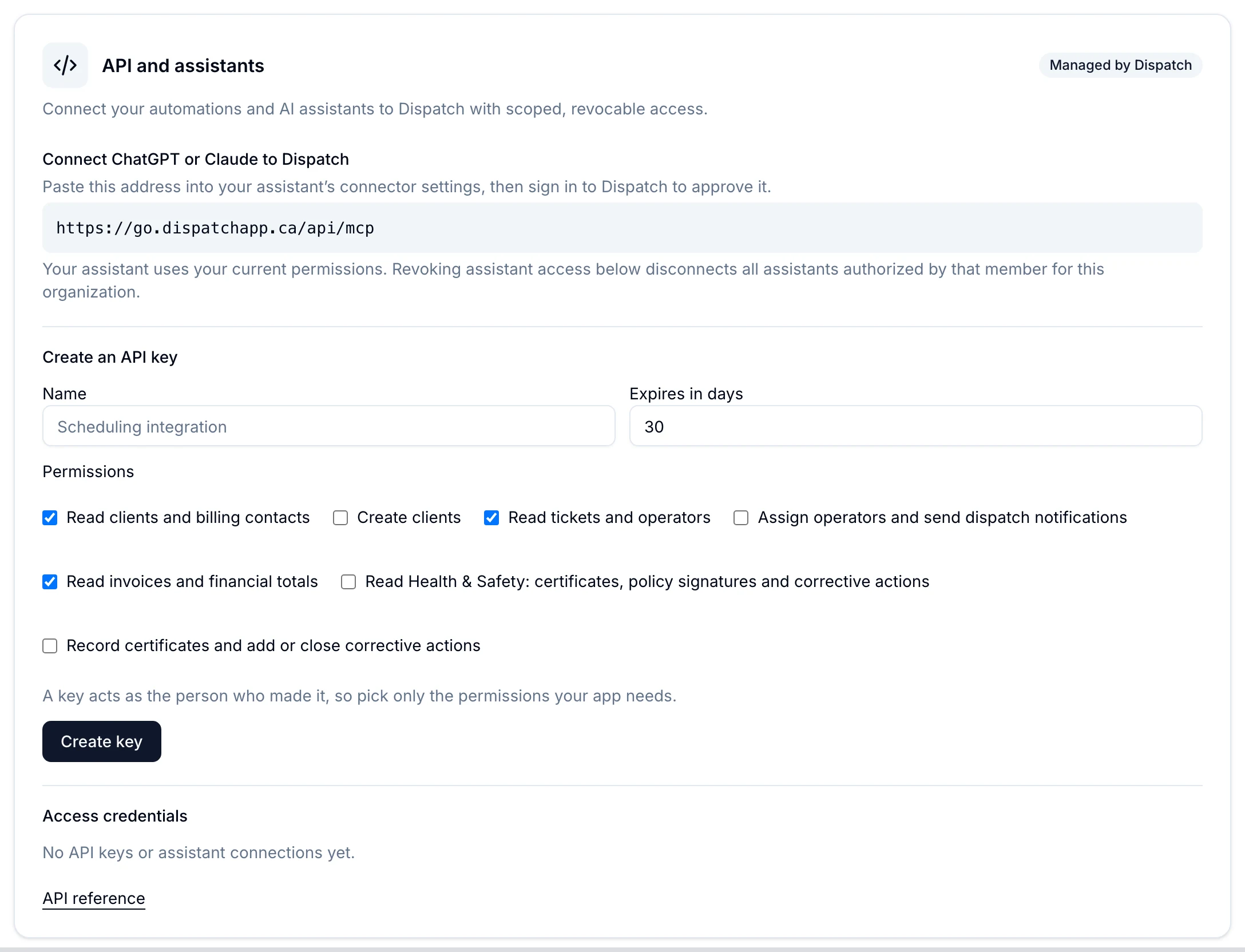
The API and assistants add-on lets other software work with your Dispatch data. You can connect an AI assistant such as ChatGPT or Claude and ask it to look up jobs, invoices and clients for you, or create an API key so a developer can connect your own tools.
This is an add-on, so it’s turned on by the Dispatch team. If you don’t see API and assistants in Settings, Add-ons, ask us to turn it on for your company.
Who can use it
Owners and admins see the add-on’s page, where API keys are created and connections are listed. Owners, admins and dispatchers can connect an assistant to their own account. Operators can’t.
Connect ChatGPT or Claude
An assistant connects as you. It can see and do only what your own role already allows in Dispatch, and you choose which of your companies it can work in.
- Go to Settings, Add-ons and open API and assistants.
- Under Connect ChatGPT or Claude to Dispatch, copy the address shown.
- In your assistant, open its connector settings, add a new connector and paste the address.
- When the assistant sends you to Dispatch, sign in as you normally do.
- On the Connect to Dispatch page, check the organizations the assistant may work in. The one you have open in Dispatch is checked already.
- Read the list of what the assistant can do, then click Allow access.
If an organization is greyed out, the page tells you why. It shows Your role can’t connect assistants when your role there is operator, and API and assistants is off when that company doesn’t have the add-on.
What the assistant can and can’t do
The assistant can look up clients, jobs, quotes and invoices you can already see, and it can create drafts and records your role allows. Before it sends anything to a client or takes a payment, it shows you a card in the chat with Confirm and Cancel. Nothing goes out until you click Confirm, and the card expires if you leave it. If it expires, ask again to get a new one.
Note: Assigning an operator through an assistant still texts the operator, the same as assigning in Dispatch.
An assistant can’t change your company settings unless the owner turns on Let AI change settings in the AI drafts add-on. Even then, nothing changes until the person who asked confirms the before and after.
Create an API key
An API key is for a developer or an automation tool. A key acts as the person who made it, so give it only the permissions the app needs.
- Go to Settings, Add-ons and open API and assistants.
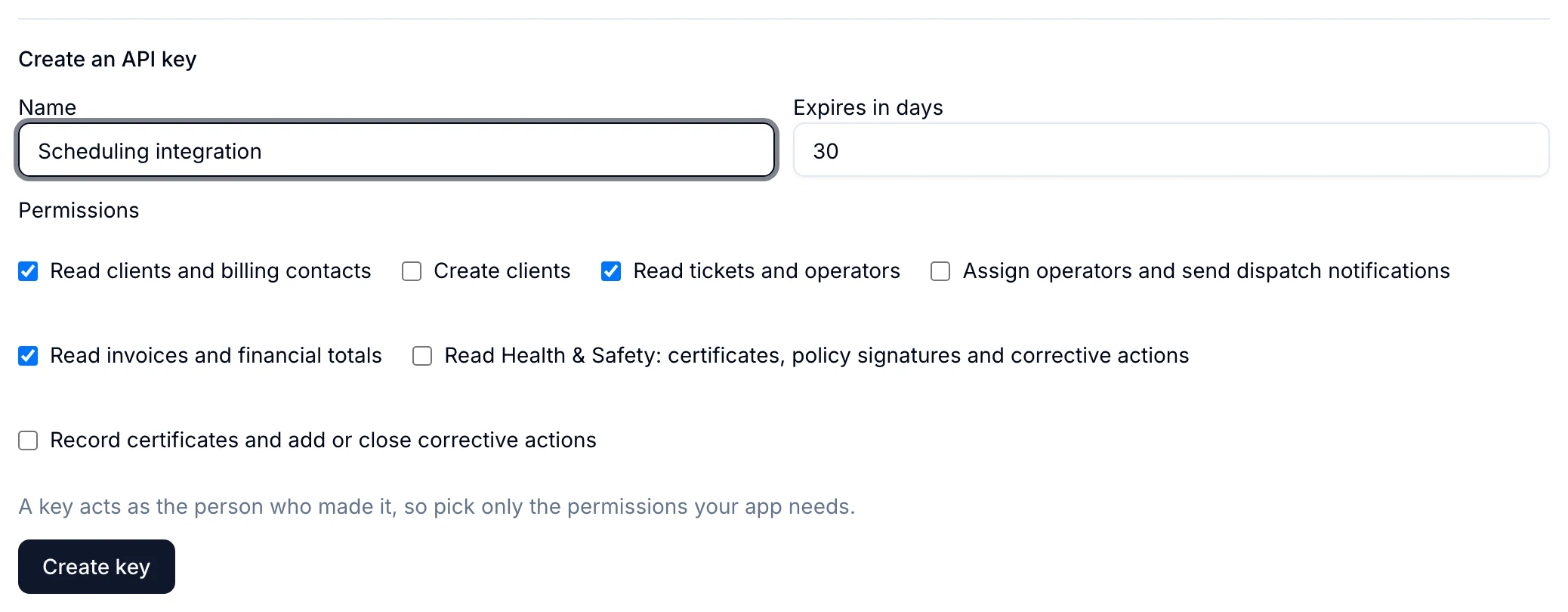
- Under Create an API key, enter a Name that says what the key is for, such as the app that will use it.
- Set Expires in days. It starts at 30 and can be anywhere from 1 to 90.
- Under Permissions, check only what the app needs. You can let it read clients, tickets, invoices and Health & Safety records, create clients, assign operators, and record safety certificates and corrective actions.
- Click Create key.
- Copy the key and store it somewhere safe, then click I’ve saved it. Dispatch shows the key once and won’t show it again.
When a key expires, create a new one and give it to whoever runs the app.
Revoke a key or an assistant
Every key and assistant connection is listed under Access credentials, with who made it and when it expires.
- To stop a key, click Revoke key next to it. Any app using it stops working right away.
- To disconnect assistants, click Revoke all assistant access next to that person’s connection. This disconnects every assistant that person connected for this company, not only one of them.
For developers
The REST API lives at /api/v1 on your Dispatch address, and the API reference link on the add-on page opens its OpenAPI description (a JSON file you can load into an API tool). Send the key in an Authorization: Bearer header. Keys start with dsp_ and work only on /api/v1.
POST requests need a JSON body and an Idempotency-Key header. Each key can make up to 120 requests a minute. Over that, the API answers with status 429 and you can retry after one minute.
A request needs the matching permission on the key, and the person who made the key must still be allowed to do it in Dispatch. Booking endpoints also need the Bookings add-on, and safety endpoints need the Health & Safety add-on.
Assistants connect through /api/mcp with their own sign-in, not with an API key. Each assistant connection lasts up to 90 days.
If your plan includes a number of calls from apps and assistants, the owner can see how many have been used under Settings, Plan and usage.