
An inquiry is a request for work that came in from outside: someone filled in a web form on your website, or you pasted in an email a customer sent you. Inquiries wait in one list until you reply, turn them into a quote or ticket, or close them.
Inquiries is under Clients in the menu. It appears when your company has the Web forms add-on, or the AI add-on that adds Paste an email. Owners, admins and dispatchers can work with inquiries. The menu shows how many are still New.
Find your inquiries
The list is split by status: New, Contacted, Converted, Spam, Closed and All. Search by name, email or phone with the box above the list.
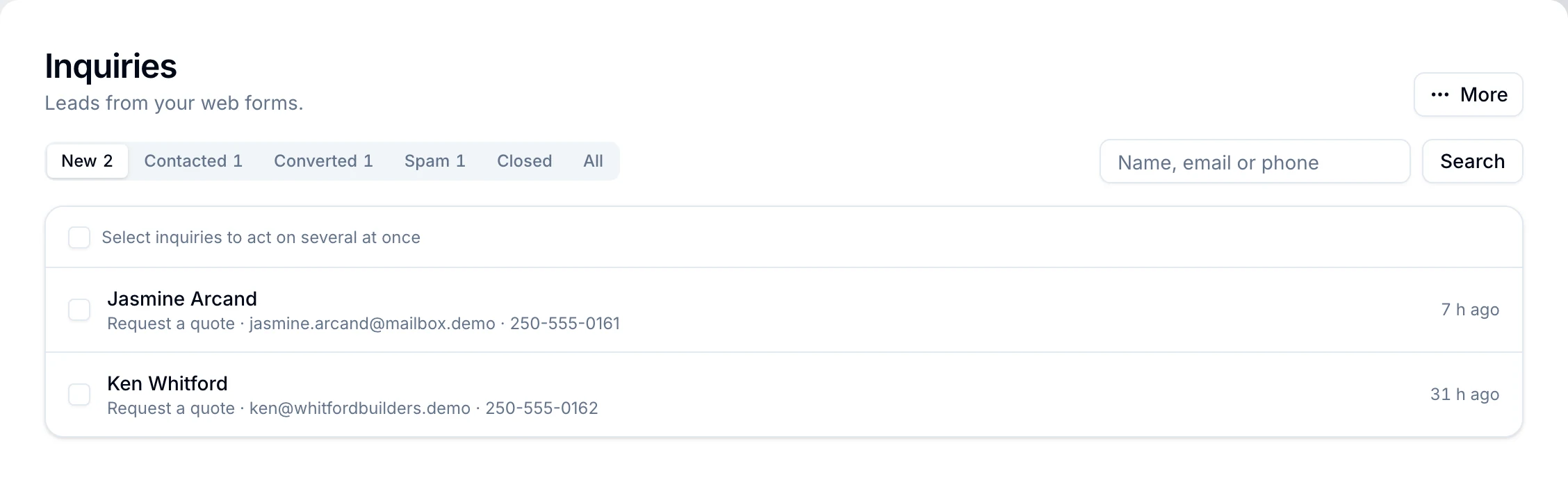
Click an inquiry to open it. You’ll see the contact details and message, any job details they gave, and a Client card. Dispatch checks the email and phone against your clients and tells you if one matches. Matching never changes the client.
Add an inquiry from an email
If someone emails you about a job, you can turn that email into an inquiry. This needs the AI add-on. See Draft quotes and tickets with AI.
- On the Inquiries page, click Paste an email.
- Paste the email text into the box. Leave out signatures and earlier replies if the text is too long.
- Click Create inquiry.
Reply to an inquiry
You can answer by email from the inquiry itself. The reply goes to the address they gave, and their answer comes back to your company email.
- Open the inquiry.
- In the Reply card, check the Subject and write your Message.
- Click Send reply.
Sending a reply moves a New inquiry to Contacted. If you called them instead, click Mark contacted. You can send up to 10 replies to one inquiry a day, and your team can send 200 replies a day in total.
Turn an inquiry into a quote or ticket
- Open the inquiry.
- Click Create quote or Create ticket.
- The new quote or ticket opens with the inquiry’s details filled in. Under Client for this inquiry, choose Create a new client (with the name from the inquiry) or Use an existing client and pick one.
- Check everything, add what’s missing, and save. See Quotes or Create a ticket for the rest of the form.
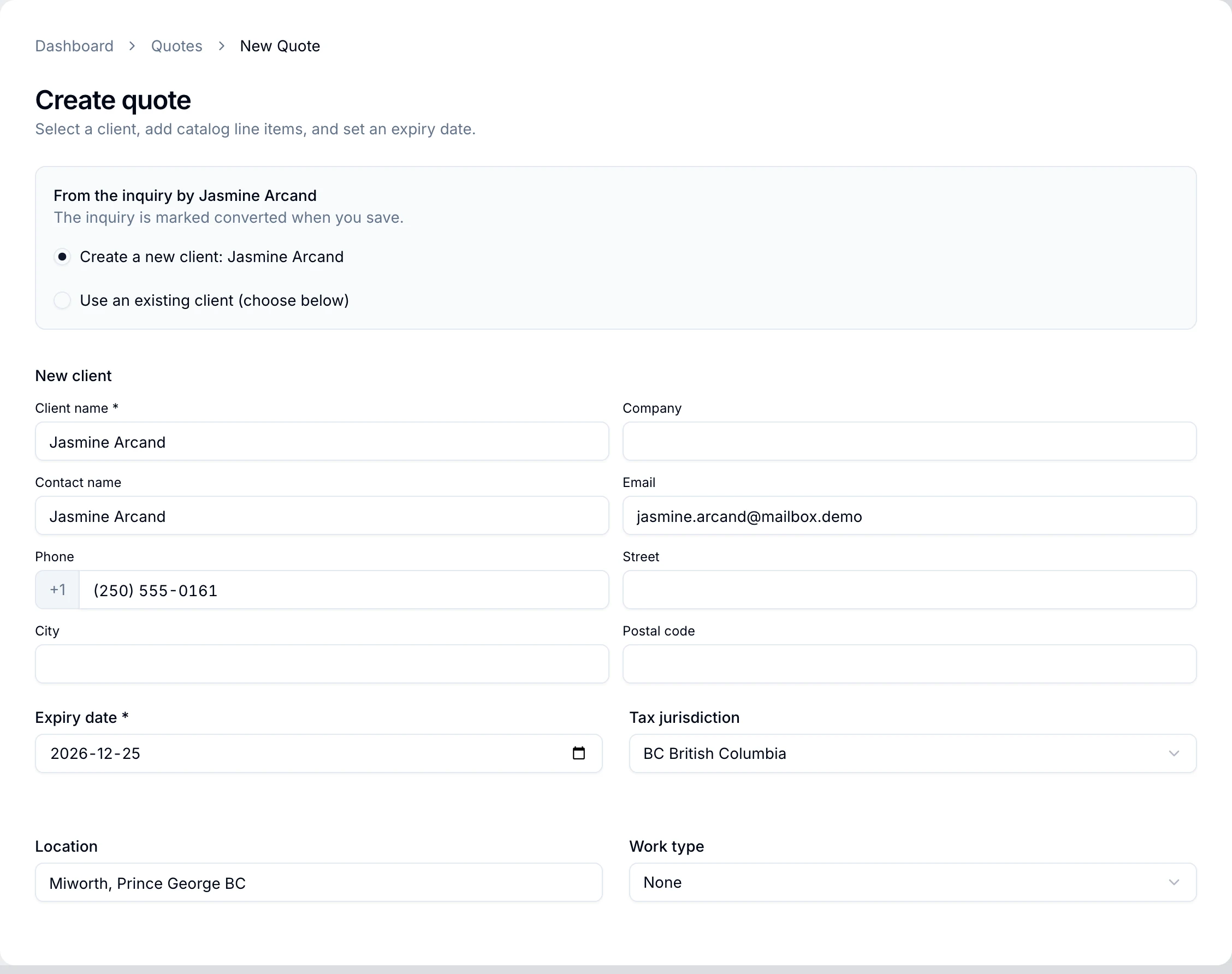
The inquiry is marked Converted when you save. Anything the form couldn’t fill in is listed under Still to ask the client.
Note: If the person ticked the box on your web form agreeing to texts, you’ll see an option to accept their text consent when you convert it. Accepting turns on appointment texts for that client and sends them one confirmation text.
Close, delete or reopen
Click More on an open inquiry for Close, Mark spam, Block (followed by the sender’s domain) and Delete. On a contacted or closed inquiry, Reopen puts it back in New.
To act on several at once, tick them in the list and use the buttons that appear: Mark spam, Not spam, Close, Block domains or Delete. Converted inquiries can’t be changed this way. Deleting can’t be undone.
Deal with spam
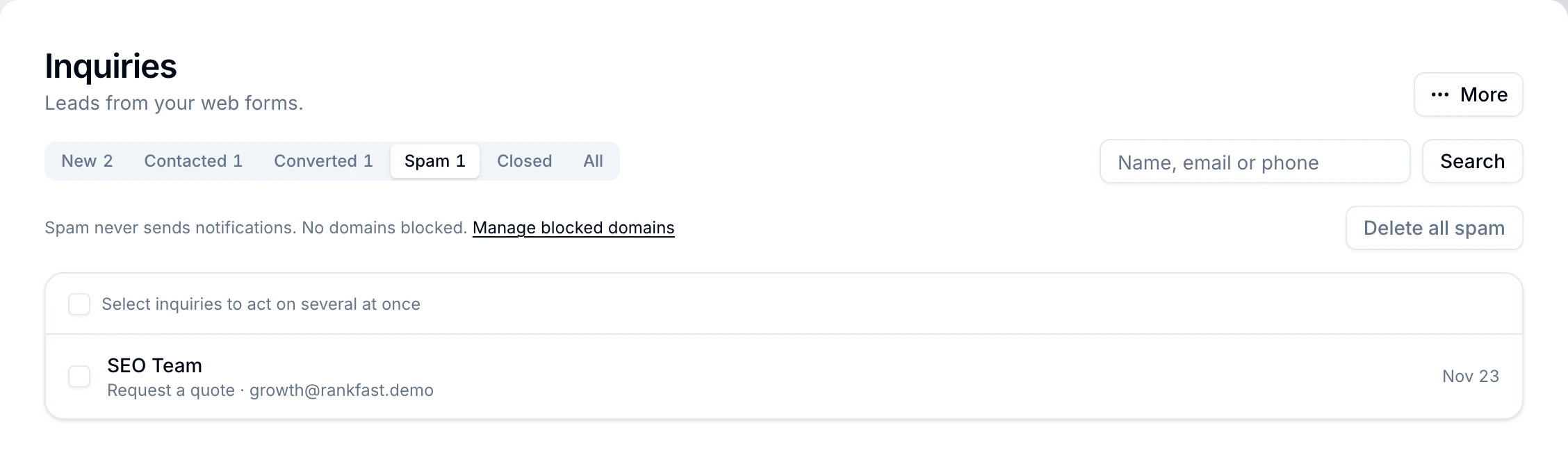
Dispatch moves an inquiry to Spam on its own when it has no email or phone, has a lot of links, uses common spam words, or comes from a domain you blocked. Spam never sends you a notification.
If a real lead lands there, open it and click Not spam to move it back to New.
To stop a sender for good, block their domain:
- Open the spam inquiry.
- Click More, then Block followed by the domain name.
- Confirm with Block domain.
New inquiries from that domain go straight to Spam, and open ones from it move there now. Subdomains are covered too. Shared email providers such as gmail.com can’t be blocked, so real leads aren’t hidden.
On the Spam tab you can also click Delete all spam to clear it out, or Manage blocked domains to add or Unblock a domain.
Export inquiries
Click More at the top of the page and choose Export this list (CSV) to download the inquiries in the tab you’re looking at. The same menu has Blocked domains and, with the Web forms add-on, Web forms, where owners and admins set up the forms themselves. See Web forms.