
Card payments lets your clients pay an invoice by credit card from the link you send them. The payment is recorded on the invoice for you, and the client gets a receipt by email. You connect your own Stripe or Helcim account, and the money goes there.
This is an add-on. The Dispatch team turns on Stripe or Helcim for your company (one or the other, not both), and then your owner connects the account. If you don’t see Card payments in Settings, Add-ons, ask us to turn it on.
Who can do what
Only the owner can connect Stripe or Helcim, set the card limit and set a surcharge. Owners and admins can turn card payment off for a single invoice. Owners, admins and dispatchers can record refunds.
Connect Stripe
- Go to Settings, Add-ons and open Card payments.
- Click Connect Stripe. Dispatch opens Stripe’s own setup pages.
- Fill in what Stripe asks for about your business and bank account, then finish on Stripe’s side. Stripe sends you back to Dispatch.
- Dispatch checks your Stripe account, which can take a minute. When it’s ready, the page says Clients can pay invoices online.
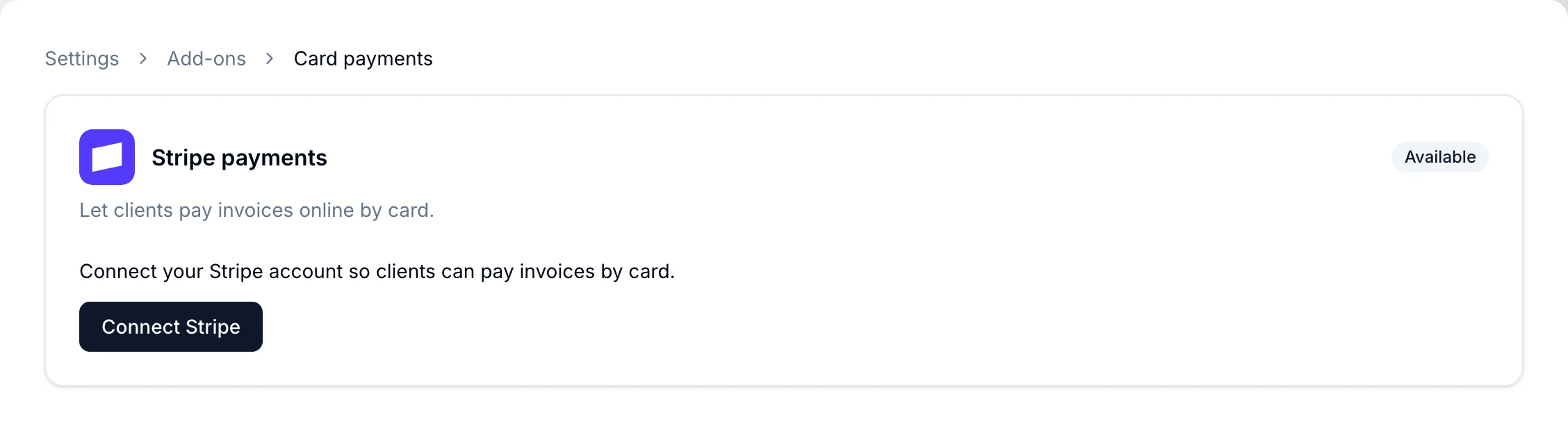
If the page says Stripe needs more information before you can take payments., click Continue setup to go back to Stripe and finish the remaining items. If your setup link expired, the same button picks up where you left off.
Connect Helcim
The Card payments page lists the steps with your Dispatch address filled in.
- In Helcim, open All Tools, then Integrations, then API Access Configurations.
- Create a new API access. Turn on checkout integration and add the domain shown on the Dispatch page.
- Set General to Read & Write and Transaction Processing to Admin.
- Copy the API token, paste it into API token in Dispatch and click Connect Helcim.
When it works, the page says Clients can pay invoices online with Helcim.
We recommend setting up Payment confirmations next. It records a payment even if your client closes the page right after paying. In Helcim, open All Tools, then Integrations, then Webhooks and turn them on. Paste the Confirmation link from Dispatch there, then copy Helcim’s verifier token back into Verifier token and click Save.
Set a card limit
You may not want to pay card fees on a large invoice. A card limit hides the card option on any invoice whose balance is above the amount you choose, and the client sees only your manual payment options (cheque, e-transfer, bank transfer).
- On the Card payments page, find Card limit.
- Turn on Credit card payment limit.
- Enter the Maximum amount ($) and click Save threshold.
To remove the limit, turn the switch off and save. Stripe and Helcim share the same limit.
Turn off card payment for one invoice
When you email an invoice, the email dialog has a Let the client pay by card online checkbox. Uncheck it for an invoice you’d rather be paid by bank transfer. The client still sees your payment instructions on the invoice.
What your client sees
On the invoice link, the Payment section shows the Amount due and a Pay with card button, with your manual payment instructions under Or pay manually. If the invoice is partly paid, they also see the amount paid and the remaining balance. A card payment always pays the whole remaining balance.
With Stripe, the client pays on Stripe’s secure page and comes back to a Payment received page. With Helcim, a payment window opens on the invoice itself. Either way the invoice is marked paid and the client is emailed a payment receipt with the updated PDF.
When you email an invoice and Stripe is connected, the email also has a button to pay online.
The pay button doesn’t show when the invoice is already paid, when its balance is above your card limit, or when card payment is off for that invoice.
Note: Deposits from a booking are paid from the client’s booking page, not the invoice. Helcim doesn’t take deposits.
Add a credit card surcharge (Stripe)
With Stripe, the owner can add a surcharge to credit card payments. It’s available to Canadian businesses outside Quebec with a business province on file. The surcharge applies only to Visa and Mastercard credit cards on standard invoices. Debit, prepaid, manual payments and booking deposits never have one.
- Notify your payment processor that you’re adding a surcharge. The surcharge can only start 30 days after that date.
- On the Card payments page, turn on Credit card surcharge.
- Enter the Surcharge rate (%), up to 2.4%.
- Enter the Date you notified your payment processor.
- Check This rate does not exceed my cost of accepting Visa or Mastercard credit cards.
- Click Save surcharge settings.
Once the 30 days have passed, the client sees the invoice balance, the surcharge and the credit card total, with a second button, Pay with debit or prepaid (no surcharge).
Refund a card payment
- Open the invoice and choose Record refund… from its actions.
- Pick the Payment being refunded and enter the Invoice amount to refund ($). You can refund part or all of what’s left on that payment.
- Add a note if you like and click Record refund.
A Stripe payment is refunded back to the client’s card through Stripe. It shows as pending until Stripe confirms it, then appears as a refund on the invoice. If there was a surcharge, the matching part of it is refunded too.
A Helcim refund isn’t sent to Helcim. Issue the refund in your Helcim account, then record it in Dispatch with the method you used so the invoice balance is right.
Disconnect Helcim
On the Card payments page, click Disconnect Helcim and confirm. Clients can’t pay invoices online until you connect again, and payments already recorded stay as they are.