
Team > People is one list of everyone in your company: owners, admins, dispatchers and operators. Click a name to open that person’s panel, where you can update their details.
What you see depends on your role. Owners, and anyone whose role has Manage users, see everyone. Other dispatchers and admins see a read-only list of your operators. Operators don’t see this page.
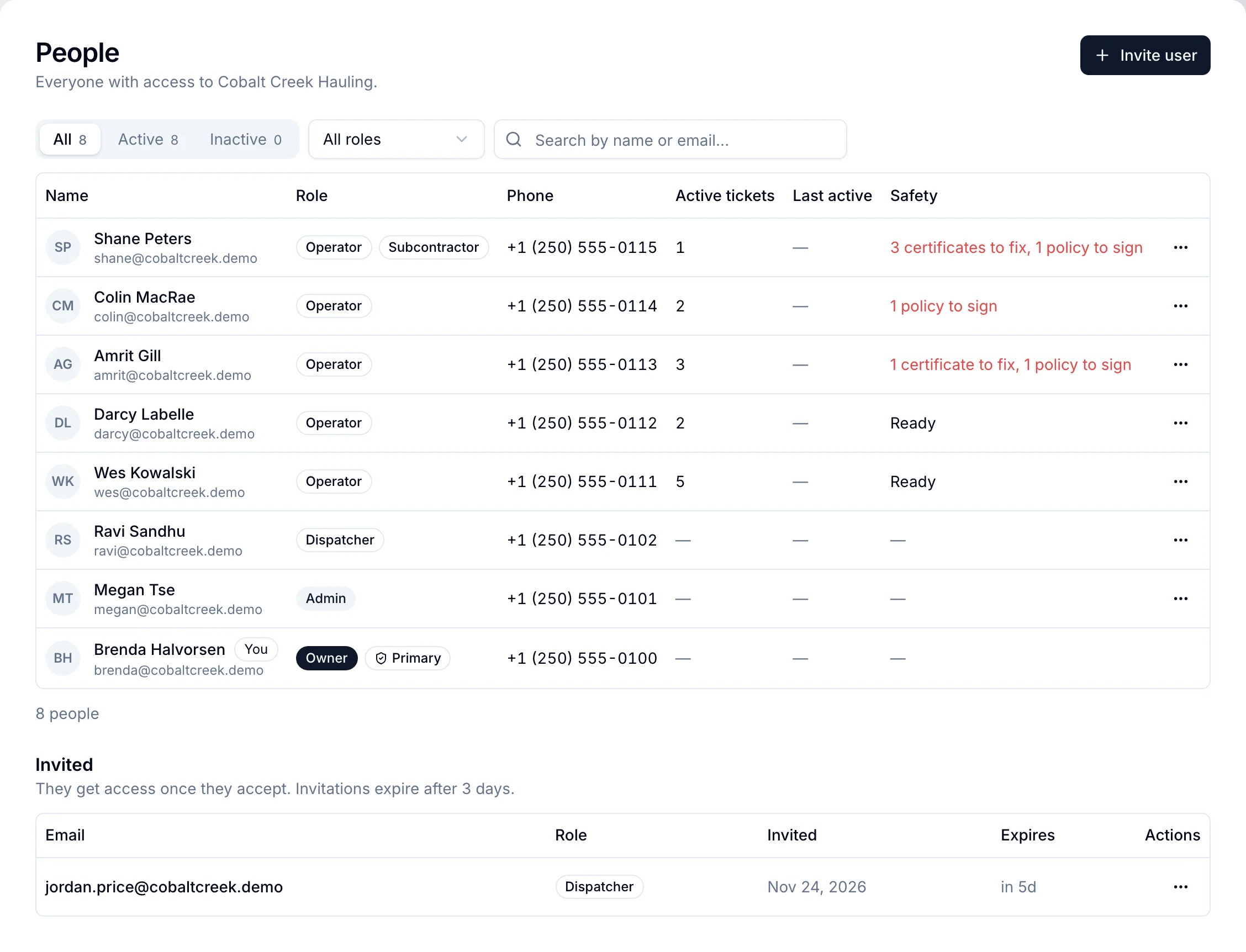
Find someone
Use the tabs above the list to show All, Active or Inactive people. You can also pick a role from the All roles menu, or type in the search box to find someone by name or email.
If your company has the Health & Safety add-on, a Safety column shows whether each person is Ready or has certificates to fix or policies to sign.
Update someone’s details
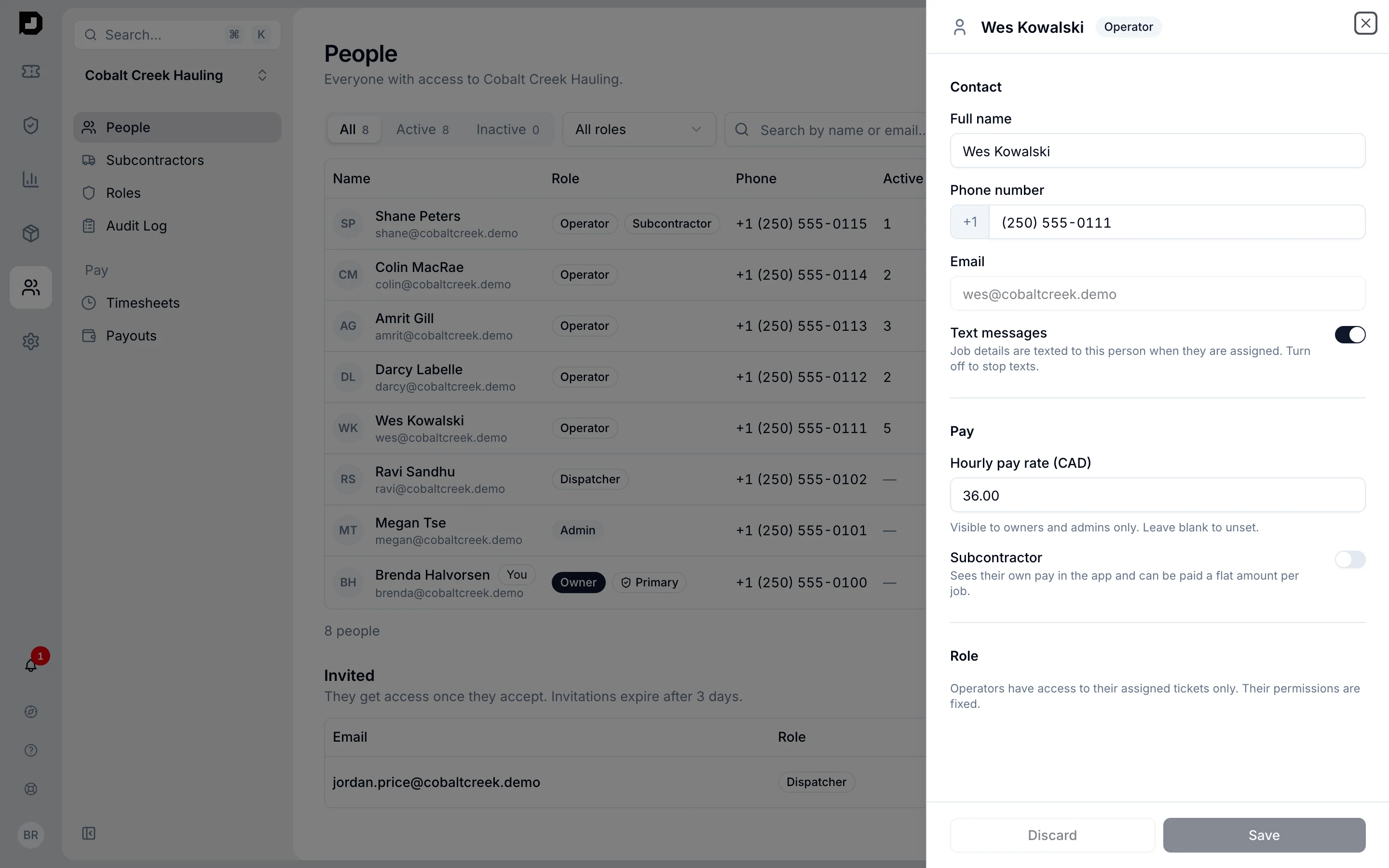
- Click the person’s name to open their panel.
- Under Contact, change their Full name or Phone number.
- Under Pay, set their Hourly pay rate (CAD) if you’re an owner or admin.
- Click Save.
Who can change what:
- The owner can edit anyone’s contact details.
- An admin can edit dispatchers and operators.
- A dispatcher with Manage users can edit operators.
- Pay rates are seen and changed by owners and admins only, and only for people below their own role.
You can’t change your own details here. Use your account page instead.
The operator profile
An operator’s panel has a few extra settings that matter in the field.
Text messages controls whether Dispatch texts them the job details when they’re assigned. Turn it off to stop those texts. For office staff, the same switch lets Dispatch text them the notifications they’ve chosen to get by text.
Hourly pay rate (CAD) is what they earn per hour. It’s used for job costs and is only visible to owners and admins. Leave it blank to unset it.
Subcontractor marks someone you pay a flat amount per job rather than hourly. They see their own pay in the app, and what you owe them appears on the Payouts page.
An operator’s permissions are fixed. They can only see the tickets they’re assigned to.
Change someone’s role
Only the owner can move an admin or dispatcher to a different role.
- Open the person’s panel.
- Under Role, pick the new role from the list.
- Click Save.
The list shows your company’s roles, including any custom ones you’ve made. To change what a role is allowed to do, click Manage roles or see roles and permissions.
Turn off someone’s access
When someone leaves, deactivate them instead of deleting anything. They lose access to your company right away, but their history on tickets, timesheets and invoices is kept.
- On the People list, open the menu at the end of the person’s row.
- Choose Deactivate.
- Confirm with Deactivate.
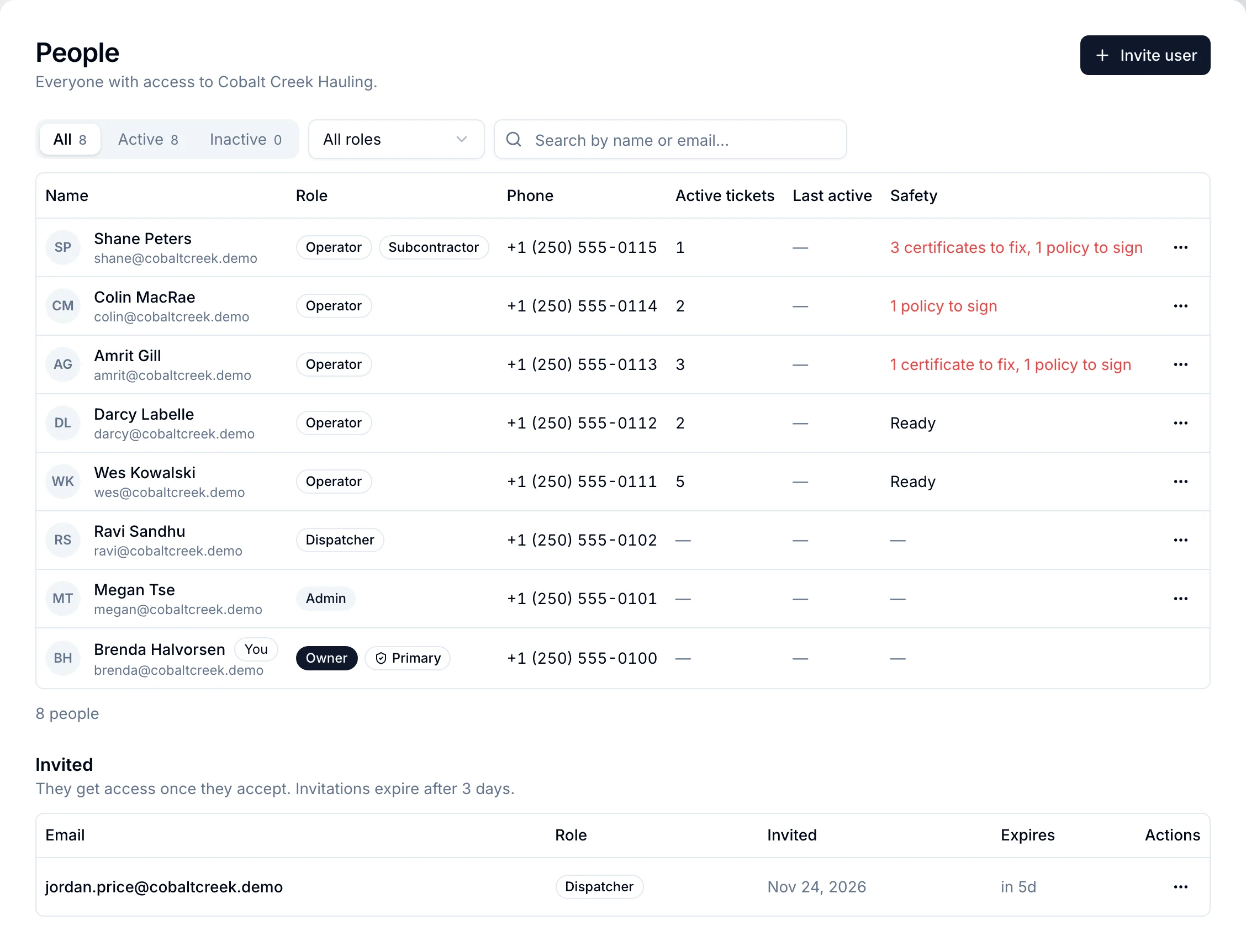
You need Manage users to do this, and you can only deactivate people below your own role. Nobody can deactivate themselves or the company’s main owner.
To give access back, switch to the Inactive tab, open the menu on their row and choose Reactivate.