
Everyone signs in at go.dispatchapp.ca with their email and password, on a computer, tablet or phone. Dispatch sends you to the right place for your role: the full app for office staff, and the job list for operators.
Join from your invitation
Your first sign-in starts from the invitation email your company sent you.
- Open the email and tap the link. The Accept invitation page opens.
- Type your Full name.
- Choose a Password with at least 12 characters, and type it again in Confirm password.
- Click Accept and set password.
If the page says the invitation has expired or was already used, ask your owner or admin to send a new one. If you already have a Dispatch account with that email, for example at another company, the page asks you to sign in instead and then join.
Sign in with your password
- Go to go.dispatchapp.ca.
- Enter your Email and Password.
- Tick Remember my email if this is your own device, so you don’t have to type it next time.
- Click Sign in.
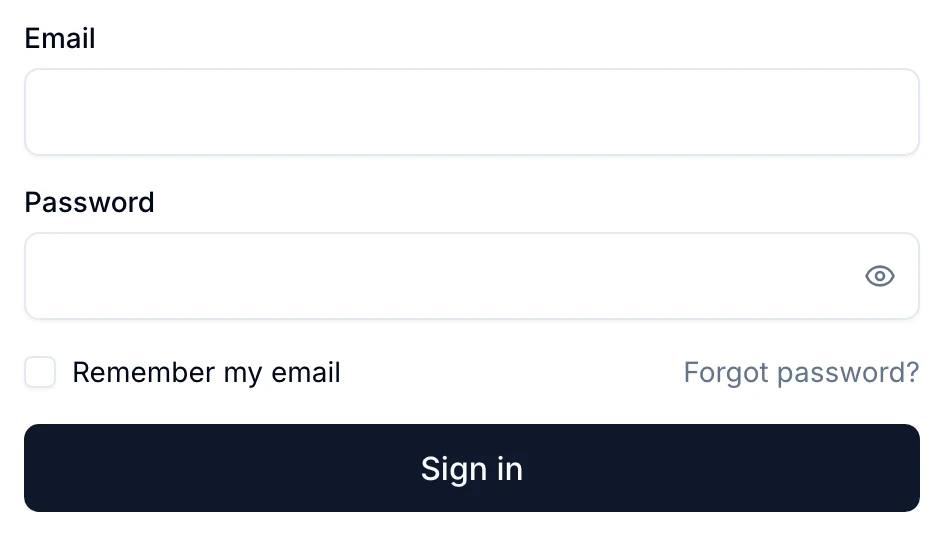
If you see “Email or password is incorrect”, check for a typo or reset your password.
Reset a forgotten password
- On the sign-in page, click Forgot password?.
- Enter your email and click Send reset link.
- Open the email from Dispatch and click the link.
- Choose a new password with at least 12 characters and click Set new password.
For your privacy, Dispatch shows the same “Check your email” message whether or not the email has an account. If nothing arrives, check your spam folder, then ask your admin which email your account uses. If the link no longer works, click Request a new reset link on that page.
Enter your two-factor code
If you’ve turned on two-factor authentication, Dispatch asks for a 6-digit code after your password.
- Open your authenticator app and find the code for Dispatch.
- Type it in and click Verify.
You have two other ways in if your phone isn’t with you. Send code to email emails you a code to type instead, and Use a recovery code instead takes one of the recovery codes you saved when you set it up. After too many wrong codes, Dispatch makes you wait 15 minutes before trying again.
You can turn two-factor authentication on or off from your account menu under Account, then Security.
If you work for more than one company
One account can belong to several companies, for example if you drive for two contractors. Your current company’s name shows at the top of the side menu. If you belong to more than one, click the name and pick another company from the list. Dispatch reloads with that company’s work, and nothing from one company shows in the other.
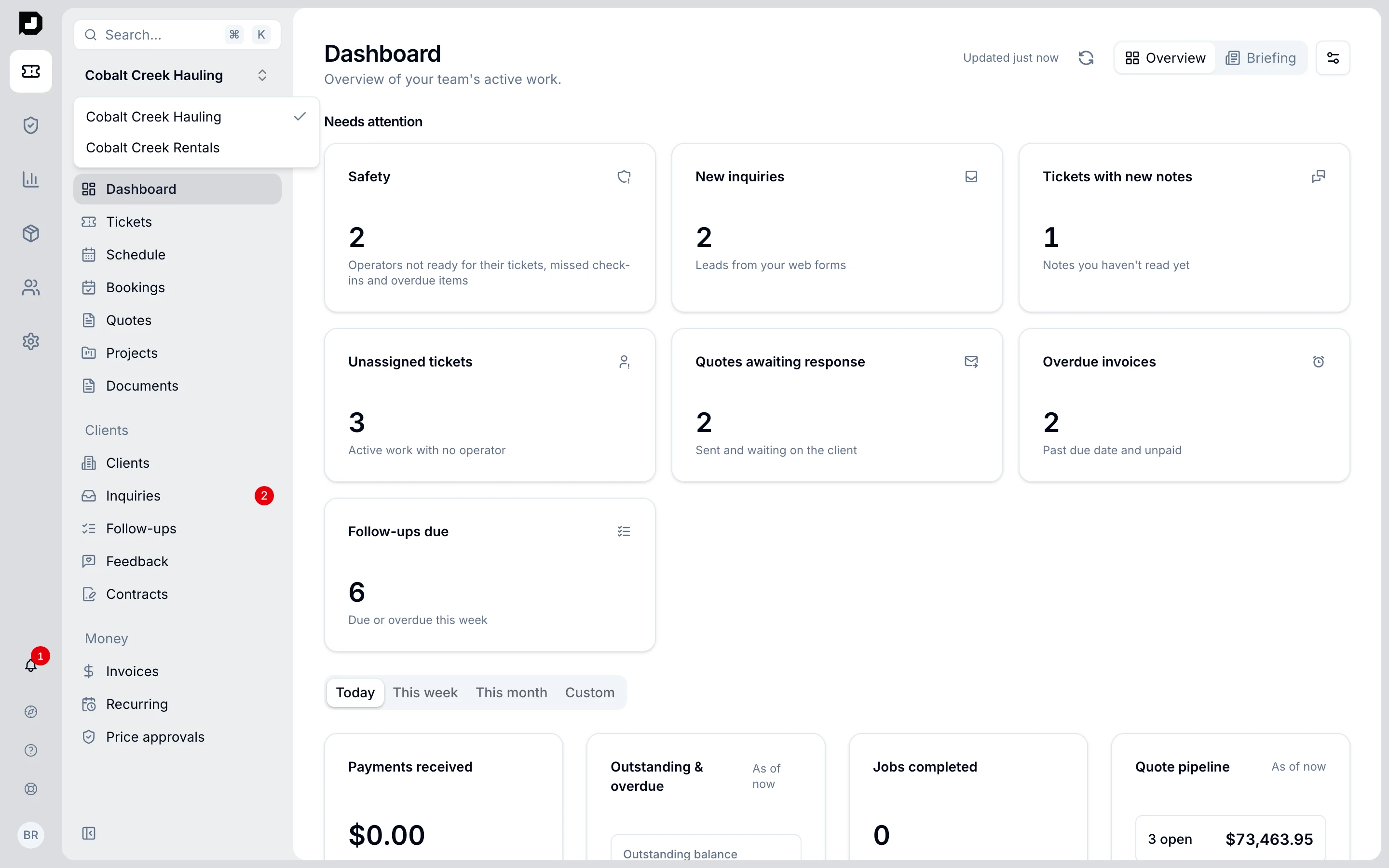
On a phone, the company name sits at the top of the screen, under the Dispatch logo. Operators can read more in notifications and your account.
Sign out
Click your picture or initials at the bottom of the side menu and choose Sign out. Operators find Sign out at the bottom of the Account tab.