
The income reports break your billed or collected income down in different ways: over time, by client, by service, by work type, by catalog category and by operator. They all share the period picker, the Billed and Collected tabs, Compare and the exports described in how reports work.
Income Trends
Income Trends draws your income as a line over the period. For periods up to 14 days each point is a day, up to 90 days each point is a week, and longer periods are shown by month. Turn on Compare to draw the previous period on the same chart.
Income by Client
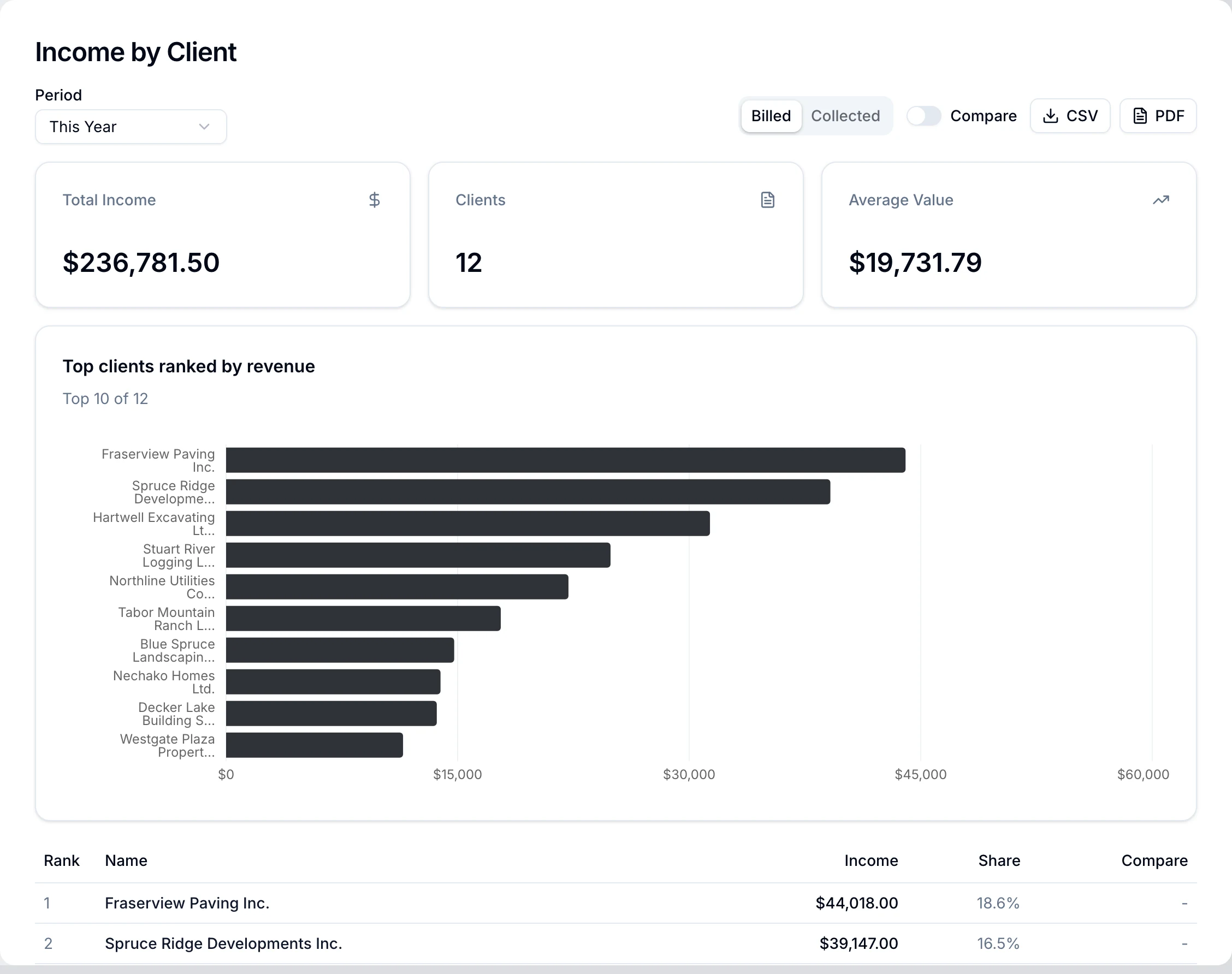
Income by Client ranks your clients by income, with a bar chart of the top clients and a full table below it. The table shows each client’s Rank, Name, Income, Share of the total and, with Compare on, the change from the previous period. A client with a company name is listed under the company name.
Income by Service
Income by Service splits income across the service items in your catalog, shown as a donut chart and a table. Only invoice lines picked from the catalog are counted here. A line typed in by hand doesn’t belong to any service, so it’s left out.
Income by Work Type
Income by Work Type groups income by the work type on each ticket. It only counts invoice lines that came from a ticket, so a line added straight to an invoice doesn’t show up here.
Income by Category
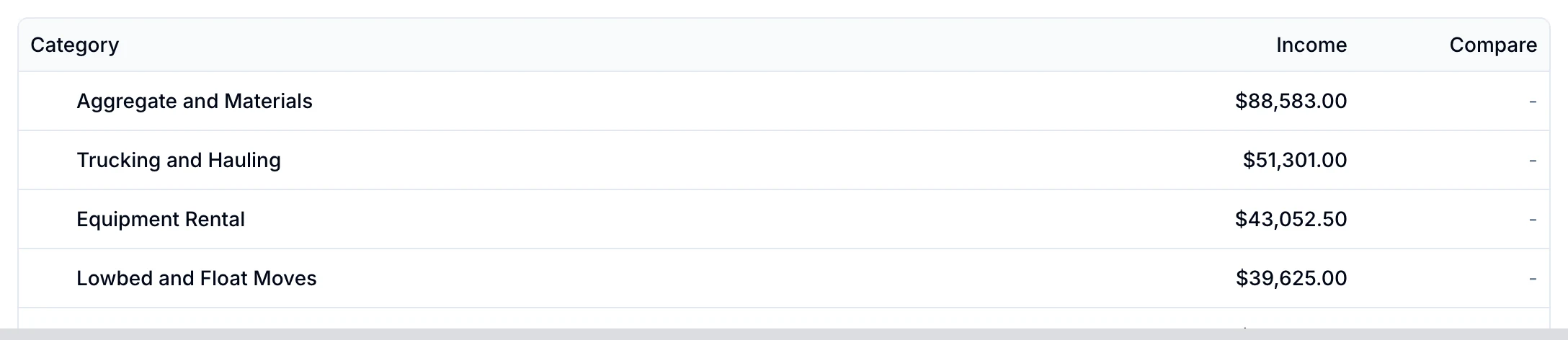
Income by Category groups income by the catalog categories your service items sit in. The table is a tree, and a parent category’s total includes everything in the categories under it. Use Expand and Collapse to open or close a branch. Service items with no category aren’t counted.
Income by Operator
Income by Operator credits each ticket’s invoiced lines to the operator the ticket is assigned to. Like the work type report, it only counts lines that came from a ticket, and only tickets with an operator assigned.
See the invoices behind a number
On the Clients, Services, Work Types and Operators reports you can click any name in the table to open Report Detail. It lists the Date, Source and Amount of every entry that makes up that row. On the Billed tab the source is the invoice number. On the Collected tab each payment is listed as “Payment #” followed by a short code.
The category tree doesn’t open a detail list.
Why the totals don’t always match
Each report counts a slightly different set of lines, so the Total Income card can differ from one report to the next for the same period:
- Trends and Clients count every line on every invoice.
- Services and Categories only count lines picked from the catalog, and Categories also skips items with no category.
- Work Types and Operators only count lines that came from a ticket, and Operators also skips tickets with no operator.
If you need one number for the whole company, use Income Trends or Income by Client.