
The schedule is the dispatch board. It shows every operator’s jobs on a calendar, so you can spot gaps, double bookings and jobs nobody has picked up yet. Owners, admins and dispatchers can use it. Open it from Schedule in the Work menu.
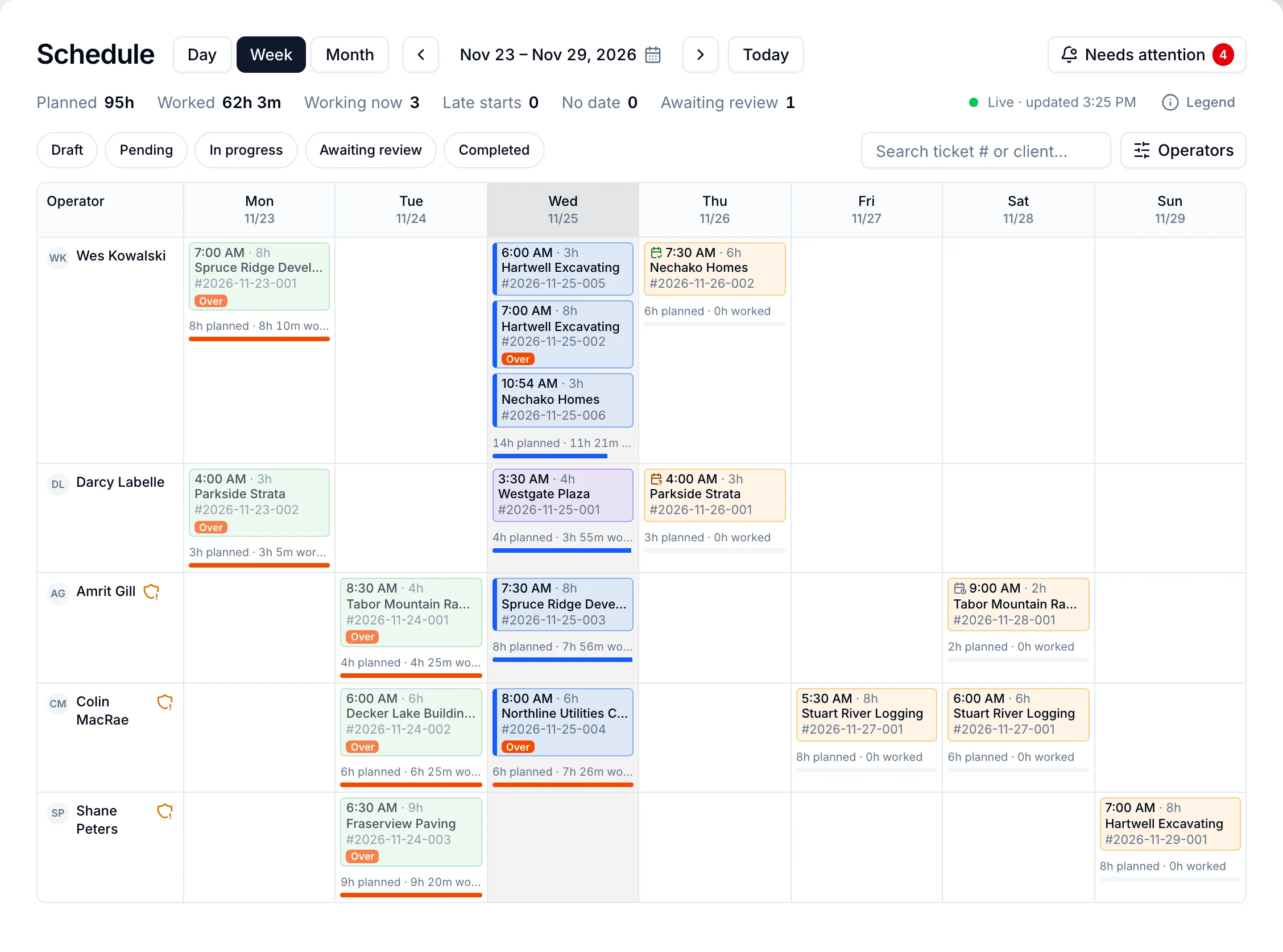
Change the view
Use Day, Week and Month at the top to change how much you see. Week is the usual view on a computer.
- Day shows one day as a time grid, with a column for each operator. The grid shows your business hours. Click Show all hours to see the whole day.
- Week shows a row for each operator and a column for each day.
- Month shows the whole month. Click a day to open it in Day view.
Use the arrows to go back or forward, Today to come back to today, and Jump to date to pick a date. The board refreshes on its own while it’s open, and the time beside Live tells you when it last updated.
The strip above the calendar counts what’s Planned, what was Worked, who is Working now, Late starts, tickets with No date and tickets Awaiting review.
Find what you need
- Click a status to show only tickets in that status, and Clear to show them all again.
- Type a ticket number or client name in Search ticket # or client….
- Click Operators to hide people you don’t need to see, or tick Hide operators with no work. Show all brings everyone back.
- Click Legend to see what the colours and bars on a job mean, such as recorded work, cleanup and unplanned work.
A job shows Late when it should have started and no time has been logged, and Over when the hours worked passed the estimate.
Move a job
Drag a job to a new day, time or person.
- Dropping it on another day or time changes that day of the ticket.
- Dropping it into another operator’s row or column assigns the whole ticket to that person, and they’re texted like any other assignment.
- If the person already has work at that time, a Scheduling conflict window lists the overlap. Click Schedule anyway to keep both, or Cancel.
Only pending and in-progress tickets can be moved. A draft has to be submitted first.
Tip: If you’d rather not drag, click the job to open its side panel and change the date and time there.
Open a job from the board
Click a job to open a side panel with its client, location, total hours and work summary. From the panel you can:
- Change the Date, start time and hours of each day, then click Save for that day.
- Pick a person under Assign operator and click Assign. Leave Text the job details ticked to text them.
- Submit a draft with Submit for assignment.
- Open the whole ticket with View full ticket.
Jobs that need a decision
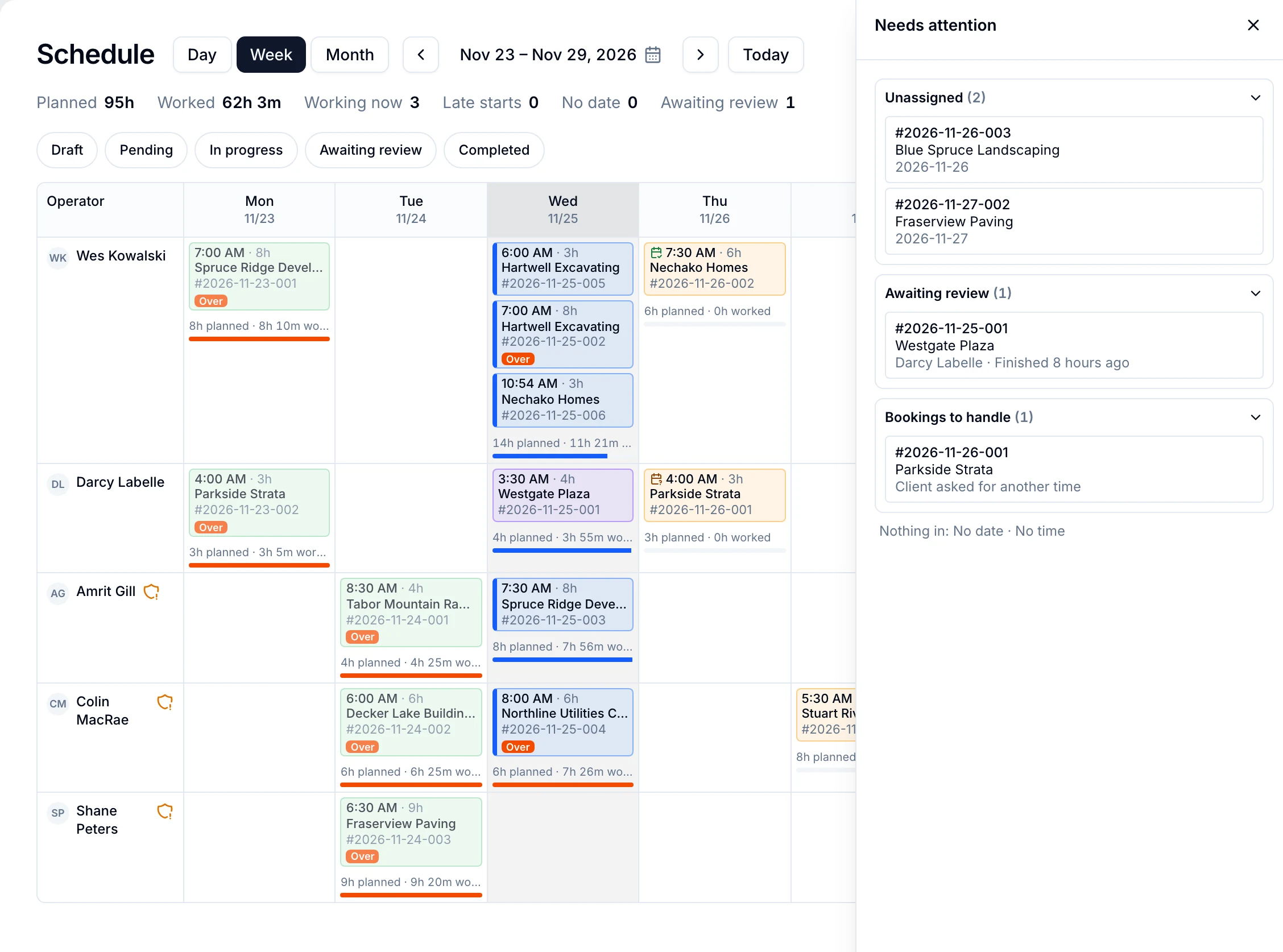
Click Needs attention to open a list of tickets waiting on a scheduling decision, grouped under No date, No time, Unassigned, Awaiting review and, with the Bookings add-on, Bookings to handle. Drag a card from the list onto the calendar to schedule it, or click it to review it.
Create a ticket from the board
- In Day view, click an open spot in an operator’s column at the time the job starts.
- Click the New ticket at link that appears.
- Pick the client and the work type, check the date, start time and hours, and add a Work summary (optional).
- Click Create ticket.
The ticket is saved as a draft at that day, time and operator, and it shows on the board. Submit it when it’s ready to go out. To fill in more than the basics, click More options to carry what you’ve entered over to the full form.
If your company has required custom fields, the short form can’t fill them in, and it sends you to the full form instead.
Set schedule days and start times on a ticket
The Schedule section of the ticket form holds each day of the job: a Date, a Start time and the Expected hours. Click Add another day for a job that runs over several days. Each day shows on the board as its own block.
A day without a start time is listed under No time in Needs attention until you give it one.
If a day falls outside your business hours, Dispatch asks before saving. Your business hours are set in Settings.