
Timesheets fill themselves in. Every time an operator starts and stops a job in the app, Dispatch records the time. Team > Timesheets adds it up by person and by day, so you can check it before you run payroll.
Owners, admins and dispatchers can see timesheets. Only owners and admins can approve or reopen a pay period.
Read the timesheet
- In the left bar, open Team, then Timesheets.
- Choose 1 week or 2 weeks to match your pay period.
- Use the arrows to move to the previous or next period, or click This week to come back to the current one.
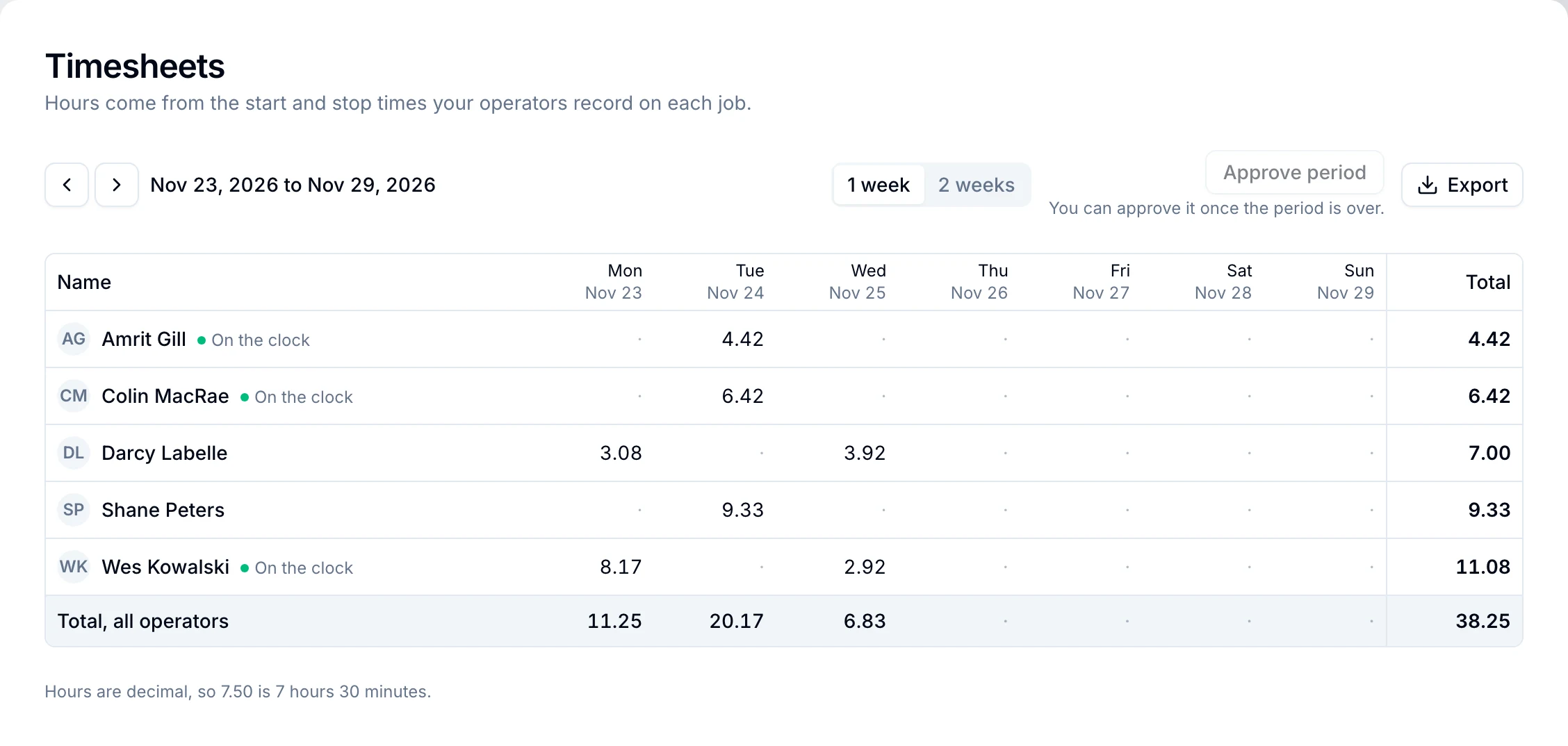
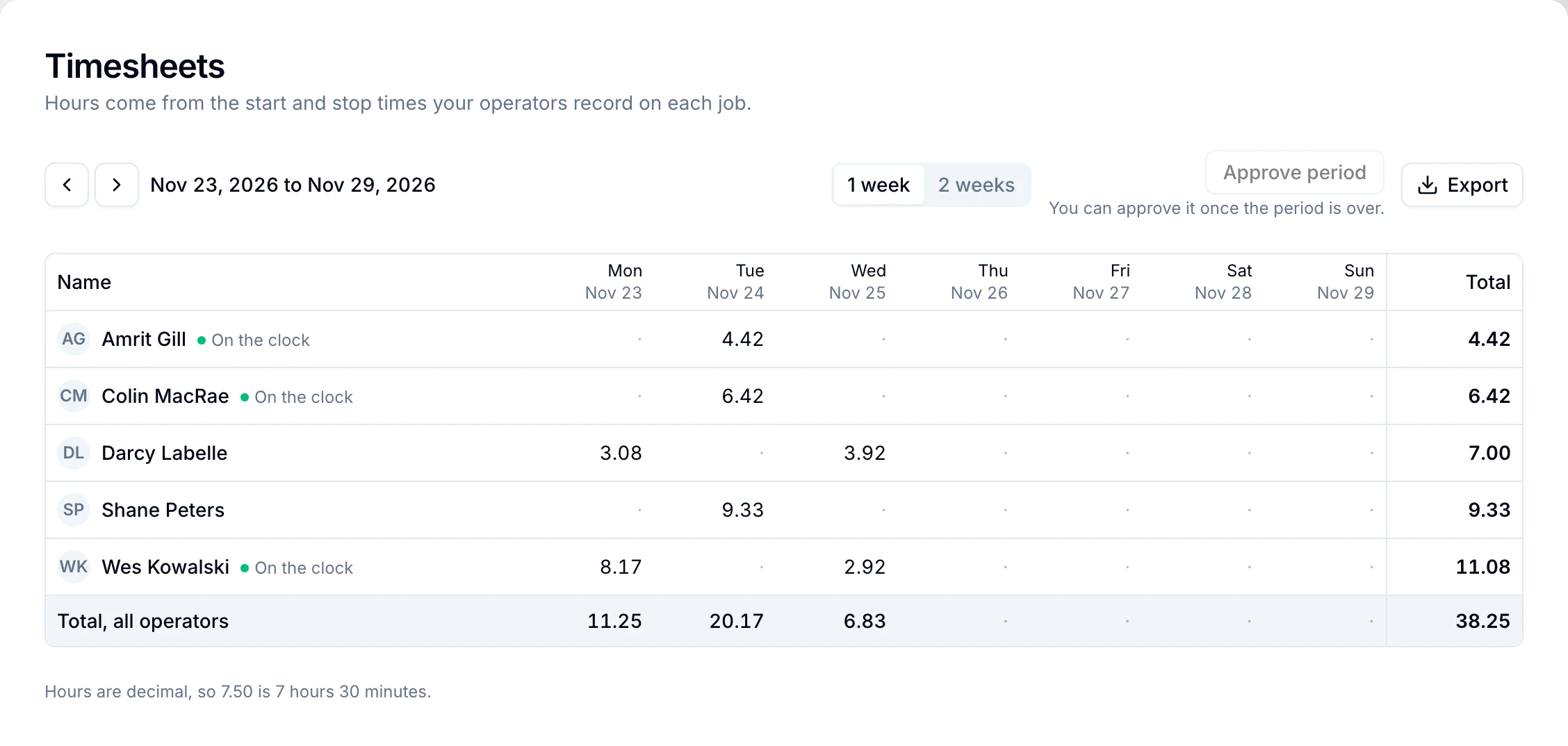
Each row is one person, with their hours for each day and a Total. Weeks start on Monday. Anyone still on a job right now is marked On the clock. Hours are decimal, so 7.50 means 7 hours 30 minutes.
See one person’s entries
Click a name to see every entry behind their hours: the date, the job, the client, start and end times, breaks and hours. Entries marked Edited were added or corrected by a manager.
Fix a wrong time
Time is corrected on the job itself, not on the timesheet.
- Open the ticket the time belongs to. You can click the job on the person’s entries.
- Use Adjust time to change or add the time.
The timesheet picks up the change straight away.
Approve a pay period
Once a period is over and the hours look right, lock it so nothing changes after you’ve paid people.
- Go to the period you want to approve.
- Click Approve period.
The page then shows who approved it and when. While a period is approved, its time can’t be changed.
If you need to fix something after approving, click Reopen. Time can be corrected again, and you can approve it once more when you’re done.
Note: You can only approve a period after its last day has passed.
Export for payroll
Click Export to download the period:
- PDF timesheets: everyone’s daily hours on your letterhead.
- CSV, every entry: one row per job per day, with start and end times.
- CSV, daily totals: one row per person, one column per day.
From one person’s page, PDF timesheet gives you a single timesheet on your letterhead with signature lines.