
A project groups one client’s tickets, quotes and invoices, so a big job that runs for weeks lives in one place. You can give it a budget and see how much is committed, invoiced and collected against it, split it into phases with their own dates, and email the client all its documents at once.
This is an add-on. Dispatch turns it on for your company, and once it’s on you’ll see Projects in the main menu and under Settings, Add-ons. If you don’t see it, contact Dispatch and ask for it.
Owners, admins and dispatchers can create projects, add documents and manage phases. Only owners and admins can delete a project. Budget and money figures only show to people whose role lets them see prices.
Create a project
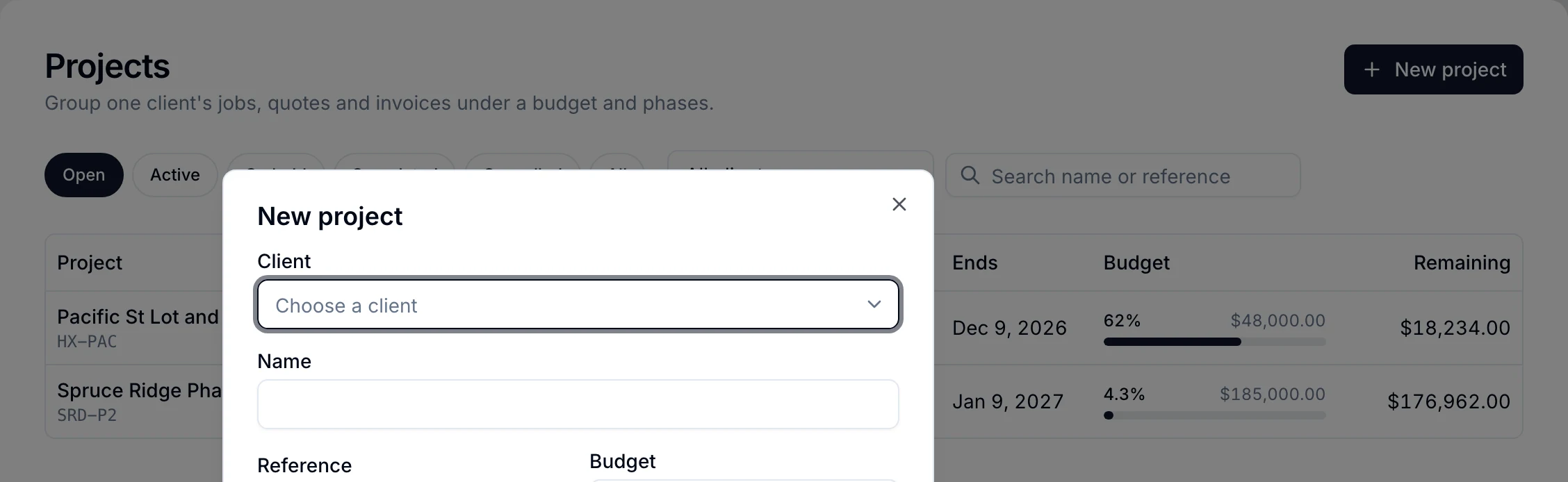
- Go to Projects and click New project. You can also start one from the Projects tab on a client’s page.
- Choose the Client. A project belongs to one client.
- Check the Name. Dispatch suggests one from the client’s name.
- Add a Reference if the client gave you one, such as a PO, AFE or job number.
- Enter the Budget, before tax. This is the amount the client has authorized for the project.
- Add the Start date, End date and Site location if you know them, and any Internal notes. Only your team sees the notes.
- Click Create project.
If the work starts from a quote, open the quote and click Create project on its Project card. The quote, and any tickets made from it, join the new project.
Add tickets, quotes and invoices
From the project page:
- Click New ticket or New quote to create one that’s already in the project. The client is set to the project’s client.
- Click Add existing to pick from the client’s documents that aren’t in a project yet. Tick the ones you want, pick a Phase if you use them, and click the Add button, which shows how many you picked. A quote brings along the tickets made from it, and an invoice brings the tickets it bills.
You can also do it from the other side. On any ticket, quote or invoice page, the Project card lets you Choose a project and Add it, change its phase, or Remove it. An invoice made only from a project’s tickets joins the project on its own.
A document can only be in one project, and it has to belong to the same client. Discarded or void documents can’t be added.
Split a project into phases
Phases break a project into stages with their own dates, like Site prep, Pour and Cleanup.
- On the project’s Overview, find Phases and click Add phase.
- Enter the Name, and the Start and Due dates if you have them.
- Add a Budget for the phase if you track one.
- Click Save.
Use the arrows beside each phase to put them in order, and tick the box beside a phase when it’s finished. A phase past its due date shows Late. A project can have up to 50 phases. If the phase budgets add up to more than the project budget, Dispatch warns you.
Follow the budget
The Budget card on the project’s Overview shows how much of the budget is committed, with a bar and how much is left. Committed means tickets, accepted quotes and invoice-only lines, all before tax and after discounts. Sent quotes and change orders still waiting for an answer show separately as Proposed, with what the total would be if they’re approved.
The card also shows Invoiced, Draft invoices, Collected (incl. tax) and Outstanding (incl. tax). When you’re close to or over the budget, it says Near budget or Over budget by the amount.
The Costs card adds up approved expenses and labour and subcontractor pay, and estimates the profit and margin.
On the Projects list, filter by Over budget or Late phases to find projects that need a look.
Email the project’s documents
- On the project page, click Email documents.
- Tick the documents to send. Each one goes as its own PDF, followed by its tickets.
- Click Send email.
Only documents that have already been sent show in the list.
Close or delete a project
When the work is finished, click Change status and choose Completed. You can also set a project On hold or Cancelled. A completed or cancelled project takes no new documents.
To keep a project’s history, cancel it rather than deleting it. Owners and admins can delete a project with Delete project, which removes it and its phases. A project that still has documents in it can’t be deleted.
The Activity tab lists every change to the project, who made it and when.