
Your crew fills in safety forms on their phone: hazard assessments before a job, pre-trip and pre-use inspections, toolbox talks and more. Each form they send becomes a record the office can open, print and hand to an auditor.
This is part of the Health & Safety add-on, which Dispatch turns on for your company. If you don’t see Safety in your menu, contact Dispatch to ask for it.
Owners and admins choose which forms are in use. Anyone on the team can fill in a form, and owners, admins and dispatchers can read every record.
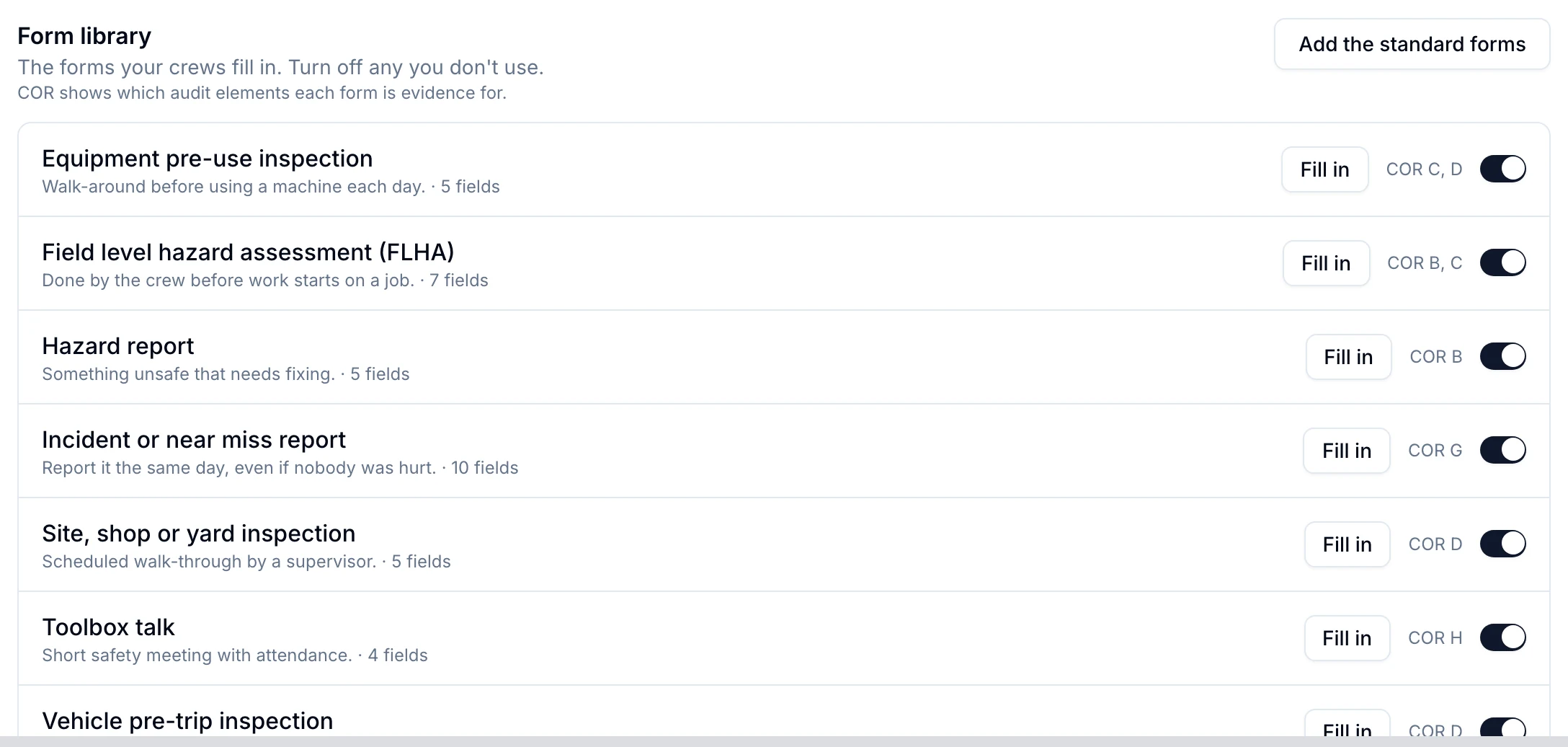
Add the standard forms
- Go to Safety, Forms and records.
- Under Form library, click Add the standard forms.
This adds eight ready-made forms:
- Field level hazard assessment (FLHA)
- Vehicle pre-trip inspection
- Equipment pre-use inspection
- Toolbox talk
- Incident or near miss report
- Hazard report
- Worker orientation checklist
- Site, shop or yard inspection
Each form shows which COR audit elements it counts as evidence for, such as COR D for inspections. Turn off the switch beside any form you don’t use and your crew won’t see it.
Fill in a form on the phone
Operators find their forms from Account, My certificates, Fill a form.
- Tap the form.
- Answer each item. Inspections ask for Pass or Fail, or Yes, No or N/A. Some items are marked as critical.
- Add photos where the form asks for them, and pick the unit under Truck or equipment on an inspection.
- Sign at the bottom. On forms the whole crew signs, tap Add a crew member for each person.
- Tap Send.
If the phone has no signal, the answers are saved on the phone so nothing typed is lost, but photos and signatures have to be added again. When a critical item fails, the operator sees Form sent. The office was told about the critical failure. and owners, admins and dispatchers get a notification.
Office staff can fill in a form too. On Forms and records, click Fill in beside the form.
Require a hazard assessment before work starts
The Field Level Hazard Assessment is filled in from the job itself, so it’s tied to that job. On the operator’s job screen, they tap Do the hazard assessment, list each hazard with how they’ll control it (the form suggests common hazards), and send it.
If an owner or admin turns on Hazard assessment before work starts on Safety, Setup, the operator can’t tap Start work until someone on the crew has sent it. The phone says Start work unlocks after your crew sends the hazard assessment. The Safety overview also lists any job in progress that has no hazard assessment.
Read the records
Safety, Forms and records lists the latest records with the form, the result, when it was sent, who sent it and the job. The result shows No problems, the number of problems, or Critical failure.
Click a record to see every answer, the photos, the signatures, where it was sent from and the job it belongs to. Click Print or save as PDF for a paper copy. Each record also carries a record fingerprint, which shows the record hasn’t changed since it was sent.
From a record you can add a corrective action for anything that needs fixing. See incidents, hazards and corrective actions.
Track your trucks and equipment
Safety, Trucks and equipment lists every unit your crew inspects, with out of service units first. Owners, admins and dispatchers can add and edit units.
- Click Add a unit.
- Choose the Type (Truck, Trailer, Equipment or Other) and fill in the Unit number and Name. Plate, Serial number or VIN and Notes are optional.
- Under Scheduled inspection, pick how often a fixed inspection is due, such as Every year for an annual CVIP. Enter what it is under What it is and when it was Last done. Leave the date empty if it has never been done, and the unit shows as due now.
- Under Goes on jobs as, choose the catalog item you bill this unit under, if any.
- Click Save.
Daily pre-use checks don’t count toward the scheduled inspection. To take a unit off the road, turn on Out of service and give the reason. Mark a unit you sold or no longer use as Retired and its history is kept.
When a unit is out of service or overdue for inspection and its catalog item is on a job today or tomorrow, the Safety overview flags it so you can swap the unit before the crew leaves.