
Line items are what ends up on the invoice: the hours, loads, equipment and materials a job used, each with a quantity and a rate. You can add them when you create the ticket or any time before it’s invoiced. Owners, admins and dispatchers can change line items.
Add line items
- Open the ticket and click Add line item in the Line items card. On a ticket that already has lines, click Edit (or Edit line items once work has started).
- On the form, click Add line item to start a new line.
- Choose From catalog to pick one of your services, or Custom to type your own item name.
- Set the Quantity. A catalog item fills in its rate and taxes for you. For a custom line, enter the Rate and tick the taxes that apply.
- Add more lines if you need them, then save.
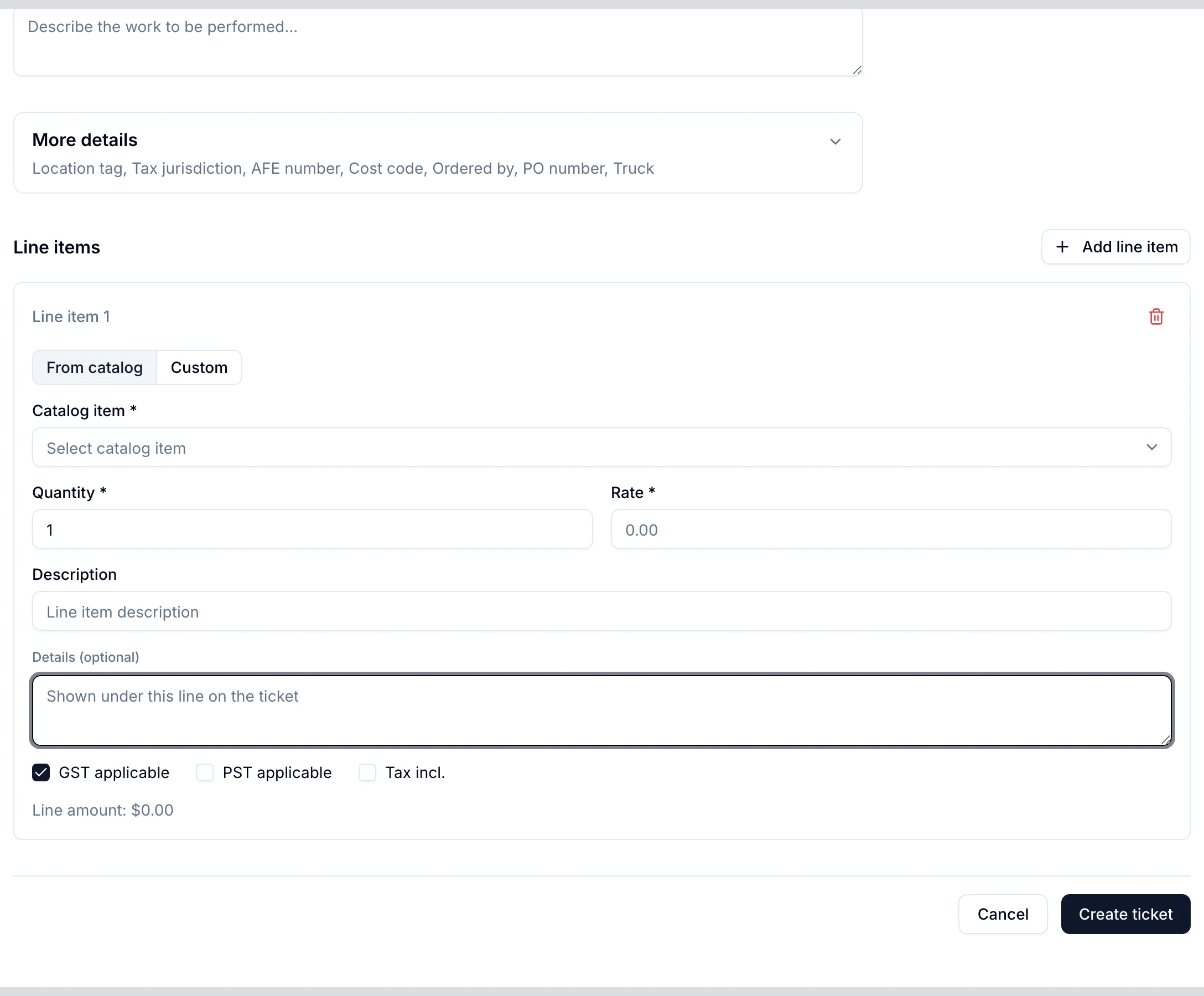
Each line can also have a Description and Details (optional), which show under the line on the ticket.
When a client has its own rate for a catalog item, the line uses it and says Using client rate. Otherwise it shows the Default rate from your catalog.
If your company uses fuel surcharges and the client is set up for one, an Add Fuel Surcharge button adds it as its own line, based on the client’s percentage.
Where line items can be changed
- On a Draft or Pending ticket, Edit opens the whole form, line items included.
- Once work has started (In progress, Awaiting review or Completed), Edit line items opens a form with only the lines. The client, schedule and job details are locked by then.
- Once a ticket is Invoiced or Voided, its lines can’t change. An invoiced ticket shows a link to its invoice instead of the totals.
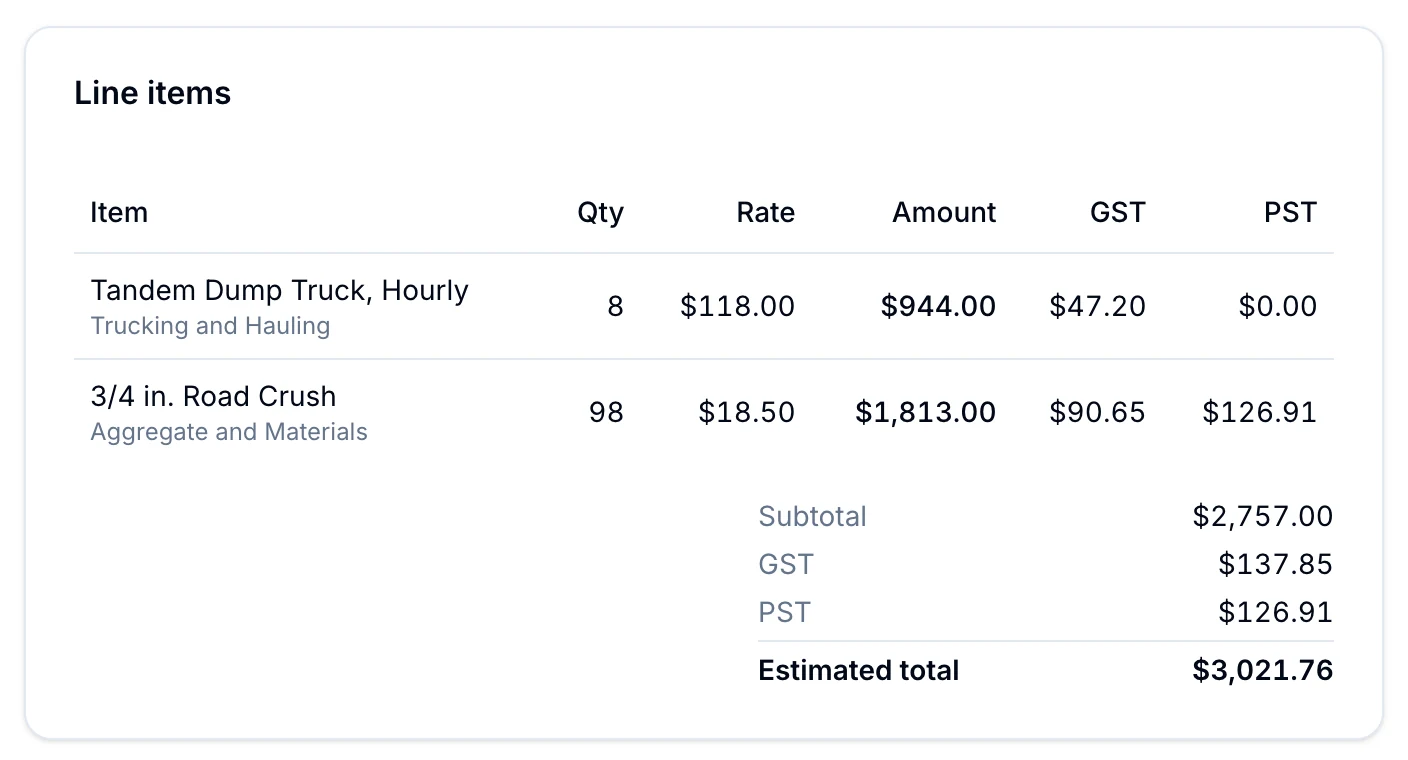
The ticket page shows an Estimated total. The invoice has the final amounts.
Change a rate
Owners can always change a rate on a line. Admins and dispatchers can change one if their role includes Override rates. For everyone else the rate is locked to the catalog or client rate.
If your company turned on Approve price changes in Settings, a price changed by a dispatcher waits for an owner or admin before it counts. The ticket then shows a badge such as “1 rate override pending approval”, which opens Price approvals. See price approvals.
Add a discount
Discounts can be added to a ticket once it has been created, by anyone who can see prices. Open the ticket’s edit form and find Subtotal and discounts.
- Click Add discount.
- Give it a label, such as “Loyalty discount”.
- Choose Flat amount or Percentage and enter the value.
- Save the ticket.
Tax is worked out after the discount. Once a ticket is invoiced or voided, its discounts can’t change.
When prices are hidden
Some roles don’t see prices. If yours is one of them, the form says Prices are hidden for your account. You can still add catalog items and change quantities, and changing a quantity still changes the total. Your office sets the prices, and catalog items are priced when you save.