
With card payments turned on, every invoice you email has a link where the client can pay by card. The payment lands on the invoice by itself, so there’s nothing to record. You can also ask for a deposit, down payment or retainer on a ticket before the work is done.
Card payments need the Card payments add-on, through Stripe or Helcim. An owner connects the account under Settings > Add-ons. See Card payments for the setup. Deposits work without it, but then the client pays the deposit by cheque, transfer or cash and you record it yourself.
How a client pays by card
- The client opens the link in the invoice email.
- They click Pay with card (or Pay with credit card) and pay the balance on a secure payment page.
- They see Payment received, and Dispatch emails them a receipt.
On your side, the payment shows under Payments on the invoice and the status changes to Paid. The client can still see your other ways to pay, such as Interac e-Transfer, under Or pay manually.
If your company adds a credit card surcharge, the client sees the surcharge and the card total before paying, plus a Pay with debit or prepaid (no surcharge) option. The surcharge is set under Settings > Add-ons > Card payments.
Turn off card payment for one invoice
For a large amount you’d rather get by bank transfer, owners and admins can switch off the card option on one invoice. When you send it, or later with Email again…, untick Let the client pay by card online. The client still sees your payment instructions.
Your company can also set a Card limit under Settings > Add-ons > Card payments. Invoices above that amount only show manual payment options.
Ask for a deposit on a ticket
A deposit bills part of the job up front. It has no tax, and once it’s paid it comes off the final invoice. Owners, admins and dispatchers can ask for one.
- Open the ticket and find the Deposits card.
- Click Request deposit.
- Under Show it as, pick Deposit, Down payment or Retainer.
- Choose Percentage (of the job before tax) or Fixed amount, and enter the amount. The window shows what the client will pay.
- Leave Email it to the client ticked and check the Client email, or untick it to send it later.
- Click the create button. It shows the amount, for example Create deposit of $500.00.
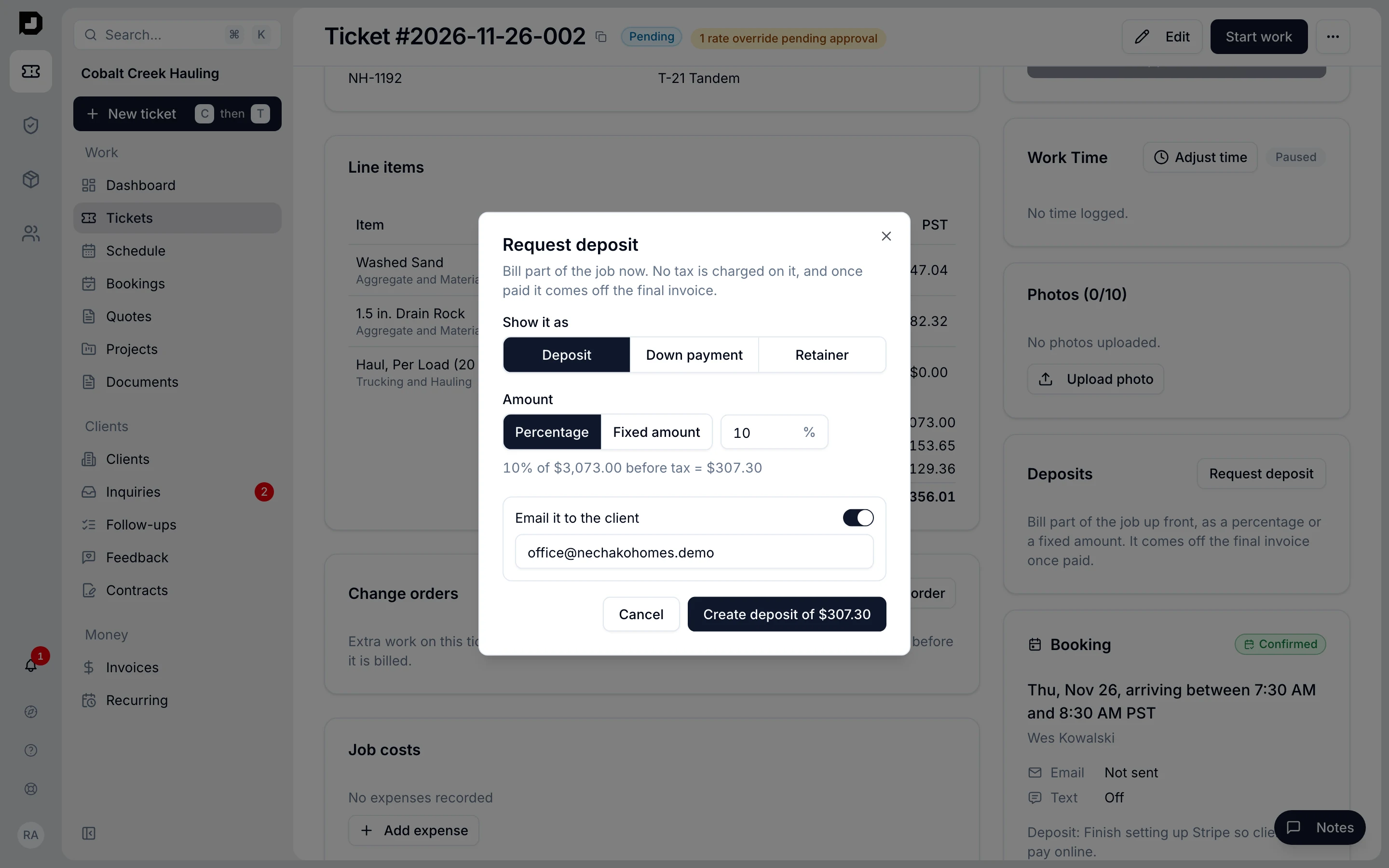
The deposit is a small invoice of its own. It’s listed on the ticket’s Deposits card and on the Invoices list, and the client pays it the same way as any invoice: online by card if you take cards, or by any other method you then record.
A percentage needs the ticket to have a price already. If it doesn’t, use a fixed amount.
How a paid deposit comes off the final invoice
When you create the invoice for the ticket, the paid deposit is applied by itself. The invoice is taxed on the full price, and the deposit counts as already paid, so the client only owes the rest. The Deposits section on the invoice shows how much was applied.
A deposit that isn’t paid yet is applied once it’s paid, when the draft is saved or sent. To take a deposit off an invoice, click Remove from this invoice in that section.