
Some of the people who drive or work for you aren’t on payroll. You pay them for each job, by the hour or as a flat amount. Team > Payouts shows what you’ve paid each of them in a period and what they’re owed now for finished jobs.
Payouts is for owners and admins.
Mark someone as a subcontractor
Payouts only tracks people marked as subcontractors.
- Go to Team > People and click the operator’s name.
- Under Pay, set their Hourly pay rate (CAD) if you pay them by the hour.
- Turn on Subcontractor.
- Click Save.
You can also turn on Subcontractor when you invite an operator. Once it’s on, they see their own pay in the app.
Set a flat amount for one job
By default a subcontractor is paid their hourly rate for the time they record. To pay a set amount for a particular job instead, open the ticket they’re assigned to and find the Subcontractor pay card. Type the amount in the Flat amount box and click Save. They see the amount in their app before the work starts. Click Use hourly rate to go back to hourly pay for that job.
See what you owe
- Open Team, then Payouts.
- Pick the period with the arrows, or choose 1 week or 2 weeks.
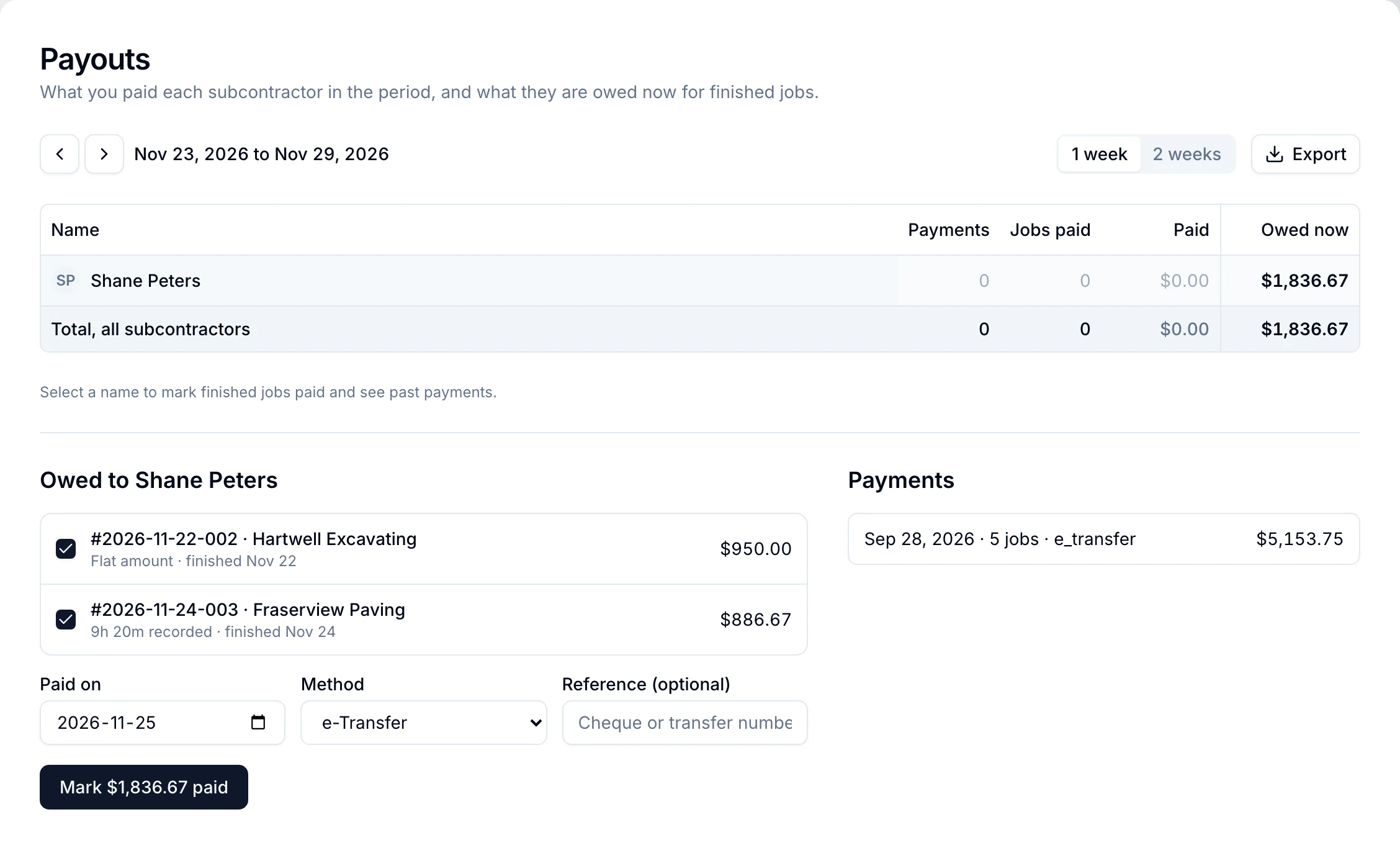
Each row shows the number of Payments in the period, the Jobs paid, the amount Paid and what’s Owed now. Select a name to see their unpaid jobs and past payments.
Record a payment
- On Payouts, select the subcontractor’s name.
- Their finished, unpaid jobs are listed and all ticked. Untick any job you aren’t paying for yet.
- Set Paid on, pick the Method (e-Transfer, Cheque, Direct deposit, Cash or Other), and add a Reference like a cheque number if you have one.
- Click the button that shows the total, for example Mark $640.00 paid.
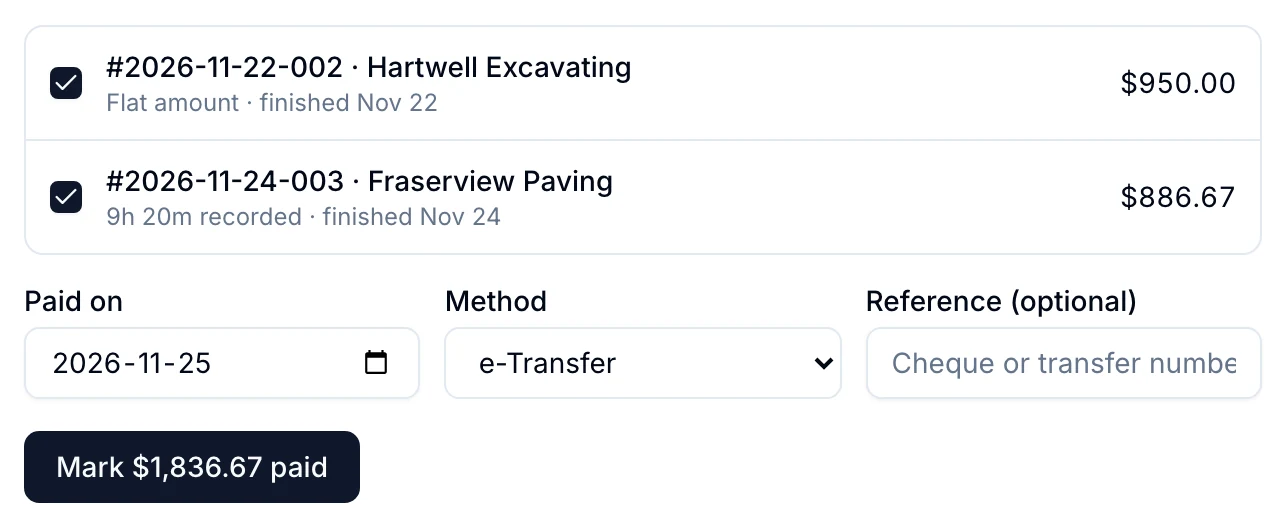
Dispatch works out each amount from the job itself, so the total is always based on the recorded hours or the flat amount. The payment then shows under Payments for that person.
Export payouts
Click Export for the period:
- PDF payouts: everyone’s payments on your letterhead.
- CSV, every payment: one row per payment, with method and reference.
- CSV, totals: one row per subcontractor.