
Owners, admins and dispatchers who open Dispatch on a phone get the field view. It covers what you need away from the desk: today’s work, what needs your attention, the schedule, and money coming in. Tablets and computers still get the full app.
The tabs
The bar at the bottom of the screen has four tabs and a create button in the middle.
- Today greets you and shows today at a glance: jobs today, how many are in progress and done, and what was collected today.
- Tickets lists the jobs for a day, with Yesterday, Today and Tomorrow at the top.
- Money shows what was collected today and this week, what’s outstanding and overdue, your unpaid invoices and recent payments.
- More has the schedule, clients, quotes, invoices and your account. If your company has AI turned on, it also has Ask Noah.
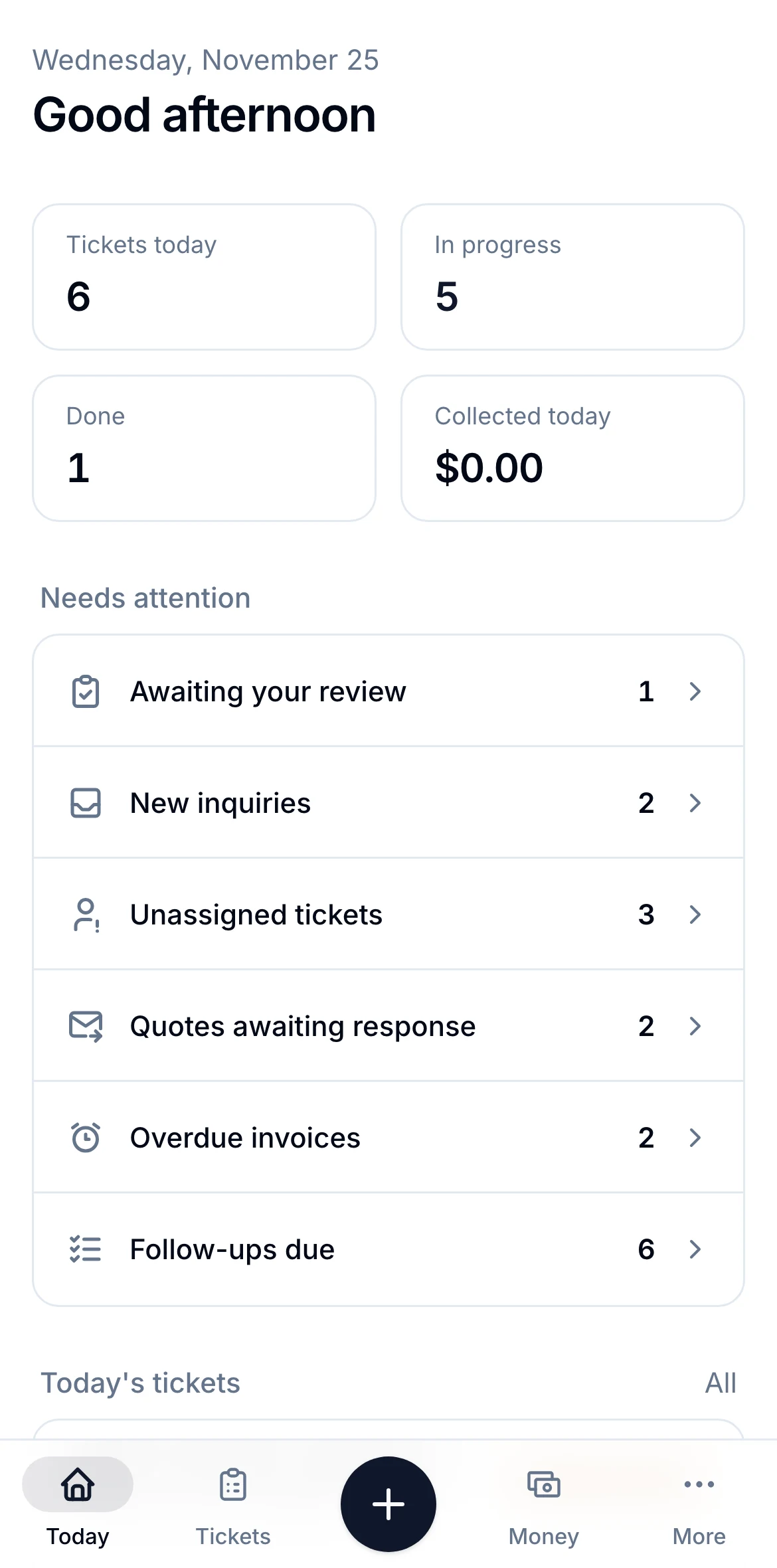
The Tickets tab uses your company’s word for jobs, so it may say something else.
See what needs attention
Under Needs attention on the Today tab, Dispatch lists anything waiting on you, such as jobs awaiting your review, unassigned or unscheduled jobs, overdue invoices, follow-ups that are due and late starts. Tap a line to see those jobs or invoices. When nothing is waiting, it says All clear.
Check on a job
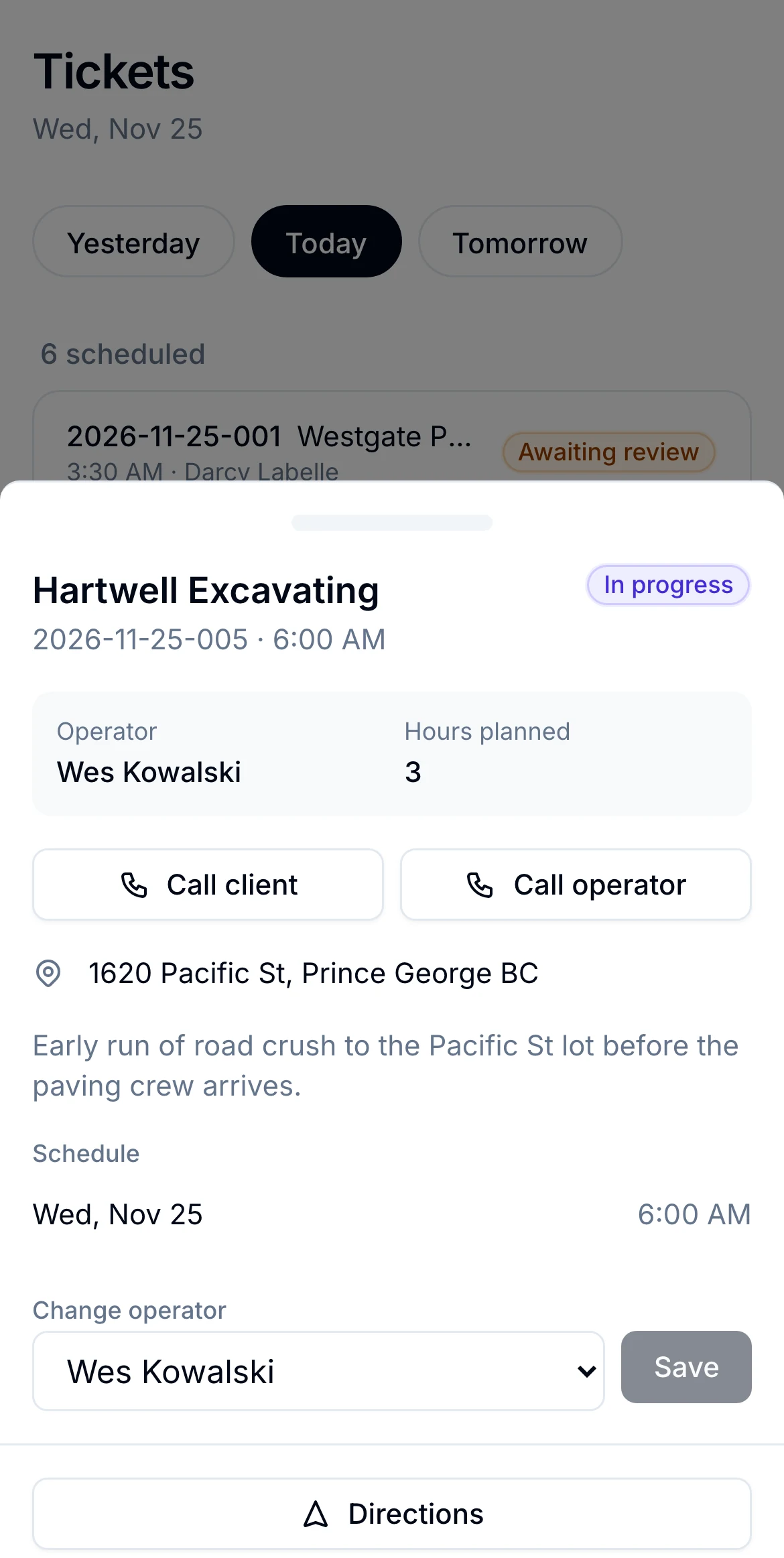
Tap any job to open it. You can call the client or the operator from the buttons at the top, see when it’s scheduled, and tap Directions to open the location in your maps app.
To give the job to someone else, pick a person under Change operator (or Assign operator if nobody has it yet), then tap Save.
Review finished work
Jobs your operators have marked complete show under Awaiting your review on the Tickets tab.
To send a job back, open it and tap Send back. Under What needs fixing?, type what the operator should do, then tap Send back to operator. The operator gets a notice and sees your note at the top of the job. See when the office sends a job back for what they see.
Approving the work goes through a cost review in the full app (Review costs and approve), so open the job on a computer or tablet to approve it.
Create a quote, invoice or ticket
Tap Create, the plus button in the middle of the bottom bar. Pick New ticket, New quote or New invoice to open a short form with the basics. For anything more detailed, use a computer.
Record a payment
Open an unpaid invoice from Money or from More, then tap Record payment. Enter the Amount, pick how it was Paid by, and set the Date received. Tick Email a receipt to the client if you want one sent, then tap the record button.
Your account on a phone
Open More, then Account. You can change your profile and password, choose your Alerts, set up Two-step sign-in, and see your Signed in devices.
The More tab also has a This phone section. Use it to add Dispatch to your home screen and turn on Alerts on this phone for finished jobs, payments, quote replies and new inquiries.
If you belong to more than one company, tap the company name at the top of the screen to switch.
Pages that need a computer
Settings, reports, the catalog and editing documents aren’t in the field view. If you follow a link to one of those pages on your phone, Dispatch says it’s not available on mobile and offers to take you back. Open it on a computer or tablet instead.