
After you mark a job complete, the office checks it before it’s billed. If something is missing or wrong, like a photo they need or a detail in your work log, they can send the job back to you with a note saying what to fix.
How you’ll know
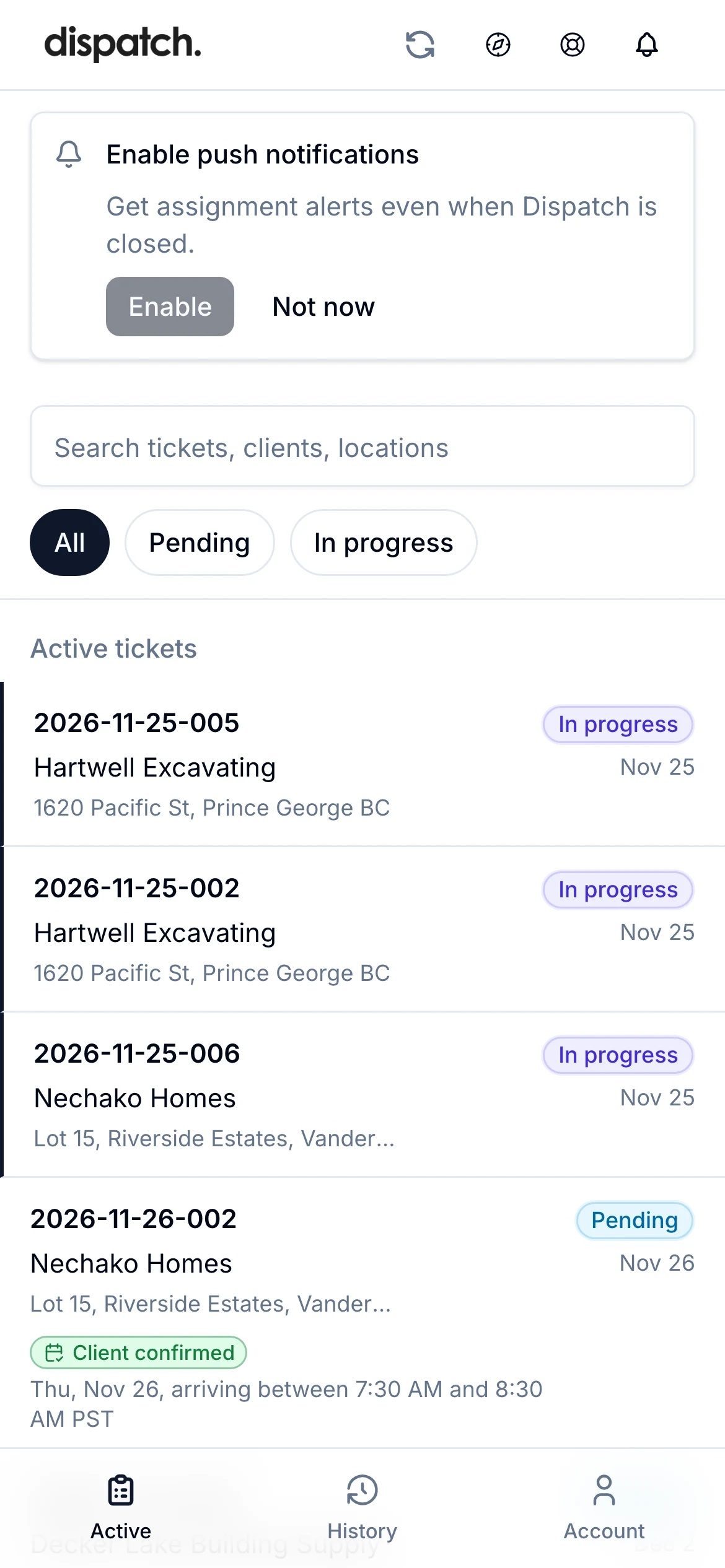
You get a notification that the job was returned, with the start of the office’s note. Tap it to open the job. The job is back on your Active list and says In progress again.
At the top of the job, a red box titled Returned by dispatch shows the office’s full note.
Fix it and finish again
- Read the note in Returned by dispatch.
- If you’re going back to work on the job, tap Resume to start your timer again. Skip this if you’re only adding a photo or a note.
- Make the fix. You can add photos, notes and expenses again while the job is in progress.
- Tap Mark complete, write your Work log and confirm, the same way as before.
The red box goes away once you mark the job complete again, and the office gets another notice that it’s ready for review.
If you’re not sure what the office wants, add a note on the Notes tab or call them.