
When you sign in as an operator, Dispatch opens your job list. It shows only the jobs the office has given you. Your company may call jobs something else, like “tickets” or “loads”, but they work the same way.
The three tabs
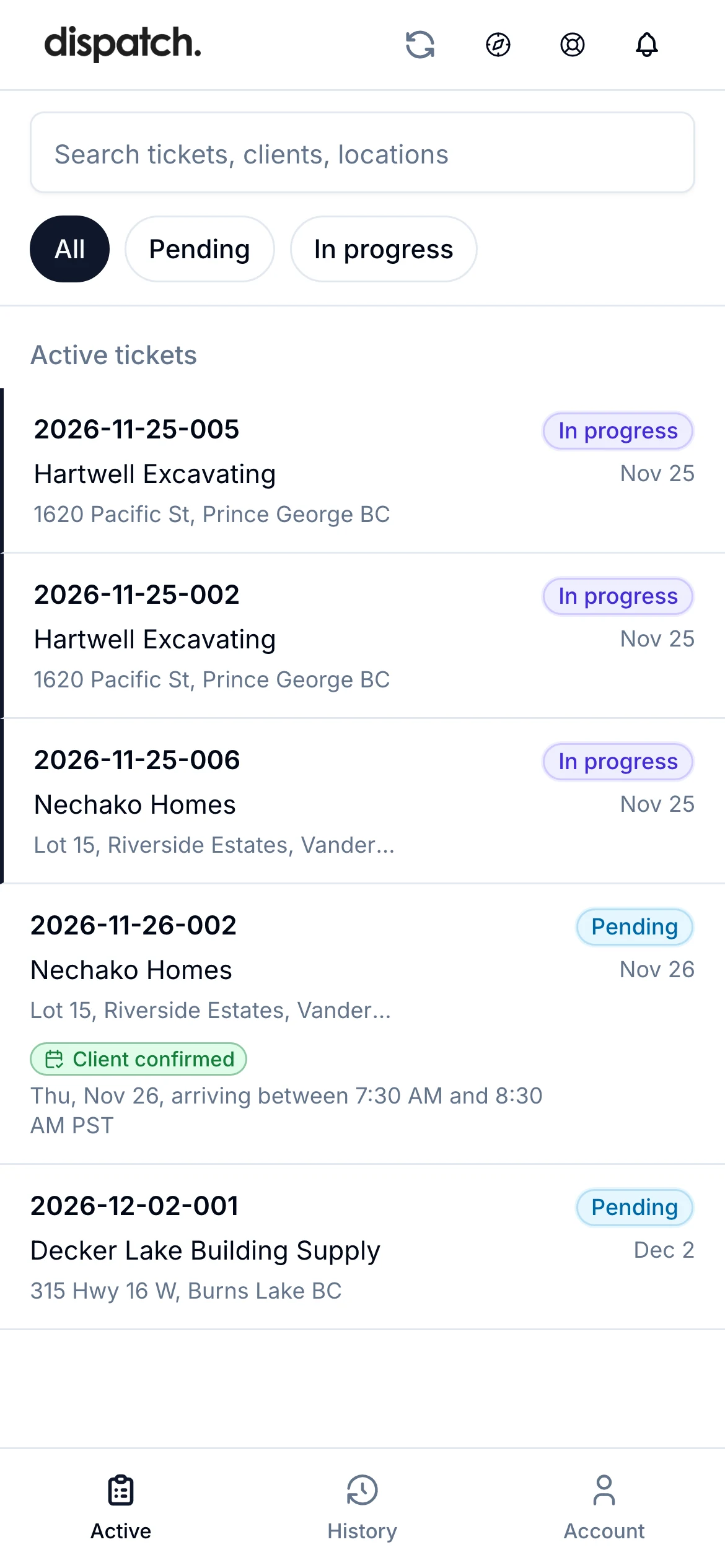
The bar at the bottom of the screen has three tabs.
- Active is your work: jobs waiting to start, jobs in progress, and jobs you’ve finished that the office hasn’t checked yet.
- History is jobs the office has approved over the last 30 days.
- Account has your profile, notifications and sign-out.
Read the list
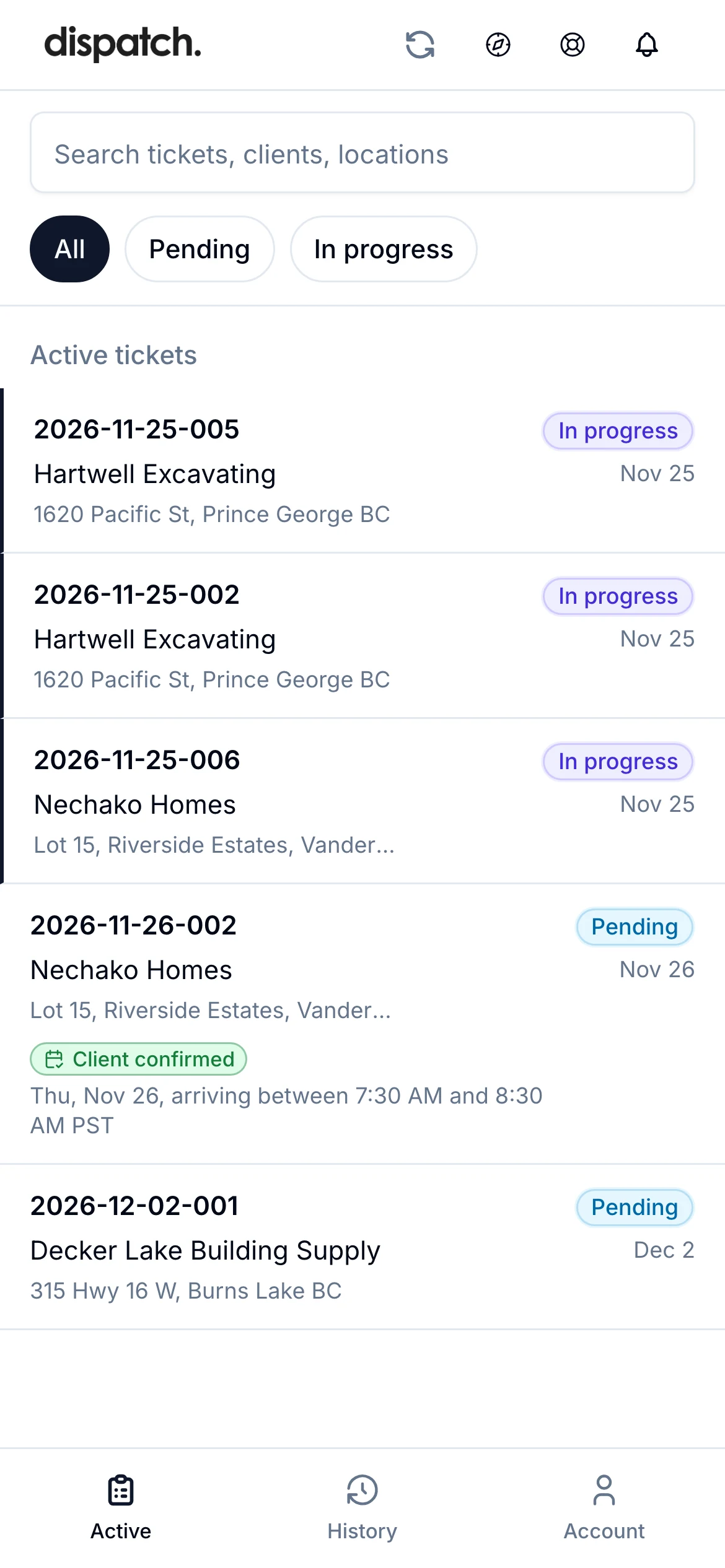
Each job shows the client, the location, the date it’s booked for and a status. A job you’re working on stays at the top.
- Pending means the job is yours but you haven’t started it.
- In progress means you’ve started it. Inside the job it says Paused while your timer is stopped.
- Awaiting review means you finished it and the office is checking it.
If someone else runs the job and you’re helping, the job says Additional.
Find a job
Type in the search box to find a job by its number, the client or the location. Tap Pending or In progress to show only those jobs, or All to see everything again.
To get the latest jobs, pull the list down, or tap the refresh button at the top.
Open a job
Tap a job to open it. You’ll see what the job is, who it’s for and when, plus tabs for Details, Photos and Notes. Tap the arrow at the top left to go back to your list.
On the Details tab, tap the address to open it in Google Maps for directions. Next, see start and finish a job.
When you have no jobs
If your list is empty, the office hasn’t given you any work yet. You’ll get a text when they do, as long as your company sends texts.
If you lose signal
A bar at the top says you’re offline. Anything you change won’t save until you’re back online, so wait for signal before you tap buttons.
Add Dispatch to your home screen
When your list is empty, Dispatch may offer to add itself to your home screen. Tap Install and follow the steps. You can also do it later from the Account tab, under Install Dispatch app. It then opens like any other app on your phone.
Tip: On a computer, operators see the same list with the job open beside it.