
Every ticket has one operator who starts and completes it. Owners, admins and dispatchers can assign operators. You can pick someone when you create the ticket, from the ticket page once it’s submitted, or by dragging the job on the schedule.
Pick someone on a new ticket
On the Create ticket form, choose a person under Operator. The ticket stays a draft, and that person isn’t told anything yet. When you click Submit ticket, they’re assigned and get a text if texts are on for them.
To pick someone else before it goes out, click Edit on the draft and change the operator.
Assign someone on a submitted ticket
Once a ticket is Pending or In progress, use the Operator card on the right of the ticket page.
- Click the search box in the card and pick a person.
- Leave Text the job details ticked to send them a text with the job, or untick it if you’d rather tell them yourself.
- Click Assign.
If the search shows a note under someone’s name, read it before you pick them. With the Health & Safety add-on, it lists a certificate that’s missing or expired or a policy they haven’t signed. With the Subcontractors add-on, it warns when their company isn’t approved or its paperwork is incomplete.
Texting the operator
The text goes to the phone number in the person’s team profile. If texts are off for them, the card tells you so, and you can turn them on in their profile under Team.
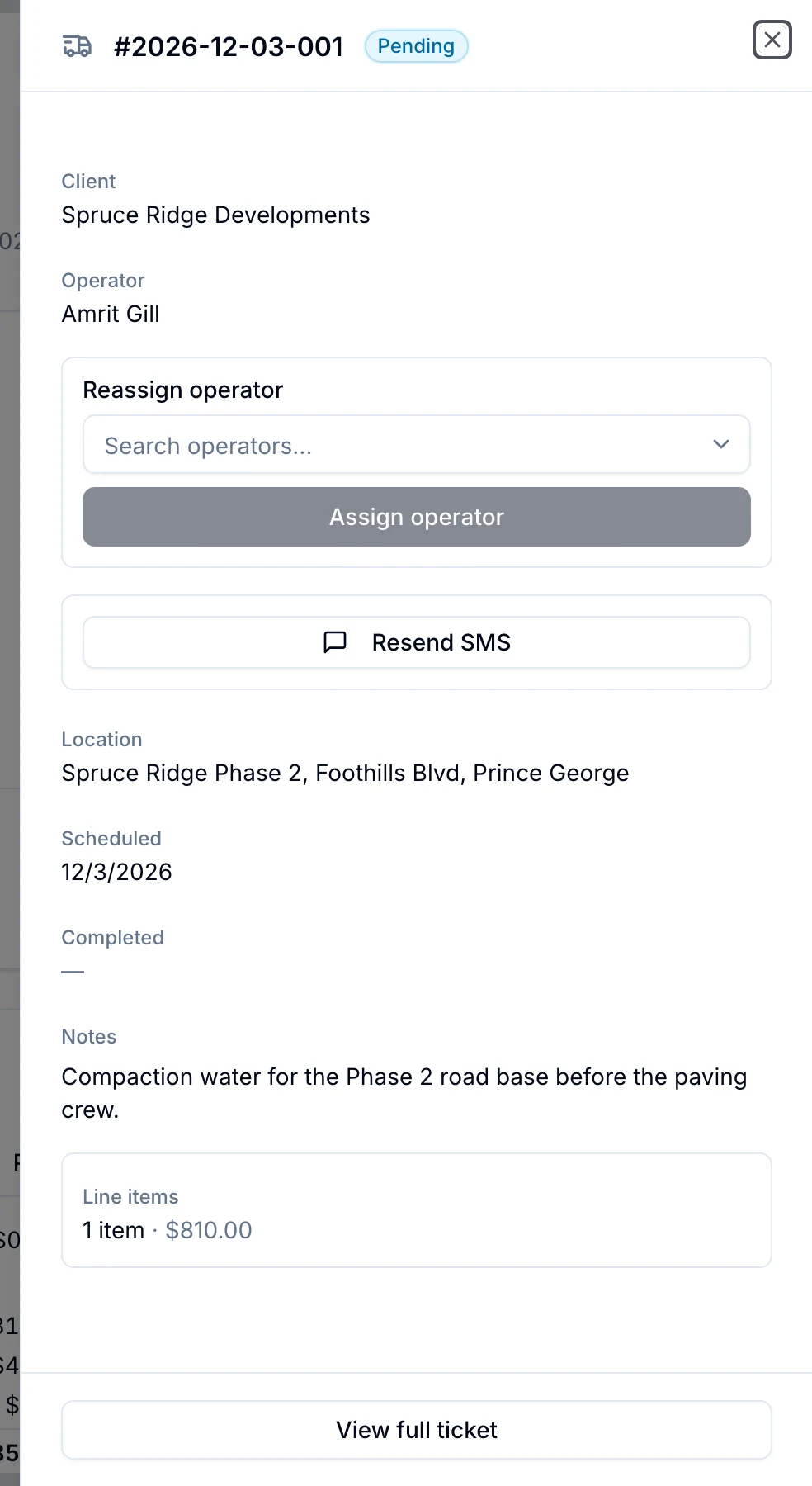
Under the operator’s name, a small status shows whether the last text was delivered. If it didn’t arrive or they deleted it, click Resend SMS. After a resend the button asks you to wait a few minutes before you can send another.
Change the operator
On a pending or in-progress ticket the card shows Replace followed by the current operator’s name.
- Pick the new person.
- Click Replace.
- Check the window that opens. The person you’re replacing is taken off the ticket and told it was reassigned. Leave Text the job details ticked to text the new person.
- Click Make primary.
Once a ticket is Awaiting review or later, its operator can’t be changed.
Assign from the schedule
On the schedule, dragging a job into another operator’s row moves the whole ticket to that person. Clicking a job on the board opens a side panel with Assign operator as well. See the schedule.
Put a crew on one job
With the Additional operators add-on, a ticket can have more than one person. The card is then called Operators and lists everyone on the job.
- The first person you pick is the Primary, who starts and completes the ticket. Everyone else is Additional. They see the ticket on their phone and track their own hours.
- To add people, pick one or more in the search and click Add (or Add 2 people, and so on).
- To change who leads the job, click Additional next to a person and choose Make primary. The old primary stays on the ticket as additional.
- To take someone off, click Additional next to them and choose Remove from ticket. If they’ve already logged time on it, delete those time entries first.
Note: Without the add-on, a ticket has one operator, and picking someone new replaces the person on it.