
Sending an invoice emails it to your client with the PDF attached and a link to view it online. The invoice then shows as Sent and you can start recording payments on it. Owners, admins and dispatchers can send invoices.
Send an invoice by email
- Open the draft invoice.
- Click Send invoice, then Send via email….
- Under To, the client’s primary contact is picked. Tick any other Saved addresses, or click Add recipient to type a new one.
- Write a Note (optional) if you want a line at the top of this email only.
- Click Preview to see the email the client will get.
- Click Send email.
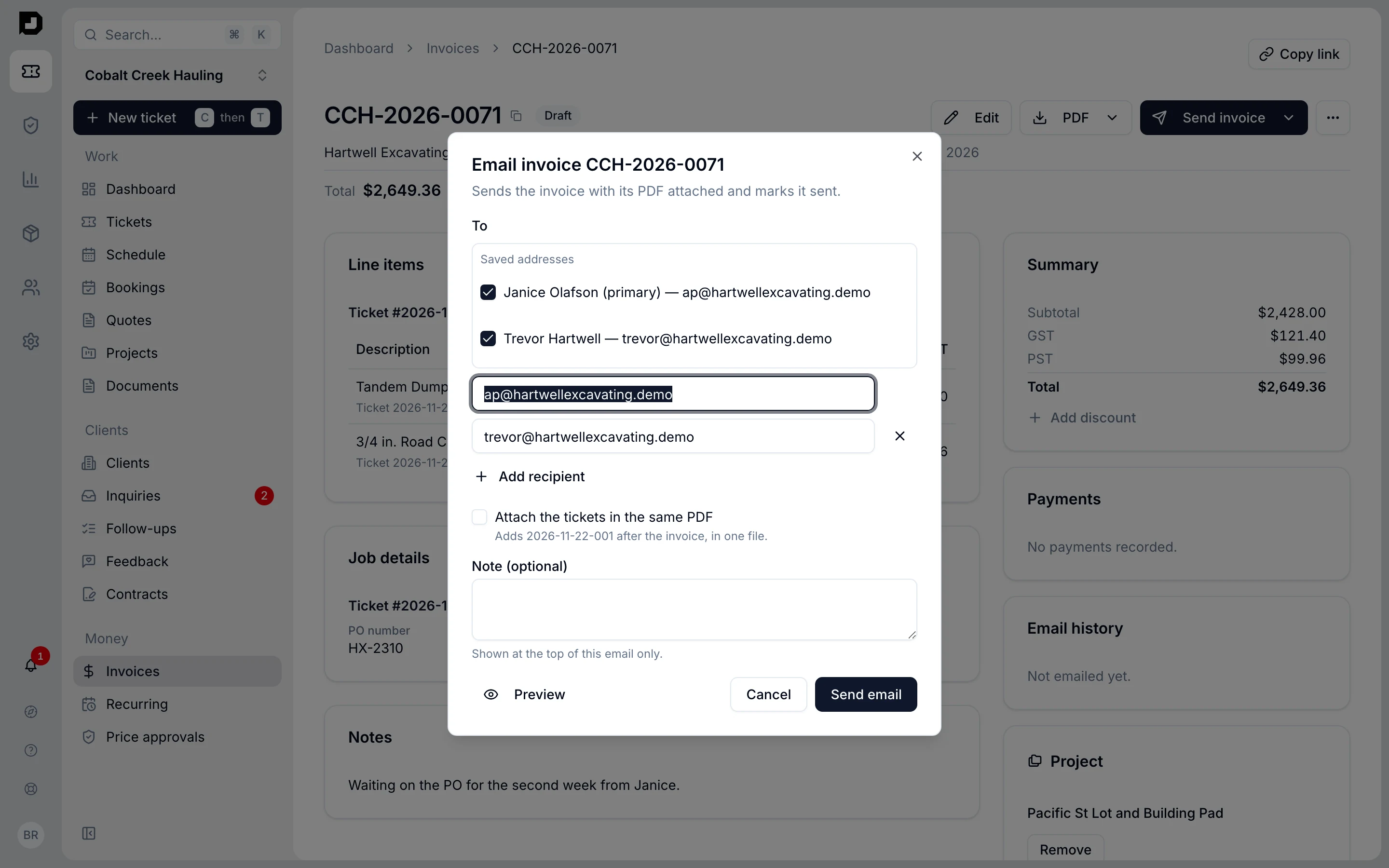
If the client has no email on file, type one in. A Save as billing email box lets you keep it on the client for next time.
Send it with the tickets
To include the completed tickets in the same PDF, click Send invoice, then Send with tickets…. Or tick Attach the tickets in the same PDF in the email window. Clients set to Send invoices with their tickets have this box ticked every time.
Card payments on this invoice
If your company takes card payments online, owners and admins see Let the client pay by card online in the email window. Untick it for an amount you’d rather get by bank transfer. The client still sees your other payment instructions. See Card payments and deposits.
Already handed it over?
If you gave the client a printed copy or sent it some other way, click Send invoice and choose Mark as sent. No email goes out, but the invoice counts as sent and you can record payments.
Download or print the PDF
Click PDF on the invoice and choose Download PDF, Download with tickets or Print.
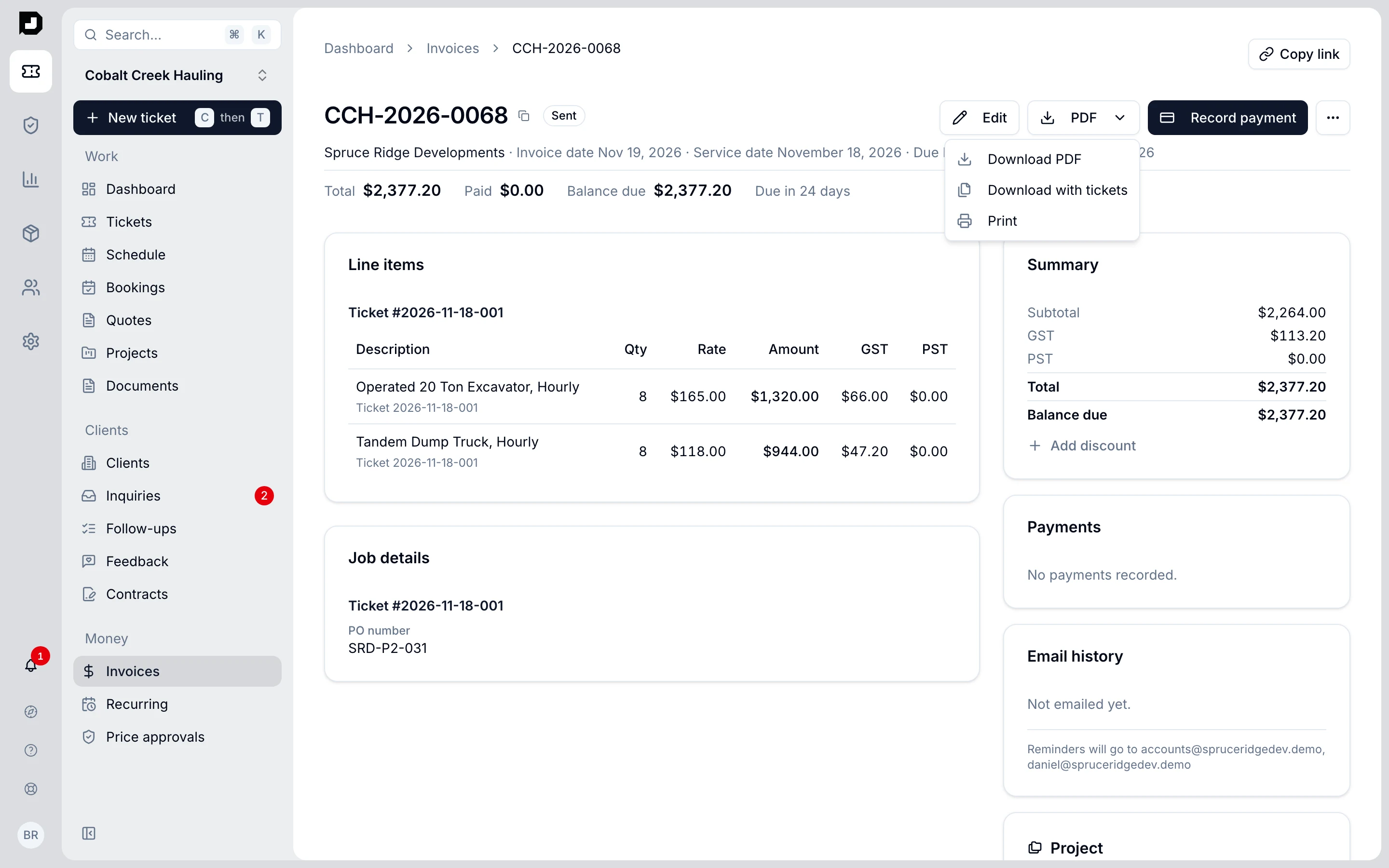
You need to be able to see rates to get the PDF, because it prints every price.
Email it again
To resend an invoice that’s already gone out, open the ⋯ menu and click Email again…. It sends the current PDF again and the status doesn’t change. You can pick different recipients this time.
The Email history on the invoice lists every email sent for it, who sent it, who it went to, and whether it was delivered. If one shows Not delivered, Dispatch tries again on its own, or you can send it again yourself.
Payment reminders
Dispatch emails a reminder when an invoice is overdue, on the days after the due date your company picked under Settings > Getting paid > Payment reminders. If no days are set, no reminders go out.
The invoice page shows Reminders will go to followed by the addresses. These are the people the invoice was last emailed to. If there’s no email for reminders, the page says so with a link to add one on the client.
Reminders also show in the invoice’s Email history.
Overdue interest
If your company charges interest on overdue invoices, an Overdue Interest section on the invoice shows what’s been added each month. Interest is tracked on its own, so it never changes the invoice total or its PDF. Click View statement for a statement of account the client can read. Owners and admins can Waive a month’s interest.